import "@arcgis/map-components/components/arcgis-slider-color-legacy";- Inheritance:
- ArcgisSliderColorLegacy→
PublicLitElement
- Since
- ArcGIS Maps SDK for JavaScript 5.0
This is a legacy component. It relies on an underlying widget as part of our migration to native web components.
A fully native replacement for this component is in development. Once it reaches feature parity, the legacy component will be deprecated and no longer maintained. At that point, development should use the native component.
The Color Slider component is intended for authoring and exploring data-driven visualizations in any layer that can be rendered with a ColorVariable.
See the image below for a summary of the configurable options available on this slider.

The updateFromRendererResult() method can be used to intelligently populate slider properties including max, min, the color visual variable configuration, and the slider's histogram after the renderer has been created from the result of the createContinuousRenderer() method.
const colorRendererCreator = await import("@arcgis/core/smartMapping/renderers/color.js");const viewElement = document.querySelector("arcgis-map")!;const colorSlider = document.querySelector("arcgis-slider-color-legacy")!;
const featureLayer = new FeatureLayer({  url: "https://services.arcgis.com/P3ePLMYs2RVChkJx/arcgis/rest/services/ACS_Poverty_by_Age_Boundaries/FeatureServer/1",});
await viewElement.viewOnReady();viewElement.map?.add(featureLayer);
const params: ContinuousRendererParameters = {  layer: featureLayer,  field: "B17020_calc_pctPovE",  view: viewElement.view,  theme: "above-and-below",};
const rendererResult = await colorRendererCreator.createContinuousRenderer(params);
featureLayer.renderer = rendererResult.renderer;
const histogramResult = await histogram({  ...params,  numBins: 30,});
colorSlider.updateFromRendererResult(rendererResult, histogramResult);
This slider should be used to update a color visual variable in a layer's renderer. It is the responsibility of the app developer to set up event listeners on this slider that update the color variable of the appropriate renderer.
// when the user slides the handle(s), update the renderer// with the updated color stopscolorSlider.updateFromRendererResult(rendererResult, histogramResult);
const updateRendererFromSlider = () => {  const renderer = featureLayer.renderer?.clone();  if (!renderer || !("visualVariables" in renderer) || !renderer.visualVariables?.[0]) {    return;  }
  const colorVariable = renderer.visualVariables[0].clone();  colorVariable.stops = colorSlider.stops;
  renderer.visualVariables = [colorVariable];  featureLayer.renderer = renderer;};
colorSlider.addEventListener("arcgisThumbChange", updateRendererFromSlider);colorSlider.addEventListener("arcgisThumbDrag", updateRendererFromSlider);colorSlider.addEventListener("arcgisPropertyChange", updateRendererFromSlider);- See also
Demo
Properties
| Property | Attribute | Type |
|---|---|---|
auto-destroy-disabled | ||
handles-synced-to-primary | ||
| ||
icon | ||
| ||
| ||
| ||
max | ||
min | ||
precision | ||
primary-handle-enabled | ||
reference-element | ||
| ||
| ZoomOptions | null | undefined |
autoDestroyDisabled
- Type
- boolean
If true, the component will not be destroyed automatically when it is disconnected from the document. This is useful when you want to move the component to a different place on the page, or temporarily hide it. If this is set, make sure to call the destroy() method when you are done to prevent memory leaks.
- Attribute
- auto-destroy-disabled
- Default value
- false
handlesSyncedToPrimary
- Type
- boolean
Only applicable when three thumbs (i.e. handles) are set on the
slider (i.e. when primaryHandleEnabled is true). This property
indicates whether the position of the outside handles are synced with the middle, or primary,
handle. When enabled, if the primary handle is moved then the outside handle positions are updated
while maintaining a fixed distance from the primary handle.
- See also
- Attribute
- handles-synced-to-primary
- Default value
- true
Example
// enables the primary handles and syncs it with the otherscolorSlider.primaryHandleEnabled = true;colorSlider.handlesSyncedToPrimary = true; histogramConfig
- Type
- HistogramConfig | null | undefined
The histogram associated with the data represented on the slider. The bins are typically generated using the histogram statistics function.
- See also
Example
const histogramResult = await histogram({  layer: featureLayer,  field: "fieldName",  numBins: 30,});
 slider.histogramConfig = {   bins: histogramResult.bins };      ```
icon
- Type
- IconName
Icon which represents the component. Typically used when the component is controlled by another component (e.g. by the Expand component).
- See also
- Attribute
- icon
inputFormatFunction
- Type
- LabelFormatFunction | null | undefined
A function used to format user inputs. As opposed to labelFormatFunction, which formats
thumb labels, the inputFormatFunction formats thumb values in the input element when the user begins
to edit them.
The image below demonstrates how slider input values resemble corresponding slider values by default
and won't match the formatting set in labelFormatFunction.

If you want to format slider input values so they match thumb labels, you can pass the same function set in labelFormatFunction to
inputFormatFunction for consistent formatting.

However, if an inputFormatFunction is specified, you must also write a corresponding
inputParseFunction to parse user inputs to understandable slider values. In most cases, if
you specify an inputFormatFunction, you should set the labelFormatFunction to the same value
for consistency between labels and inputs.
This property overrides the default input formatter, which formats by calling toString() on the input value.
- See also
Example
// Formats the slider input to abbreviated numbers with units// e.g. a thumb at position 1500 will render with an input label of 1.5kslider.inputFormatFunction = (value: number): string => { if (value >= 1000000) { return (value / 1000000).toPrecision(3) + "m"; } if (value >= 100000) { return (value / 1000).toPrecision(3) + "k"; } if (value >= 1000) { return (value / 1000).toPrecision(2) + "k"; } return value.toFixed(0);}; ``` inputParseFunction
- Type
- InputParseFunction | null | undefined
Function used to parse slider inputs formatted by the inputFormatFunction.
This property must be set if an inputFormatFunction is set. Otherwise the slider values will
likely not update to their expected positions.
Overrides the default input parses, which is a parsed floating point number.
- See also
Example
// Parses the slider input (a string value) to a number value understandable to the slider// This assumes the slider was already configured with an inputFormatFunction// For example, if the input is 1.5k this function will parse// it to a value of 1500colorSlider.inputParseFunction = (value: string): number => {  const charLength = value.length;  const valuePrefix = parseFloat(value.substring(0, charLength - 1));  const finalChar = value.substring(charLength - 1);
  if (parseFloat(finalChar) >= 0) {    return parseFloat(value);  }  if (finalChar === "k") {    return valuePrefix * 1000;  }  if (finalChar === "m") {    return valuePrefix * 1000000;  }  return parseFloat(value);};          ```
labelFormatFunction
- Type
- LabelFormatFunction | null | undefined
A function used to format labels on the thumbs, min, max, and average values. Overrides the default label formatter. This function also supports date formatting.
Example
// For thumb values, rounds each label to whole numbersslider.labelFormatFunction = (value: number, type?: SliderFormatType): string => { return (type === "value") ? value.toFixed(0) : value.toString();}; ``` max
- Type
- number
The maximum value or upper bound of the slider. Once the slider has rendered with the updateFromRendererResult() method, the user may change this property by selecting the label containing the max value on the slider UI. It is the responsibility of the app developer to set up event listeners that update the color variable of the appropriate renderer.
- Attribute
- max
Example
colorSlider.max = 150; min
- Type
- number
The minimum value or lower bound of the slider. Once the slider has rendered with the updateFromRendererResult() method, the user may change this property by selecting the label containing the min value on the slider UI. It is the responsibility of the app developer to set up event listeners that update the color variable of the appropriate renderer.
- Attribute
- min
Example
colorSlider.min = -150; precision
- Type
- number
Defines how slider thumb values should be rounded. This number indicates the number of decimal places slider thumb values should round to when they have been moved.
Keep in mind this property rounds thumb values and shouldn't be used exclusively for formatting purposes.
- Attribute
- precision
- Default value
- 4
Example
// Rounds slider thumb values to 7 decimal placesslider.precision = 7; primaryHandleEnabled
- Type
- boolean
When true, the slider will render a third handle between the two handles already provided by default. This is the primary handle.
Three or five stops must be defined for the primary handle to render.
The primary handle represents the middle stop.
When handlesSyncedToPrimary is true, then this handle will control the position of the others when moved.
This is typically used in diverging, or above-and-below renderer configurations.
- Attribute
- primary-handle-enabled
- Default value
- false
Example
// enables the primary handles and syncs it with the otherscolorSlider.primaryHandleEnabled = true;colorSlider.handlesSyncedToPrimary = true; referenceElement
- Type
- ArcgisReferenceElement | string | undefined
By assigning the id attribute of the Map or Scene component to this property, you can position a child component anywhere in the DOM while still maintaining a connection to the Map or Scene.
- Attribute
- reference-element
stops
The color stops from the ColorVariable to link to the slider. The colors in these stops will be used to render the color gradient on the slider's track. They should match the colors rendered in the associated layer's renderer.
Example
colorSlider.stops = [ { value: colorSlider.min, color: new Color([0, 255, 0, 1]) }, { value: (colorSlider.max + colorSlider.min) / 2, color: new Color([255, 255, 255, 1]) }, { value: colorSlider.max, color: new Color([255, 0, 0, 1]) },] zoomOptions
- Type
- ZoomOptions | null | undefined
Zooms the slider track to the bounds provided in this property. When min and/or max zoom values are provided, the absolute min and max slider values are preserved and rendered at their typical positions on the slider. However, the slider track itself is zoomed so that thumbs cannot be moved above or below the provided min and max zoomed values.
When a slider is in a zoomed state, the zoomed ends of the track will appear jagged. In the image below, notice how the
top thumb cannot be moved past the zoom max of 31 even though the slider max is 200.
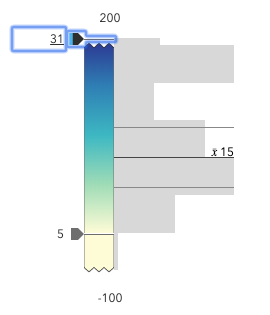
To exit a zoomed state, the user can click the jagged line or the developer can set the zoomOptions to null. It
is up to the developer to provide a UI option for end users to enable zooming on the slider.
Setting the zoomOptions is useful when the slider is tied to heavily skewed datasets where the histogram renders only one or two bars because of outliers.
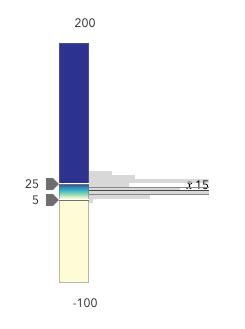
You can remove the influence of outliers by zooming the slider and regenerating a histogram based on the zoomed min and max. This will provide a better view of the data and make the slider more useful to the end user.
Examples
// zooms the slider so thumbs can only be moved to positions between// values of 10 and 25 while maintaining the slider's absolute min and max valuesslider.zoomOptions = { min: 10, max: 25}; ```// disables zooming on the sliderslider.zoomOptions = null; ```// zooms the slider so thumbs can only be moved to positions above// value of 10 while maintaining the slider's absolute min valueslider.zoomOptions = { min: 10}; ```// zooms the slider so thumbs can only be moved to positions below// value of 25 while maintaining the slider's absolute max valueslider.zoomOptions = { max: 25}; ```Methods
| Method | Signature |
|---|---|
componentOnReady inherited | componentOnReady(): Promise<this> |
destroy(): Promise<void> | |
updateFromRendererResult(rendererResult: ContinuousRendererResult, histogramResult?: HistogramResult): void |
componentOnReady
- Signature
-
componentOnReady (): Promise<this>
Creates a promise that resolves once the component is fully loaded.
- Returns
- Promise<this>
Example
const arcgisSliderColorLegacy = document.querySelector("arcgis-slider-color-legacy");document.body.append(arcgisSliderColorLegacy);await arcgisSliderColorLegacy.componentOnReady();console.log("arcgis-slider-color-legacy is ready to go!"); updateFromRendererResult
- Signature
-
updateFromRendererResult (rendererResult: ContinuousRendererResult, histogramResult?: HistogramResult): void
A convenience function used to update the properties of a Color Slider component instance from the
result of
the createContinuousRenderer()
method. This method is used to configure an empty Color Slider to be used with the layer data, and is useful for cases when the app allows the end user to switch data variables.
Note that this method always expects rendererResult to be defined for the slider to function, but histogramResult is optional.
Parameters
| Parameter | Type | Description | Required |
|---|---|---|---|
| rendererResult | The result object from the createContinuousRenderer method. | | |
| histogramResult | The result histogram object from the histogram method. | |
- Returns
- void
Example
const rendererResult = await colorRendererCreator.createContinuousRenderer(params);
featureLayer.renderer = rendererResult.renderer;
const histogramResult = await histogram({  ...params,  numBins: 30,});
colorSlider.updateFromRendererResult(rendererResult, histogramResult);
Events
| Name | Type |
|---|---|
| CustomEvent<{ name: "handlesSyncedToPrimary" | "histogramConfig" | "max" | "min" | "precision" | "primaryHandleEnabled" | "stops" | "zoomOptions"; }> | |
arcgisPropertyChange
arcgisPropertyChange: CustomEvent<{ name: "handlesSyncedToPrimary" | "histogramConfig" | "max" | "min" | "precision" | "primaryHandleEnabled" | "stops" | "zoomOptions"; }> Emitted when the value of a property is changed. Use this to listen to changes to properties.
arcgisReady
arcgisReady: CustomEvent<void> Emitted when the component associated with a map or scene view is ready to be interacted with.
arcgisThumbChange
arcgisThumbChange: CustomEvent<ThumbChangeEvent> Fires when a user changes the value of a thumb via the arrow keys or by keyboard editing of the label on the slider.
Example
// when the user slides the handle(s), update the layer's renderer// with the updated color stopscolorSlider.addEventListener("arcgisThumbChange", updateLayerRenderer);colorSlider.addEventListener("arcgisThumbDrag", updateLayerRenderer);
function updateLayerRenderer (event) {  const renderer = layer.renderer.clone();  const colorVariable = renderer.visualVariables[0].clone();  colorVariable.stops = colorSlider.stops;  renderer.visualVariables = [colorVariable];  layer.renderer = renderer;}
arcgisThumbDrag
arcgisThumbDrag: CustomEvent<ThumbDragEvent> Fires when a user drags a thumb on the component.