import ImageryLayer from "@arcgis/core/layers/ImageryLayer.js";const ImageryLayer = await $arcgis.import("@arcgis/core/layers/ImageryLayer.js");- Since
- ArcGIS Maps SDK for JavaScript 4.0
Represents a dynamic image service resource as a layer. An ImageryLayer retrieves and displays data from dynamic image services. An image service supports accessing the mosaicked image, its catalog, and the individual rasters in the catalog. An image service supports dynamic access and tiled access. Dynamic access provides more functionalities, and tiled access provides faster and more scalable access to precooked tiles.
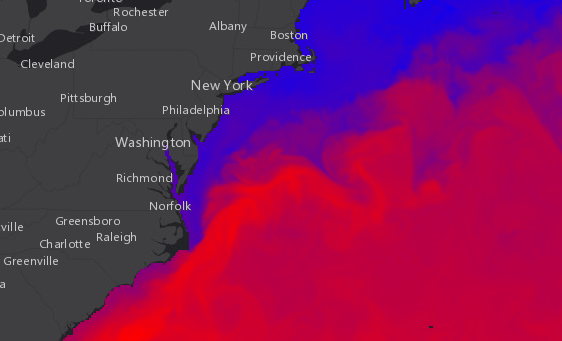
If the image service is requested from a different domain, a CORS enabled server or a proxy is required.
Esri requires that when you use an ArcGIS Online basemap in your app, the map must include Esri attribution and you must be licensed to use the content. For detailed guidelines on working with attribution, please visit the official attribution in your app documentation. For information, see the Terms of Use documentation.
ImageryLayer rendering
ImageryLayer can be rendered on the server or on the client. This section talks about different approaches you can take when rendering an ImageryLayer in your application.
Read More
Applying rasterFunction
Image service supports dynamic processing which can be applied through the layer's rasterFunction property. A raster function defines how the requested image should be processed or rendered. You can process images using raster functions published with the image service. You can also use well-known raster functions, such as the hillshade function for elevation data, the stretch function for multispectral data, and the colormap function for thematic data. When rasterFunction is applied to the layer, the network request is made to the server for the image to be processed.
Applying renderer
ImageryLayer supports various renderers. By default, an ImageryLayer uses server side rendering. ImageryLayer
parses a renderer specified by a user and leverages a rasterFunction specified by the server or the user to achieve the
expected rendering for the images. The server processes and renders the ImageryLayer and returns a ready-to-draw jpg or png image
to the client.
When an ImageryLayer is created with lerc format, the client gets access to the raw data which
can be used for client-side analysis and rendering. A default renderer that leverages available imagery information
is applied to an ImageryLayer with lerc format if the pixelFilter function is not specified.
The user can change this default renderer on the client-side by applying a renderer or pixelFilter.
The pixelFilter is a good alternative if the existing renderers do not meet your requirements. If both
renderer and pixelFilter are applied to the layer then the pixelFilter will take priority and its logic will be applied.
Applying pixelFilter
The pixelFilter can be used to colorize raw image pixels when ImageryLayer's format is set to lerc.
It is a function that processes the ImageryLayerView.pixelData.
The pixelData object contains a PixelBlock property that gives
you access to all of the pixels in the raster on the client. Inside the pixelFilter you may loop through all the pixels
and process them. This function is a useful alternative if the existing renderers do not meet your requirements, because it gives you
control over how to color image pixels. If both a renderer and pixelFilter are applied to the layer then the
pixelFilter will take priority and its logic will be applied.
Working with multidimensional raster data
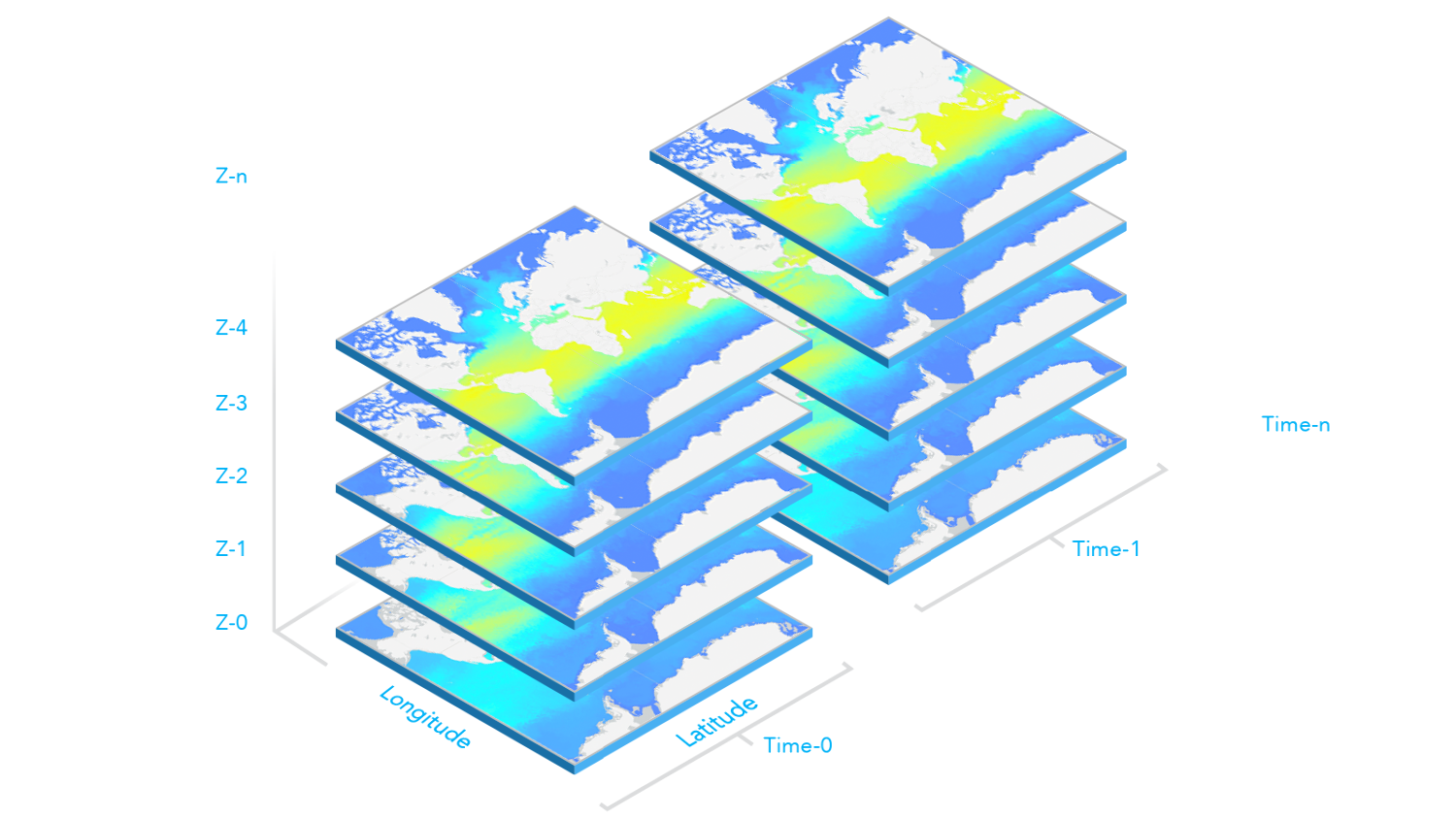
Multidimensional data is commonly used in the scientific community to store atmospheric, oceanographic, and earth science data. Temperature, humidity, wind speed, and direction are all examples of the data that can be stored as variables in a multidimensional array. As illustrated in the graphic below, multidimensional data can show sea temperature (variable) for a specific area at multiple time and depth dimensions. This information is stored as slices, where the service has a slice for each unique combination of dimension values and variable names.
Read More
ImageryLayer's multidimensional data information can be accessed through the layer's multidimensionalInfo property. This
information can then be used for analysis and visualization. For example, in the following snippet, the time dimension values associated with
the wind_magdir variable are read from the layer's multidimensionalInfo property once the layer is loaded. Then time values are used to configure
the TimeSlider widget to animate the wind speed and direction data over time.
view.whenLayerView(layer).then(() => {  // get all time dimension values from the service, create an array of dates  const windEpochDates = layer.multidimensionalInfo.variables[0].dimensions[0].values;  const windDates = windEpochDates.map((item) => new Date(item));
  // time slider widget initialization  // users can visualize daily wind information for all the time dimension available  const timeSlider = new TimeSlider({    mode: "instant",    view: view,    fullTimeExtent: {      start: new Date(windDates[0]), // Jan 1, 2011,      end: new Date(windDates[windDates.length - 1]) // Dec 31, 2011    },    // set the stops to match the dates coming from time dimension    stops: {      dates: windDates    }  });});
To display the data based on a specified slice of a variable and dimensions, set the layer's mosaicRule.multidimensionalDefinition
property to an array of desired dimensional definitions. For example, the following snippet
shows how to update the layer's mosaicRule.multidimensionalDefinition to display the data based on a given StdZ (depth) value in response to a slider thumb change event.
depthSlider.on(["thumb-change", "thumb-drag"], (delta) => updateRenderer("StdZ", value));const updateRenderer = promiseUtils.debounce(function (dimensionName, sliderData) { // set the depth or StdZ dimension of the layer corresponding to the slider's thumb location const multidimensionalDefinition = layer.mosaicRule.multidimensionalDefinition; const depthDef = multidimensionalDefinition.find((def) => def.dimensionName === "StdZ"); if (dimensionName === "StdZ") { if (depthDef.values[0] === sliderData.value) { return; } depthDef.values[0] = sliderData.value; } layer.mosaicRule.multidimensionalDefinition = multidimensionalDefinition;});The multidimensionalSubset can be set on a layer to expose only a subset of multidimensional data that satisfies the requirements.
For example, if you have one year of wind speed and direction data collected daily, but only want to expose a subset of the data for every day of October, then
you can set the multidimensionalSubset property on the layer as shown in the code snippet below.
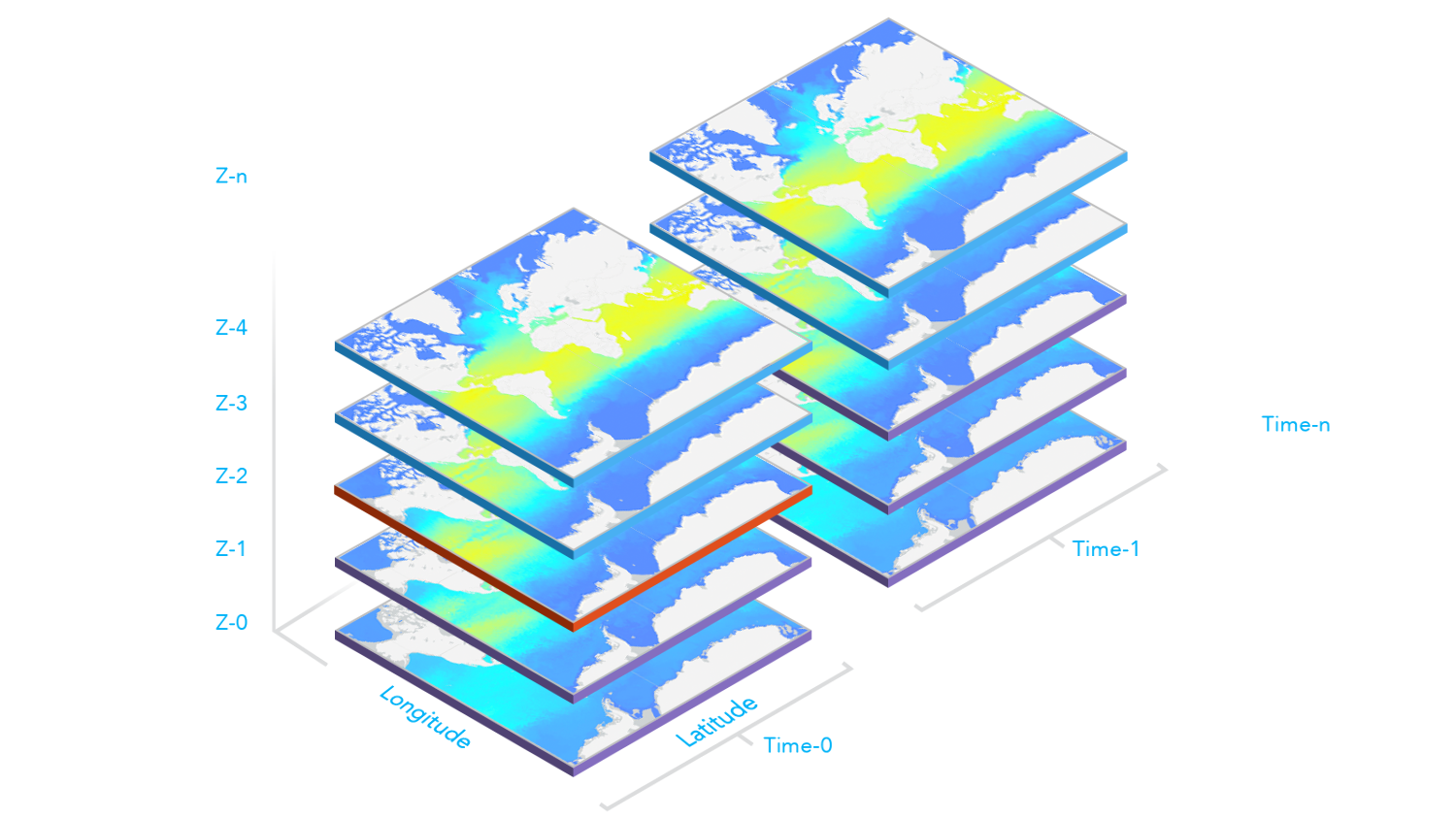
// Wind speed and direction info for every day of Oct will be available on the layer.// Users will not be able to access data that falls outside of Oct.// Only the data intersects the extent will be available to users.const multidimensionalSubset = new MultidimensionalSubset({ // extent covering california areaOfInterest: new Extent({ xmax: -12195369.680716056, xmin: -14166833.514246799, ymax: 5336486.804891889, ymin: 3047044.933694898, spatialReference: { wkid: 102100 } }), subsetDefinitions: [ { variableName: "Vector-MagDir", dimensionName: "StdTime", values: [1412121600000, 1414713600000], // 10/1/14 - 10/31/14 isSlice: false } ]});layer.multidimensionalSubset = multidimensionalSubset;The following image illustrates when the multidimensionalDefinition and multidimensionalSubset properties are both set on the layer. Slices with the
purple borders are slices included in the layer's multidimensionalSubset. The slice with the red border is the multidimensionalDefinition of the layer and
what is visible on the map. The layer's multidimensionalDefinition must fall within the multidimensionalSubset, otherwise nothing will be displayed in the map.
Constructors
Constructor
Parameters
| Parameter | Type | Description | Required |
|---|---|---|---|
| properties | | |
Example
// Typical usagelet layer = new ImageryLayer({ // URL to the imagery service url: "https://landsat2.arcgis.com/arcgis/rest/services/Landsat8_Views/ImageServer"});Properties
| Property | Type | Class |
|---|---|---|
activePresetRendererName inherited | ||
bandIds inherited | ||
blendMode inherited | ||
capabilities readonly inherited | ||
compressionQuality inherited | ||
compressionTolerance inherited | ||
copyright inherited | ||
customParameters inherited | ||
declaredClass readonly inherited | ||
defaultMosaicRule readonly inherited | MosaicRule | null | undefined | |
definitionExpression inherited | ||
effect inherited | ||
| | ||
fields readonly inherited | Field[] | |
fieldsIndex readonly inherited | FieldsIndex<Field> | null | undefined | |
format inherited | ||
fullExtent inherited | ||
hasMultidimensions readonly inherited | ||
id inherited | ||
imageMaxHeight inherited | ||
imageMaxWidth inherited | ||
interpolation inherited | ||
| | ||
listMode inherited | ||
loaded readonly inherited | ||
loadError readonly inherited | ||
loadStatus readonly inherited | "not-loaded" | "loading" | "failed" | "loaded" | |
loadWarnings readonly inherited | any[] | |
maxScale inherited | ||
minScale inherited | ||
mosaicRule inherited | ||
multidimensionalInfo readonly inherited | ||
multidimensionalSubset inherited | ||
noData inherited | ||
noDataInterpretation inherited | ||
objectIdField readonly inherited | ||
opacity inherited | ||
parent inherited | Map | Basemap | Ground | GroupLayer | CatalogDynamicGroupLayer | CatalogLayer | null | undefined | |
persistenceEnabled inherited | ||
pixelFilter inherited | ||
pixelType inherited | ||
| | ||
| | ||
portalItem inherited | PortalItem | null | undefined | |
presetRenderers inherited | ||
rasterFields readonly inherited | Field[] | |
rasterFunction inherited | ||
rasterFunctionInfos readonly inherited | ||
refreshInterval inherited | ||
renderer inherited | ||
| | ||
serviceRasterInfo readonly inherited | ||
sourceJSON inherited | ||
sourceType readonly inherited | ||
spatialReference readonly inherited | ||
timeExtent inherited | TimeExtent | null | undefined | |
timeInfo inherited | ||
timeOffset inherited | ||
title inherited | ||
type readonly | "imagery" | |
uid readonly inherited | ||
url inherited | ||
useViewTime inherited | ||
version readonly inherited | ||
visibilityTimeExtent inherited | TimeExtent | null | undefined | |
visible inherited |
activePresetRendererName
- Since
- ArcGIS Maps SDK for JavaScript 4.31
The active preset renderer name. Setting this value will set the layer's renderer property to a
RasterPresetRenderer.renderer defined in the presetRenderers.
If null, the layer's renderer will revert to the default or previously set renderer.
If the layer's renderer is set then the activePresetRendererName will be null.
Example
// to use a preset rendererlayer.activePresetRenderer = "temperatureRenderer"; bandIds
- Since
- ArcGIS Maps SDK for JavaScript 4.19
Defines a band combination using 0-based band indexes.
Set the bandIds to the desired band when applying a RasterStretchRenderer to the layer
to get the correct result.
blendMode
- Type
- BlendMode
- Since
- ArcGIS Maps SDK for JavaScript 4.16
Blend modes are used to blend layers together to create an interesting effect in a layer, or even to produce what seems like a new layer. Unlike the method of using transparency which can result in a washed-out top layer, blend modes can create a variety of very vibrant and intriguing results by blending a layer with the layer(s) below it.
When blending layers, a top layer is a layer that has a blend mode applied. All layers underneath the top layer are background layers.
The default blending mode is normal where the top layer is simply displayed over the background layer. While this default behavior is perfectly acceptable,
the use of blend modes on layers open up a world of endless possibilities to generate creative maps.
The layers in a GroupLayer are blended together in isolation from the rest of the map.
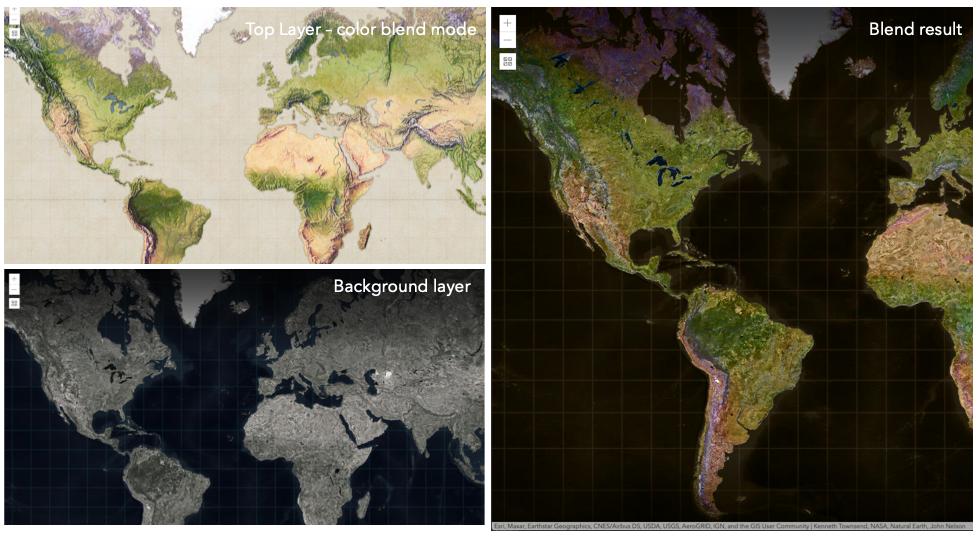
In the following screenshots, the vintage shaded relief
layer is displayed over a firefly world imagery layer. The color blend mode
is applied to the vintage shaded relief and the result looks like a new layer.
Known Limitations
- In 3D SceneViews, the blendMode is supported on BaseTileLayer, ImageryTileLayer, OpenStreetMapLayer, TileLayer, VectorTileLayer, WCSLayer, WebTileLayer, WMTSLayer and GroupLayer.
- When working with GroupLayers in a 3D SceneView, the blendMode is only applied to the sublayers that support it.
- The blendMode is not supported in the Legend.
- See print for known printing limitations.
The following factors will affect the blend result:
- Order of all layers
- Layer opacity
- Opacity of features in layers
- Visibility of layers
- By default, the very bottom layer in a map is drawn on a transparent background. You can change the MapView's background color.
Read More
| Blend mode | Description |
|---|---|
| normal | The top layer is displayed over the background layer. The data of the top layer block the data of background layer where they overlap. |
| average | Takes the mathematical average of top and background layers. Result of average blend mode is often similar to the effect of setting the layer's opacity to 50%. |
Lighten blend modes:
The following blend modes create lighter results than all layers. In lighten blend modes, pure black colors in the top layer become transparent allowing the background layer to show through. White in the top layer will stay unchanged. Any color that is lighter than pure black is going to lighten colors in the top layer to varying degrees all way to pure white.
Lighten blend modes can be useful when lightening dark colors of the top layer or removing black colors from the result.
The plus, lighten and screen modes can be used to brighten layers that have faded or dark colors on a dark background.
| Blend mode | Description |
|---|---|
| lighten | Compares top and background layers and retains the lighter color. Colors in the top layer become transparent if they are darker than the overlapping colors in the background layer allowing the background layer to show through completely. Can be thought of as the opposite of darken blend mode. |
| lighter | Colors in top and background layers are multiplied by their alphas (layer opacity and layer's data opacity. Then the resulting colors are added together. All overlapping midrange colors are lightened in the top layer. The opacity of layer and layer's data will affect the blend result. |
| plus | Colors in top and background layers are added together. All overlapping midrange colors are lightened in the top layer. This mode is also known as add or linear-dodge. |
| screen | Multiplies inverted colors in top and background layers then inverts the colors again. The resulting colors will be lighter than the original color with less contrast. Screen can produce many different levels of brightening depending on the luminosity values of the top layer. Can be thought of as the opposite of the multiply mode. |
| color-dodge | Divides colors in background layer by the inverted top layer. This lightens the background layer depending on the value of the top layer. The brighter the top layer, the more its color affects the background layer. Decreases the contrast between top and background layers resulting in saturated mid-tones and blown highlights. |
Darken blend modes:
The following blend modes create darker results than all layers. In darken blend modes, pure white in the top layer will become transparent allowing the background layer to show through. Black in the top layer will stay unchanged. Any color that is darker than pure white is going to darken a top layer to varying degrees all the way to pure black.
The multiply blend mode is often used to highlight shadows, show contrast, or accentuate an aspect of a map. For example, you can use multiply blend mode on a topographic map
displayed over hillshade when you want to have your elevation show through the topographic layer. See the intro to layer blending sample.
The multiply and darken modes can be used to have dark labels of the basemap to show through top layers. See the darken blending sample.
The color-burn mode works well with colorful top and background layers since it increases saturation in mid-tones. It increases the contrast by tinting pixels in overlapping areas in
top and bottom layers more towards the top layer color. Use this blend mode, when you want an effect with more contrast than multiply or darken.
The following screenshots show how the multiply blend mode used for creating a physical map of the world that shows both boundaries and elevation.
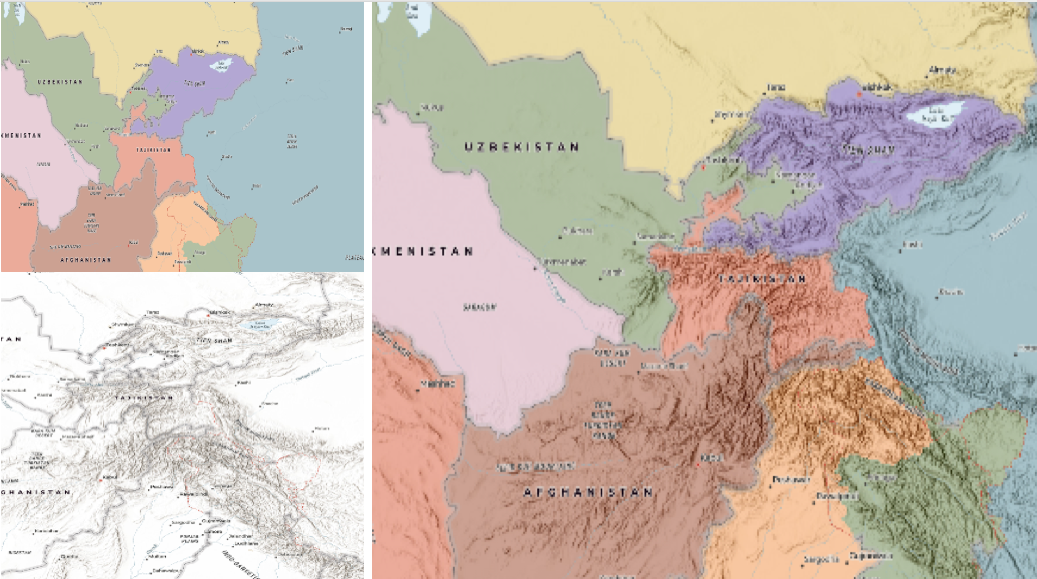
| Blend mode | Description |
|---|---|
| darken | Emphasizes the darkest parts of overlapping layers. Colors in the top layer become transparent if they are lighter than the overlapping colors in the background layer, allowing the background layer to show through completely. |
| multiply | Emphasizes the darkest parts of overlapping layers by multiplying colors of the top layer and the background layer. Midrange colors from top and background layers are mixed together more evenly. |
| color-burn | Intensifies the dark areas in all layers. It increases the contrast between top and background layers, by tinting colors in overlapping area towards the top color. To do this it inverts colors of the background layer, divides the result by colors of the top layer, then inverts the results. |
Contrast blend modes:
The following blend modes create contrast by both lightening the lighter areas and darkening the darker areas in the top layer by using lightening or darkening blend modes to create the blend.
The contrast blend modes will lighten the colors lighter than 50% gray ([128,128,128]), and darken the colors darker than 50% gray. 50% gray will be transparent in the top layer.
Each mode can create a variety of results depending on the colors of top and background layers being blended together.
The overlay blend mode makes its calculations based on the brightness of the colors in the background layer while all of the other contrast blend modes make their calculations based on the brightness of the top layer.
Some of these modes are designed to simulate the effect of shining a light through the top layer, effectively projecting upon the layers beneath it.
Contrast blend modes can be used to increase the contrast and saturation to have more vibrant colors and give a punch to your layers.
For example, you can duplicate a layer and set overlay blend mode on the top layer to increase the contrast and tones of your layer.
You can also add a polygon layer with a white fill symbol over a dark imagery layer and apply soft-light blend mode to increase the brightness in the imagery layer.
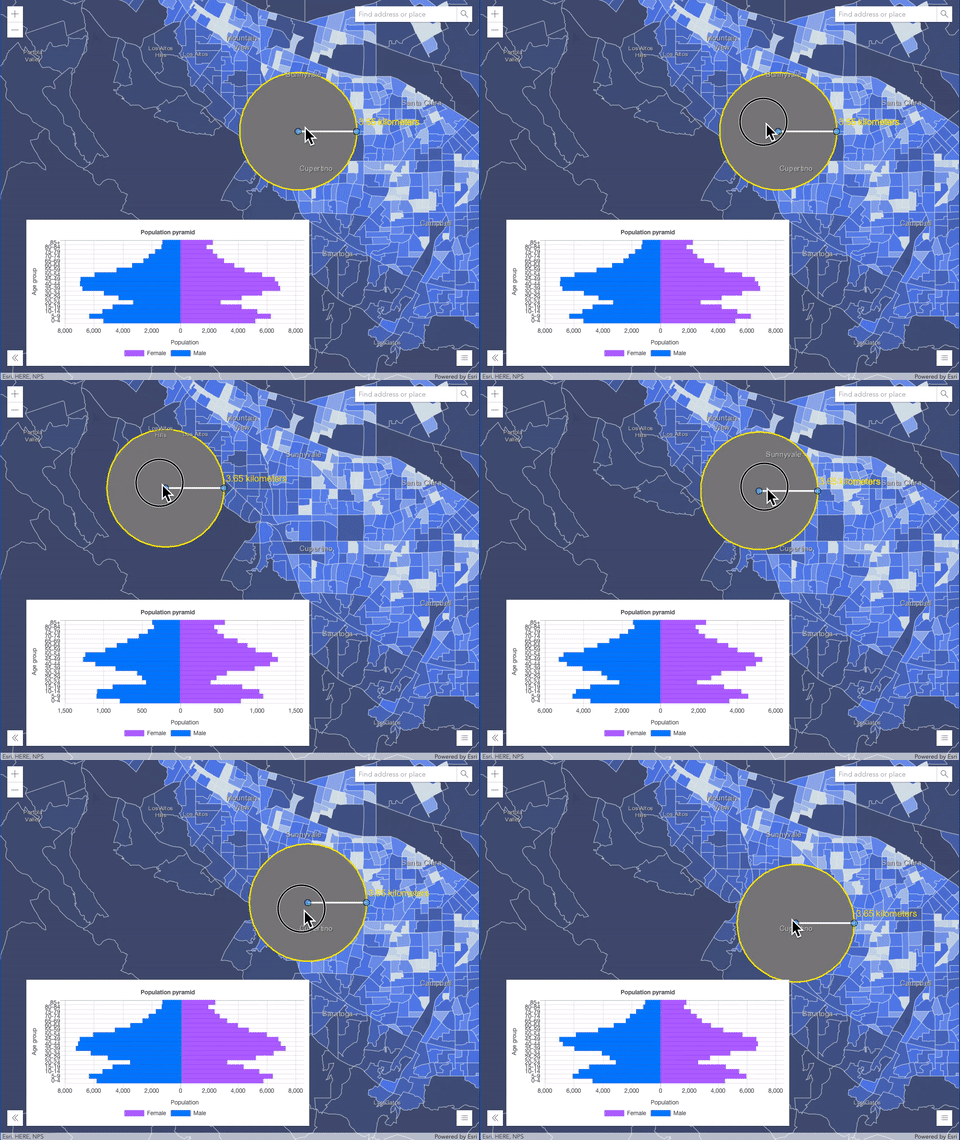
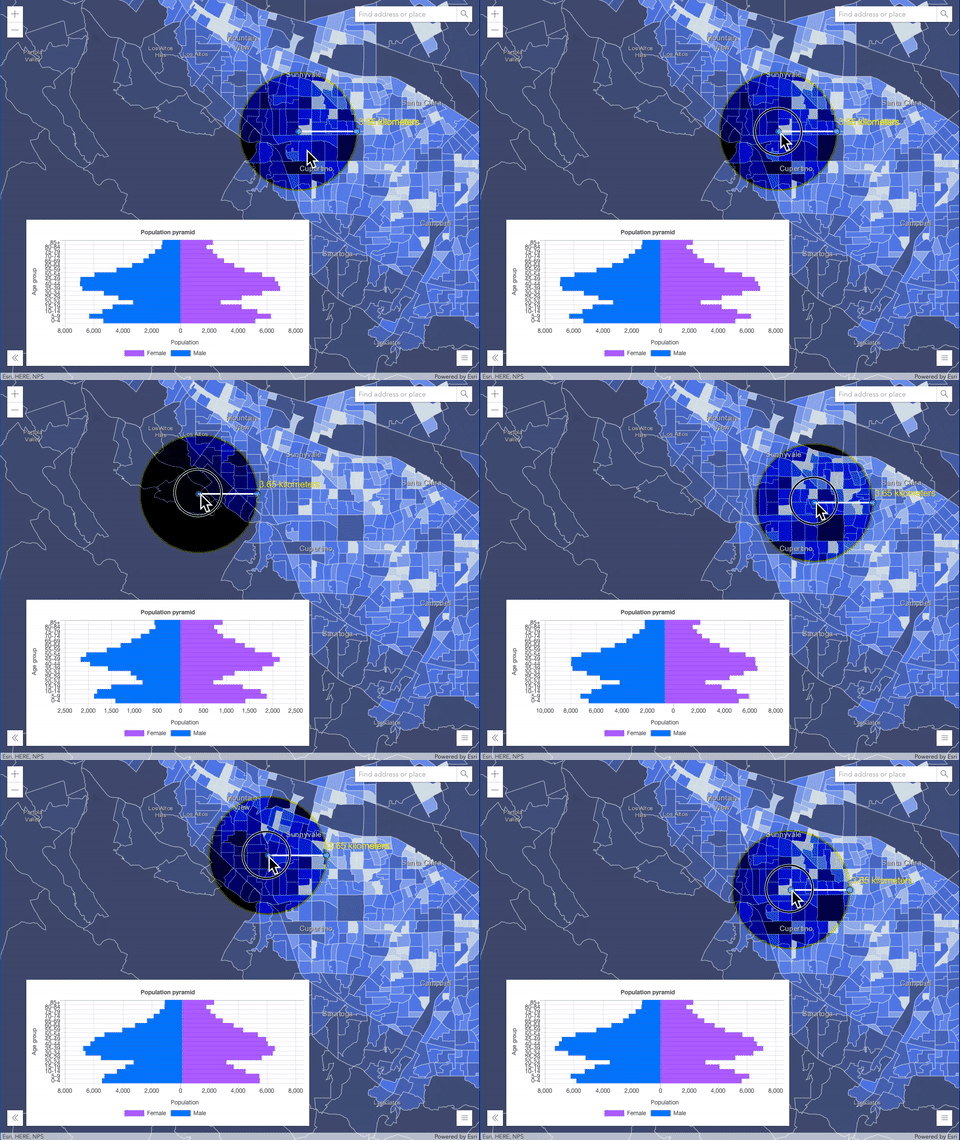
The following screenshots show an effect of the overlay blend mode on a GraphicsLayer. The left image shows when the buffer graphics layer has the normal blend mode.
As you can see, the gray color for the buffer polygon is blocking the intersecting census tracts. The right image shows when the overlay blend mode is applied to the buffer graphics layer.
The overlay blend mode darkens or lightens the gray buffer polygon depending on the colors of the background layer while the census tracts layer is shining through.
See this in action.
| Normal blend mode | Overlay blend mode |
|---|---|
 |  |
| Blend mode | Description |
|---|---|
| overlay | Uses a combination of multiply and screen modes to darken and lighten colors in the top layer with the background layer always shining through. The result is darker color values in the background layer intensify the top layer, while lighter colors in the background layer wash out overlapping areas in the top layer. |
| soft-light | Applies a half strength screen mode to lighter areas and half strength multiply mode to darken areas of the top layer. You can think of the soft-light as a softer version of the overlay mode. |
| hard-light | Multiplies or screens the colors, depending on colors of the top layer. The effect is similar to shining a harsh spotlight on the top layer. |
| vivid-light | Uses a combination of color-burn or color-dodge by increasing or decreasing the contrast, depending on colors in the top layer. |
Component blend modes:
The following blend modes use primary color components, which are hue, saturation and luminosity to blend top and background layers.
You can add a feature layer with a simple renderer over any layer and set hue, saturation, color or luminosity blend mode on this layer. With this technique, you create a brand new looking map.
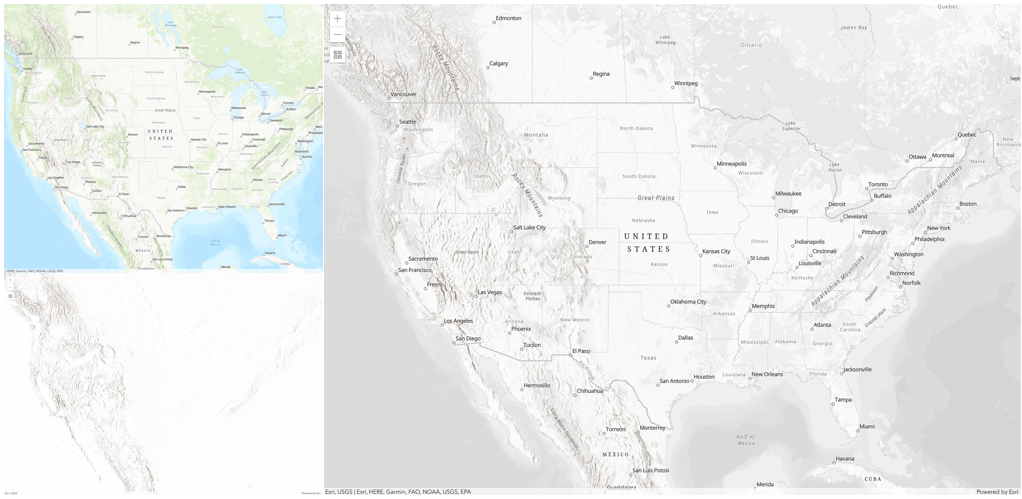
The following screenshots show where the topo layer is blended with
world hillshade layer with luminosity blend mode.
The result is a drastically different looking map which preserves the brightness of the topo layer while adapting the hue and saturation of the hillshade layer.
| Blend mode | Description |
|---|---|
| hue | Creates an effect with the hue of the top layer and the luminosity and saturation of the background layer. |
| saturation | Creates an effect with the saturation of the top layer and the hue and luminosity of the background layer. 50% gray with no saturation in the background layer will not produce any change. |
| luminosity | Creates effect with the luminosity of the top layer and the hue and saturation of the background layer. Can be thought of as the opposite of color blend mode. |
| color | Creates an effect with the hue and saturation of the top layer and the luminosity of the background layer. Can be thought of as the opposite of luminosity blend mode. |
Composite blend modes:
The following blend modes can be used to mask the contents of top, background or both layers.
Destinationmodes are used to mask the data of the top layer with the data of the background layer.Sourcemodes are used to mask the data of the background layer with the data of the top layer.
The destination-in blend mode can be used to show areas of focus such as earthquakes, animal migration, or point-source pollution by revealing the underlying map,
providing a bird's eye view of the phenomenon. Check out multiple blending and groupLayer blending
samples to see composite blend modes in action.
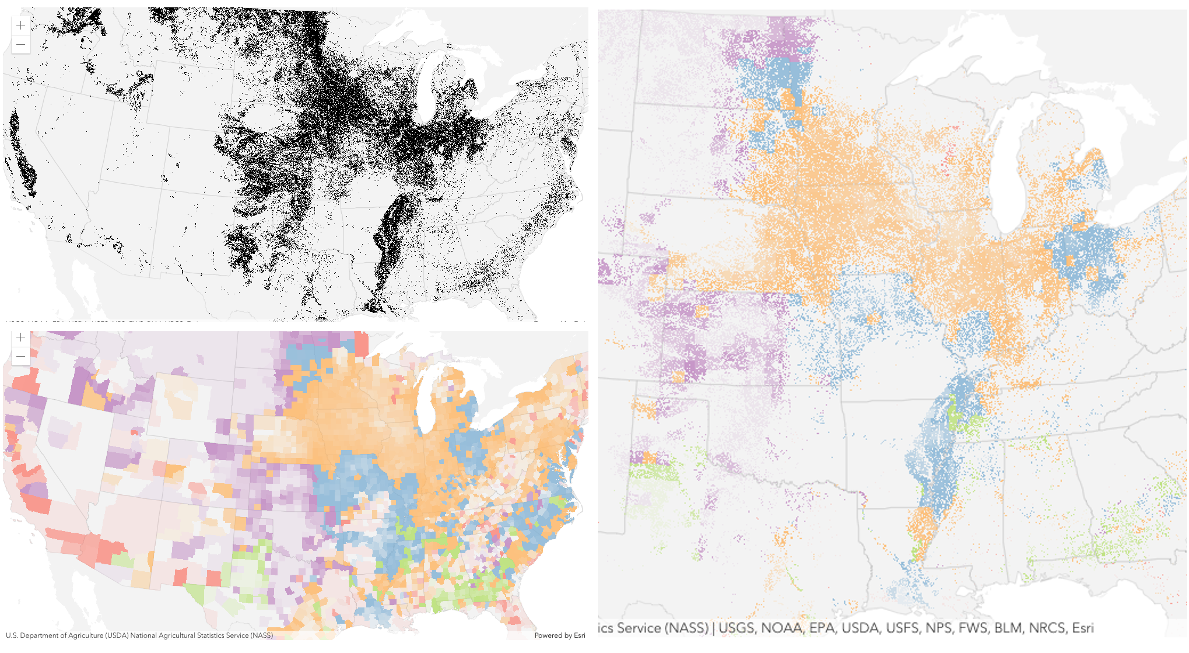
The following screenshots show feature and imagery layers on the left side on their own in the order they are drawn in the view. The imagery layer that contains land cover classification rasters.
The feature layer contains 2007 county crops data. The right image shows the result of layer blending where destination-in blendMode is set on the imagery layer. As you can see, the effect is
very different from the original layers. The blended result shows areas of cultivated crops only (where both imagery and feature layers overlap).
| Blend mode | Description |
|---|---|
| destination-over | Destination/background layer covers the top layer. The top layer is drawn underneath the destination layer. You'll see the top layer peek through wherever the background layer is transparent or has no data. |
| destination-atop | Destination/background layer is drawn only where it overlaps the top layer. The top layer is drawn underneath the background layer. You'll see the top layer peek through wherever the background layer is transparent or has no data. |
| destination-in | Destination/background layer is drawn only where it overlaps with the top layer. Everything else is made transparent. |
| destination-out | Destination/background layer is drawn where it doesn't overlap the top layer. Everything else is made transparent. |
| source-atop | Source/top layer is drawn only where it overlaps the background layer. You will see the background layer peek through where the source layer is transparent or has no data. |
| source-in | Source/top layer is drawn only where it overlaps with the background layer. Everything else is made transparent. |
| source-out | Source/top layer is drawn where it doesn't overlap the background layer. Everything else is made transparent. |
| xor | Top and background layers are made transparent where they overlap. Both layers are drawn normal everywhere else. |
Invert blend modes:
The following blend modes either invert or cancel out colors depending on colors of the background layer.
These blend modes look for variations between top and background layers.
For example, you can use difference or exclusion blend modes on two imagery layers of forest covers to visualize how forest covers changed from one year to another.
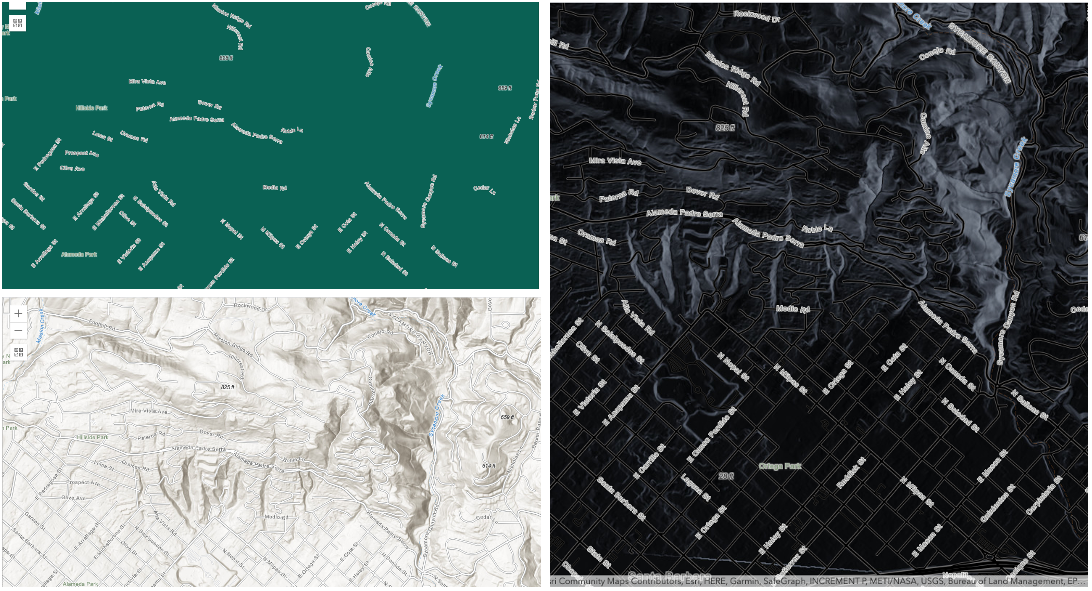
The invert blend mode can be used to turn any light basemap into a dark basemap to accommodate those who work in low-light conditions. The following screenshots show
how setting the invert blend mode set on a feature layer with a simple renderer turns the world Hillshade
into a dark themed basemap in no time.
| Blend mode | Description |
|---|---|
| difference | Subtracts the darker of the overlapping colors from the lighter color. When two pixels with the same value are subtracted, the result is black. Blending with black produces no change. Blending with white inverts the colors. This blending mode is useful for aligning layers with similar content. |
| exclusion | Similar to the difference blend mode, except that the resulting image is lighter overall. Overlapping areas with lighter color values are lightened, while darker overlapping color values become transparent. |
| minus | Subtracts colors of the top layer from colors of the background layer making the blend result darker. In the case of negative values, black is displayed. |
| invert | Inverts the background colors wherever the top and background layers overlap. The invert blend mode inverts the layer similar to a photographic negative. |
| reflect | This blend mode creates effects as if you added shiny objects or areas of light in the layer. Black pixels in the background layer are ignored as if they were transparent. |
- See also
- Default value
- "normal"
capabilities
- Since
- ArcGIS Maps SDK for JavaScript 4.16
Describes the layer's supported capabilities.
compressionQuality
The compression quality value. Controls how much loss the image will be subjected to by the compression algorithm.
Valid value ranges of compression quality are from 0 to 100. Only valid when using jpg or jpgpng image format.
compressionTolerance
- Type
- number
Controls the tolerance of the lerc compression algorithm. The tolerance defines the maximum possible error of pixel values in the compressed image. It's a double value.
- Default value
- 0.01
copyright
The copyright text as defined by the service.
customParameters
- Type
- CustomParameters | null | undefined
- Since
- ArcGIS Maps SDK for JavaScript 4.18
A list of custom parameters appended to the URL of all resources fetched by the layer.
It's an object with key-value pairs where value is a string.
The layer's refresh() method needs to be called if the customParameters are updated at runtime.
Example
// send a custom parameter to your special servicelet layer = new MapImageLayer({ url: serviceUrl, customParameters: { "key": "my-special-key" }}); defaultMosaicRule
- Type
- MosaicRule | null | undefined
- Since
- ArcGIS Maps SDK for JavaScript 4.28
Default mosaic rule of the image service.
definitionExpression
The SQL where clause used to filter rasters. Only the rasters that satisfy the definition expression are displayed in the View. This property overrides the mosaicRule's MosaicRule.where property if both properties are set on the layer.
effect
- Since
- ArcGIS Maps SDK for JavaScript 4.18
Effect provides various filter functions that can be performed on the layer to achieve different visual effects similar to
how image filters work. This powerful capability allows you to apply css filter-like
functions to layers to create custom visual effects to enhance the cartographic quality of your maps. This is done by applying the desired
effect to the layer's effect property as a string or an array of objects to set scale dependent effects.
Notes
Set featureEffect property on a layer if different effects need to be applied features that meet or fail a specified filter. If all of the following four properties are applied, then they will be applied in this order: featureEffect, effect, opacity and blendMode.
Known Limitations
- The effect is not supported in 3D SceneViews.
- The effect cannot be applied to a layer with a heatmap renderer.
- The effect is not supported in layers with FeatureLayer.featureReduction of type
clusterenabled. - See print for known printing limitations.
Examples
// the following effect will be applied to the layer at all scales// brightness will be applied first, then hue-rotate followed by contrast// changing order of the effects will change the final resultlayer.effect = "brightness(5) hue-rotate(270deg) contrast(200%)";// set a scale dependent bloom effect on the layerlayer.effect = [ { scale: 36978595, value: "drop-shadow(3px, 3px, 4px)" }, { scale: 18489297, value: "drop-shadow(2px, 2px, 3px)" }, { scale: 4622324, value: "drop-shadow(1px, 1px, 2px)" }]; elevationInfo
- Type
- ElevationInfo | null | undefined
- Since
- ArcGIS Maps SDK for JavaScript 4.34
Specifies how the imagery is placed on the vertical axis (z). This property may only be used in a SceneView. See the ElevationInfo sample for an example of how this property may be used.
The elevation info only affects ImageryLayer if the renderer is set to FlowRenderer and applies on-the-ground mode if it is null.
The relative-to-scene mode does not affect ImageryLayer.
ElevationInfo.featureExpressionInfo is not supported when the elevation info is specified for this class.
If the elevation info is not specified, the effective elevation depends on the context and could vary per point.
fields
- Type
- Field[]
An array of fields in the layer. Each field represents an attribute that may contain a value for each raster in the layer.
- See also
fieldsIndex
- Type
- FieldsIndex<Field> | null | undefined
- Since
- ArcGIS Maps SDK for JavaScript 4.21
A convenient property that can be used to make case-insensitive lookups for a field by name. This property is only available after the ImageryLayer has been loaded.
- See also
Example
// lookup a field by name, name is case-insensitiveconst fieldsIndex = layer.fieldsIndex.get("OBjecTID");
// if there's a field by that name, print it to the consoleif (fieldsIndex) {  console.log("fieldsIndex: ", fieldsIndex);}
format
- Type
- RasterFormats
The format of the exported image.
fullExtent
The full extent of the layer. By default, this is worldwide. This property may be used to set the extent of the view to match a layer's extent so that its features appear to fill the view. See the sample snippet below.
The fullExtent property is always null for GroupLayer.
Example
// Once the layer loads, set the view's extent to the layer's full extentlayer.when(function(){ view.extent = layer.fullExtent;}); hasMultidimensions
- Type
- boolean
Indicates if the layer has multidimensionalInfo.
- Default value
- false
imageMaxHeight
- Type
- number
- Since
- ArcGIS Maps SDK for JavaScript 4.4
Indicates the maximum height of the image exported by the service.
- Default value
- 4100
imageMaxWidth
- Type
- number
- Since
- ArcGIS Maps SDK for JavaScript 4.4
Indicates the maximum width of the image exported by the service.
- Default value
- 4100
interpolation
- Type
- RasterInterpolation
- Since
- ArcGIS Maps SDK for JavaScript 4.12
Defines how to interpolate pixel values.
legendEnabled
- Type
- boolean
- Since
- ArcGIS Maps SDK for JavaScript 4.12
Indicates whether the layer will be included in the legend.
- Default value
- true
listMode
- Type
- LayerListMode
Indicates how the layer should display in the Layer List component. The possible values are listed below.
| Value | Description |
|---|---|
| show | The layer is visible in the table of contents. |
| hide | The layer is hidden in the table of contents. |
| hide-children | If the layer is a GroupLayer, BuildingSceneLayer, KMLLayer, MapImageLayer, SubtypeGroupLayer, TileLayer, or WMSLayer, hide the children layers from the table of contents. |
- Default value
- "show"
loadError
The Error object returned if an error occurred while loading.
loadStatus
- Type
- "not-loaded" | "loading" | "failed" | "loaded"
Represents the status of a load() operation.
| Value | Description |
|---|---|
| not-loaded | The object's resources have not loaded. |
| loading | The object's resources are currently loading. |
| loaded | The object's resources have loaded without errors. |
| failed | The object's resources failed to load. See loadError for more details. |
- Default value
- "not-loaded"
loadWarnings
- Type
- any[]
A list of warnings which occurred while loading.
maxScale
- Type
- number
The maximum scale (most zoomed in) at which the layer is visible in the view.
If the map is zoomed in beyond this scale, the layer will not be visible.
A value of 0 means the layer does not have a maximum scale.
The maxScale value should always be smaller than the minScale value,
and greater than or equal to the service specification.
- Default value
- 0
Examples
// The layer will not be visible when the view is zoomed in beyond a scale of 1:1,000layer.maxScale = 1000;// The layer's visibility is not restricted to a maximum scale.layer.maxScale = 0; minScale
- Type
- number
The minimum scale (most zoomed out) at which the layer is visible in the view.
If the map is zoomed out beyond this scale, the layer will not be visible.
A value of 0 means the layer does not have a minimum scale.
The minScale value should always be larger than the maxScale value,
and lesser than or equal to the service specification.
- Default value
- 0
Examples
// The layer will not be visible when the view is zoomed out beyond a scale of 1:3,000,000layer.minScale = 3000000;// The layer's visibility is not restricted to a minimum scale.layer.minScale = 0; mosaicRule
- Type
- MosaicRule
Defines how overlapping images should be mosaicked.
multidimensionalInfo
- Type
- RasterMultidimensionalInfo | null | undefined
The multidimensional information associated with the layer if the layer's hasMultidimensions property
is true. If defined, multidimensional information contains data in multiple dimensions like time and depth/height, and contains multiple variables.
Defining slices of particular dimensions in the layer is handled with the
MosaicRule.multidimensionalDefinition property of the mosaicRule.
multidimensionalSubset
- Type
- MultidimensionalSubset | null | undefined
- Since
- ArcGIS Maps SDK for JavaScript 4.25
Represents a multidimensional subset of raster data. This includes subsets of both variables and dimensions. When the multidimensionalSubset is defined on
a layer, the MosaicRule.multidimensionalDefinition must be within the defined
multidimensionalSubset, otherwise nothing will be displayed.
Example
// set a multi dimensional subset on the imagery layer// so that users can only access sea temperature data in the atlantic ocean// between April 7 - 18, 2014 and at depths between -500 - 0.const multidimensionalSubset = new MultidimensionalSubset({ // area over atlantic ocean areaOfInterest: new Extent({ type: "extent", xmax: 3041935.5384527617, xmin: -10166382.94922227, ymax: 12406741.274438996, ymin: -5908793.695137047, spatialReference: { wkid: 102100 } }), subsetDefinitions: [ { variableName: "water_temp", dimensionName: "StdTime", values: [1396828800000, 1397779200000], // 4/7 - 4/18 isSlice: false }, { variableName: "water_temp", dimensionName: "StdZ", values: [-500, 0], isSlice: false } ],});layer.multidimensionalSubset = multidimensionalSubset; noData
- Since
- ArcGIS Maps SDK for JavaScript 4.12
The pixel value representing no available information. Can be a number (same value for all bands) or array (specific value for each band).
noDataInterpretation
- Type
- RasterNoDataInterpretation | null | undefined
- Since
- ArcGIS Maps SDK for JavaScript 4.12
Interpretation of the noData setting.
| Value | Description |
|---|---|
| any | Pixel is transparent if any band matches noData value. |
| all | Pixel is transparent only if all bands match noData value. |
opacity
- Type
- number
The opacity of the layer. This value can range between 1 and 0, where 0 is 100 percent
transparent and 1 is completely opaque.
Known Limitations
In a 3D SceneView, modifying opacity is not supported for DimensionLayer, GaussianSplatLayer, IntegratedMesh3DTilesLayer, IntegratedMeshLayer, LineOfSightLayer, PointCloudLayer, ViewshedLayer, and VoxelLayer.
- Default value
- 1
Example
// Makes the layer 50% transparentlayer.opacity = 0.5; parent
- Type
- Map | Basemap | Ground | GroupLayer | CatalogDynamicGroupLayer | CatalogLayer | null | undefined
- Since
- ArcGIS Maps SDK for JavaScript 4.27
The parent to which the layer belongs.
persistenceEnabled
- Type
- boolean
- Default value
- true
pixelFilter
- Type
- PixelFilterFunction | null | undefined
A function that processes ImageryLayerView.pixelData.
The pixelData object contains a
PixelBlock property that gives
you access to all of the pixels in the raster on the client.
Inside the pixelFilter you may loop through all the
PixelBlock.pixels found in the
pixelBlock property of the pixelData object and process them.
This function may be used to hide some pixels from the view, alter their
values, and change their color. The pixelFilter should be used when the imagery layer's
format is lerc or tiff as these formats return raw pixel data to the client.
- See also
Example
let layer = new ImageryLayer({  url: // url to the image service  pixelFilter: colorize  // see the colorize() function below});
// This function is applied to the pixelFilter property of the layer.// It takes the original value of each pixel and converts it to an RGB// representation to color the layer on a blue - red ramp. Blue pixels// represent low values and red pixels represent high values. View the sample// referenced above to see how this function works
function colorize(pixelData) {  // If there isn't pixelData, a pixelBlock, nor pixels, exit the function  if (pixelData === null || pixelData.pixelBlock === null || pixelData.pixelBlock.pixels === null) {    return;  }
  // The pixelBlock stores the values of all pixels visible in the view  let pixelBlock = pixelData.pixelBlock;
  // Get the min and max values of the data in the current view  let minValue = pixelBlock.statistics[0].minValue;  let maxValue = pixelBlock.statistics[0].maxValue;
  // The mask is an array that determines which pixels are visible to the client  let mask = pixelBlock.mask;
  // The pixels visible in the view  let pixels = pixelBlock.pixels;
  // The number of pixels in the pixelBlock  let numPixels = pixelBlock.width * pixelBlock.height;
  // Calculate the factor by which to determine the red and blue  // values in the colorized version of the layer  let factor = 255.0 / (maxValue - minValue);
  // Get the pixels containing temperature values in the only band of the data  let band1 = pixels[0];
  // Create empty arrays for each of the RGB bands to set on the pixelBlock  let rBand = [];  let gBand = [];  let bBand = [];
  // Loop through all the pixels in the view  for (i = 0; i < numPixels; i++) {    // Get the pixel value recorded at the pixel location    let tempValue = band1[i];    // Calculate the red value based on the factor    let red = (tempValue - minValue) * factor;
    // Sets a color between blue (lowest) and red (highest) in each band    rBand[i] = red;    gBand[i] = 0;    bBand[i] = 255 - red;  }
  // Set the new pixel values on the pixelBlock (now three bands)  pixelData.pixelBlock.pixels = [rBand, gBand, bBand];  pixelData.pixelBlock.pixelType = "u8"; // u8 is used for color}
pixelType
- Type
- RasterPixelType | null | undefined
Raster source pixel type.
| Value | Range of values that each cell can contain |
|---|---|
| unknown | Pixel type is unknown |
| s8 | -128 to 127 |
| s16 | -32768 to 32767 |
| s32 | -2147483648 to 2147483647 |
| u8 | 0 to 255 |
| u16 | 0 to 65535 |
| u32 | 0 to 4294967295 |
| f32 | -3.402823466e+38 to 3.402823466e+38 |
| f64 | 0 to 18446744073709551616 |
popupEnabled
- Type
- boolean
Indicates whether to display popups when features in the layer are clicked.
- Default value
- true
popupTemplate
- Type
- PopupTemplate | null | undefined
The popup template for the layer. When set on the layer, the popupTemplate allows users to access attributes and display their values using text and/or charts in the view's popup when a pixel is clicked. See this sample for an example of how PopupTemplate interacts with an ImageryLayer.
A default popup template is automatically used if no popupTemplate has been defined when
Popup.defaultPopupTemplateEnabled
is set to true.
Example
// displays the temperature stored in the clicked pixellayer.popupTemplate = { title: "Sea Surface Temperature", content: "{Raster.ServicePixelValue}° Celsius"} portalItem
- Type
- PortalItem | null | undefined
The portal item from which the layer is loaded. If the portal item references
a feature or scene service, then you can specify a single layer
to load with the layer's layerId property.
Loading non-spatial tables
Non-spatial tables can be loaded from service items hosted in ArcGIS Online and ArcGIS Enterprise. This only applies to:
- FeatureLayer if the layer's isTable returns
trueat version 4.17. - SubtypeGroupLayer if the layer's isTable returns
trueat version 4.32.
Examples
// While this example uses FeatureLayer, this same pattern can be// used for other layers that may be loaded from portalItem ids.const layer = new FeatureLayer({ portalItem: { // autocasts as new PortalItem() id: "caa9bd9da1f4487cb4989824053bb847" } // the first layer in the service is returned});// Set hostname when using an on-premise portal (default is ArcGIS Online)// esriConfig.portalUrl = "http://myHostName.esri.com/arcgis";
// While this example uses FeatureLayer, this same pattern can be// used for SceneLayers.const layer = new FeatureLayer({ portalItem: { // autocasts as new PortalItem() id: "8d26f04f31f642b6828b7023b84c2188" }, // loads the third item in the given feature service layerId: 2});// Initialize GeoJSONLayer by referencing a portalItem id pointing to geojson file.const layer = new GeoJSONLayer({ portalItem: new PortalItem({ id: "81e769cd7031482797e1b0768f23c7e1", // optionally define the portal, of the item. // if not specified, the default portal defined is used. // see https://developers.arcgis.com/javascript/latest/references/core/config/#portalUrl portal: new Portal({ url: "https://jsapi.maps.arcgis.com/" }) }});// This snippet loads a table hosted in ArcGIS Online.const table = new FeatureLayer({ portalItem: { // autocasts as esri/portal/PortalItem id: "123f4410054b43d7a0bacc1533ceb8dc" }});
// Before adding the table to the map, it must first be loaded and confirm it is the right type.table.load().then(() => { if (table.isTable) { map.tables.add(table); }});// While this example uses FeatureLayer, this same pattern can be// used for other layers that may be loaded from portalItem ids.const layer = new FeatureLayer({ portalItem: { // autocasts as esri/portal/PortalItem id: "caa9bd9da1f4487cb4989824053bb847", // Set an API key to access a secure portal item configured with API key authentication. apiKey: "APIKEY" }}); presetRenderers
- Type
- RasterPresetRenderer[] | null | undefined
- Since
- ArcGIS Maps SDK for JavaScript 4.31
A list of preset renderers that defines a preferred renderer for a given multidimensional variable, a given raster function template, or an additional generic predefined renderer.
rasterFields
- Type
- Field[]
A complete list of fields that consists of raster attribute table fields, item pixel value, service pixel value, service pixel value with various server defined function templates, and raster attribute table fields. This list is used for layer's ImageryLayer.popupTemplate.
It is essential in many imagery workflows to show pixel values and related categorical information (if applicable) in a popup.
To meet this requirement, there're additional raster fields used in image service popups, representing pixel values and corresponding attributes
if the service has additional rasterAttributeTable resource. These raster fields are prefixed with Raster. to indicate that they are special fields and avoid
any potential conflict with fields from service info.
Pixel value fields
Below is a list of raster fields that return different types of pixel values and their descriptions.
Read More
Service pixel value
The Raster.ServicePixelValue field returns a pixel value at the identifying location, after dynamic mosaicking (if applicable) and processing is done using layer's current
mosaicRule and rasterFunction settings. This field exists for all image services. The server side dynamic mosaicking process is only applicable
if the service is published from a mosaic dataset.
Raw service pixel value
The Raster.ServicePixelValue.Raw field returns a pixel value at the identifying location, after dynamic mosaicking (if applicable) but without further processing. It uses layer's
current mosaicRule and None raster function. This field only exists if the image service info has allowRasterFunction: true, and has a None entry
in rasterFunctionInfos.
Service pixel value from server side raster functions
The Raster.ServicePixelValue.RFTNAME field returns a pixel value at the identifying location, after dynamic mosaicking (if applicable) and processing using any predefined sever side
raster function. The list of available functions is defined by rasterFunctionInfos in image service root resource, except None function, which is already mapped
as Raw Service Pixel Value. This field only exists if the image service info has allowRasterFunction: true.
Item pixel value
The Raster.ItemPixelValue field returns a pixel value representing pixel values of each of the individual images in the image service. This is only applicable to image services published
from a mosaic dataset. It can be retrieved from the image service using either the identify() or the getSamples() method.
For example, for a service published from a mosaic dataset with the following raster functions:
rasterFunctionInfos": [ { "name": "None", "description": "", "help": ""}, { "name": "EVI", "description": "", "help": ""}], { "name": "VI", "description": "", "help": ""}]You can have the following additional raster fields: Raster.ServicePixelValue, Raster.ServicePixelValue.Raw, Raster.ServicePixelValue.EVI, Raster.ServicePixelValue.VI and
Raster.ItemPixelValue.
Pixel value fields support formatting. Since an image service can have multiple bands, pixel value represents multiple bands, and shouldn't be assumed as a single number. This needs to be considered when formatting values.
Categorical attributes fields for pixel value
When working with categorical data (e.g. Land Cover data), image service info may have an associated rasterAttributeTable resource, indicated in root resource via
the hasRasterAttributeTable flag. A raster attribute table always has a Value field, and each record in the table represents a pixel value mapping to associated categorical
fields, such as the ClassName (Raster.ClassName), Count (Raster.Count) or color representation (Raster.Red, Raster.Green and Raster.Blue) fields of the value.
Vector fields
The Raster.Magnitude and Raster.Direction fields return magnitude and direction values from a multidimensional dataset with a vector field.
Example
layer.when(() => { // print out field names returned in layer.rasterFields layer.rasterFields.forEach((field) => { console.log(field.name); });}); rasterFunction
- Type
- RasterFunction | null | undefined
- Since
- ArcGIS Maps SDK for JavaScript 4.27
Specifies the rule for how the requested image should be processed. When rasterFunction applied, the server returns an updated service information that reflects a custom processing as defined by the raster function.
Use helper functions from the rasterFunctionUtils module when creating raster functions that apply to ImageryLayers.
Examples
// apply NDVI and colormap raster function to an imagery layer// use rasterFunctionUtils convenience methods to create raster functionsconst ndvi = rasterFunctionUtils.bandArithmeticNDVI({  nirBandId: 4,  redBandId: 3,  scientificOutput: false});
 const colormap = rasterFunctionUtils.colormap({  colorRampName: "NDVI3",  raster: ndvi});layer.rasterFunction = colormap;
const stretchFunction = new RasterFunction({functionName: "Stretch", functionArguments: { StretchType: 5, // (0 = None, 3 = StandardDeviation, 4 = Histogram Equalization, 5 = MinMax, 6 = PercentClip, 9 = Sigmoid) Min: 0, Max: 255, Raster: "$$" // $$(default) refers to the entire image service, $2 refers to the second image of the image service }, outputPixelType: "u8"});
const colorFunction = new RasterFunction({ functionName: "Colormap", functionArguments: { ColorrampName: "Temperature", // other examples: "Slope", "Surface", "Blue Bright".... Raster: stretchFunction // chaining multiple raster functions }});
const imageryLayer = new ImageryLayer({ url: "https://sampleserver6.arcgisonline.com/arcgis/rest/services/ScientificData/SeaTemperature/ImageServer"});
imageryLayer.rasterFunction = colorFunction; rasterFunctionInfos
- Type
- ServiceRasterFunctionInfo[] | null | undefined
- Since
- ArcGIS Maps SDK for JavaScript 4.22
Returns raster function information for the image services, including the name, description, help, function type, and a thumbnail of pre-configured raster function templates.
refreshInterval
- Type
- number
- Since
- ArcGIS Maps SDK for JavaScript 4.6
Refresh interval of the layer in minutes. Value of 0 indicates no refresh.
- Default value
- 0
Example
// the layer will be refreshed every minute.layer.refreshInterval = 1; renderer
- Type
- RasterRendererUnion | null | undefined
- Since
- ArcGIS Maps SDK for JavaScript 4.11
The renderer assigned to the layer. The renderer defines how to visualize pixels in the imagery layer. Depending on the renderer type, the pixels may be stretched across the color ramp, classified, have different symbols based on values, or show shaded reliefs.
If both renderer and pixelFilter is applied to an ImageryLayer then pixelFilter will override the renderer.
Known Limitations
Currently, the VectorFieldRenderer is not supported in 3D SceneView.
screenSizePerspectiveEnabled
- Type
- boolean
- Since
- ArcGIS Maps SDK for JavaScript 4.34
Apply perspective scaling to screen-size symbols in a SceneView.
When true, screen sized objects such as streamlines from a FlowRenderer
integrate better in the 3D scene by applying a certain perspective projection to the size.
This only applies when using a SceneView.
Known Limitations
Screen size perspective is currently not optimized for situations where the camera is very near the ground, or for scenes with visual elements located far from the ground surface. In these cases it may be better to turn off screen size perspective.
- Default value
- true
serviceRasterInfo
- Type
- RasterInfo
- Since
- ArcGIS Maps SDK for JavaScript 4.12
Source raster information of the image service. The layer must be ImageryLayer.loaded before serviceRasterInfo can be accessed.
- See also
sourceJSON
- Type
- any
- Since
- ArcGIS Maps SDK for JavaScript 4.13
The image service's metadata JSON exposed by the ArcGIS REST API. While most commonly used properties are exposed on the ImageryLayer class directly, this property gives access to all information returned by the image service. This property is useful if working in an application built using an older version of the API which requires access to image service properties from a more recent version.
sourceType
- Type
- SourceType
- Since
- ArcGIS Maps SDK for JavaScript 4.28
Image service data source type.
spatialReference
- Type
- SpatialReference
The spatial reference of the image service.
timeExtent
- Type
- TimeExtent | null | undefined
- Since
- ArcGIS Maps SDK for JavaScript 4.14
The layer's time extent. When the layer's useViewTime is false, the layer
instructs the view to show data from the layer based on this time extent.
If the useViewTime is true, and both layer and view time extents are set, then features that fall within
the intersection of the view and layer time extents will be displayed.
For example, if the layer's time extent is set to display features between 1970 and 1975 and
the view has a time extent set to 1972-1980, the effective time on the feature layer will be 1972-1975.
Examples
if (!layer.useViewTime) { if (layer.timeExtent) { console.log("Current timeExtent:", layer.timeExtent.start, " - ", layer.timeExtent.end} } else { console.log("The layer will display data within the view's timeExtent."); console.log("Current view.timeExtent:", view.timeExtent.start, " - ", view.timeExtent.end} }}// set the timeExtent on the layer and useViewTime false// In this case, the layer will honor its timeExtent and ignore// the view's timeExtentconst layer = new ImageryLayer({ url: "https://sampleserver6.arcgisonline.com/arcgis/rest/services/ScientificData/SeaTemperature/ImageServer", timeExtent: { start: new Date(2014, 4, 18), end: new Date(2014, 4, 19) }, useViewTime: false});// timeExtent is set on the layer and the view// In this case, the layer will display features that fall// within the intersection of view and layer time extents// features within Jan 1, 1976 - Jan 1, 1981 will be displayedconst view = new MapView({ timeExtent: { start: new Date(1976, 0, 1), end: new Date(2002, 0, 1) }});const layer = new FeatureLayer({ url: myUrl, timeExtent: { start: new Date(1974, 0, 1), end: new Date(1981, 0, 1) }}); timeInfo
- Since
- ArcGIS Maps SDK for JavaScript 4.11
TimeInfo provides information such as date fields that store
start
and end time
for each feature and the fullTimeExtent
for the layer. The timeInfo property, along with its startField and endField properties, must be set at the
time of layer initialization if it is being set for a
CSVLayer,
GeoJSONLayer or
FeatureLayer
initialized from client-side features.
The fullTimeExtent for timeInfo is
automatically calculated based on its startField and endField properties.
The timeInfo parameters cannot be changed after the layer is loaded.
TimeInfo's TimeInfo.startField and endField
can be date, date-only or timestamp-offset field type for FeatureLayer
and MapImageLayer.
Example
// create geojson layer from usgs earthquakes geojson feedconst geojsonLayer = new GeoJSONLayer({ url: "https://earthquake.usgs.gov/earthquakes/feed/v1.0/summary/all_month.geojson", copyright: "USGS Earthquakes", fields: [ { "name": "mag", "type": "double" }, { "name": "place", "type": "string" }, { "name": "time", "type": "date" }, // date field { "name": "depth", "type": "double" } ], // timeInfo can be used to do temporal queries // set the startField and endField. // timeExtent is automatically calculated from the // the start and end date fields // The date values must be in milliseconds number from the UNIX epoch specified in UTC. timeInfo: { startField: "time" }}); timeOffset
- Type
- TimeInterval | null | undefined
- Since
- ArcGIS Maps SDK for JavaScript 4.14
A temporary offset of the time data based on a certain TimeInterval. This allows users to overlay features from two or more time-aware layers with different time extents. For example, if a layer has data recorded for the year 1970, an offset value of 2 years would temporarily shift the data to 1972. You can then overlay this data with data recorded in 1972. A time offset can be used for display purposes only. The query and selection are not affected by the offset.
Example
// Offset a CSV Layer containing hurricanes from 2015 so that they appear in 2019 (+4 years).let layer = new CSVLayer({ url: `hurricanes-and-storms-2015.csv`, timeOffset: { value: 4, unit: "years" }, timeInfo: { startField: "ISO_time" }, renderer: { type: "simple", symbol: { type: "simple-marker", size: 6, color: "red", outline: { width: 0.5, color: "black" } } }}); title
The title of the layer used to identify it in places such as the Layer List component.
If the layer is loaded from a portal item, the title of the portal item will be used. If a layer is loaded as part of a webmap or a webscene, then the title of the layer as stored in the webmap/webscene will be used.
uid
- Type
- string
- Since
- ArcGIS Maps SDK for JavaScript 4.33
An automatically generated unique identifier assigned to the instance. The unique id is generated each time the application is loaded.
url
The URL to the REST endpoint of the layer. The URL may either point to a resource on ArcGIS Enterprise or ArcGIS Online.
Example
// This url must point to an Image Servicelet layer = new ImageryLayer({ url: "http://sampleserver6.arcgisonline.com/arcgis/rest/services/CharlotteLAS/ImageServer"}); useViewTime
- Type
- boolean
- Since
- ArcGIS Maps SDK for JavaScript 4.14
Determines if the time enabled layer will update its temporal data based on the view's
timeExtent. When false, the layer will display its temporal
data based on the layer's timeExtent, regardless of changes to the view.
If both view and layer time extents are set while this property is true, then the features that fall within
the intersection of the view and layer time extents will be displayed.
For example, if a layer's time extent is set to display features between 1970 and 1975 and
the view has a time extent set to 1972-1980, the effective time on the feature layer will be 1972-1975.
Changing useViewTime to false does not affect layer's visibilityTimeExtent.
- Default value
- true
Example
if (featureLayer.useViewTime) { console.log("Displaying data between:", view.timeExtent.start, " - ", view.timeExtent.end);} version
- Type
- number
The version of ArcGIS Server in which the image service is published.
Example
// Prints the version number to the console - e.g. 10.91, 11.2, 11.3console.log(layer.version); visibilityTimeExtent
- Type
- TimeExtent | null | undefined
- Since
- ArcGIS Maps SDK for JavaScript 4.30
Specifies a fixed time extent during which a layer should be visible. This property can be used to configure a layer that does not have time values stored in an attribute field to work with time. Once configured, the TimeSlider widget will display the layer within the set time extent. In the case that only one of the TimeExtent.start or TimeExtent.end date values are available, the layer remains visible indefinitely in the direction where there is no time value.
Aerial imagery can capture seasonal variations in vegetation, water bodies, and land use patterns. For example, in agricultural regions, aerial imageries taken during different growing seasons provide insights into crop health and productivity. Defining a fixed time extent on imageries from specific time periods provides temporal context and facilitates focused analysis based on specific time periods or events.
visible
- Type
- boolean
Indicates if the layer is visible in the View. When false,
the layer may still be added to a Map
instance that is referenced in a view, but its features will not be visible in the view.
- Default value
- true
Example
// The layer is no longer visible in the viewlayer.visible = false;
// Watch for changes in the layer's visibility// and set the visibility of another layer when it changesreactiveUtils.watch(  () => layer.visible,  (visible) => {    if (visible) {      anotherLayer.visible = true;    } else {      anotherLayer.visible = false;    }  });
Methods
| Method | Signature | Class |
|---|---|---|
fromArcGISServerUrl inherited static | fromArcGISServerUrl(params: string | FromArcGISServerUrlParameters): Promise<Layer> | |
fromPortalItem inherited static | fromPortalItem(params: LayerFromPortalItemParameters): Promise<Layer> | |
calculateVolume inherited | calculateVolume(parameters: ImageVolumeParameters | ImageVolumeParametersProperties, requestOptions?: RequestOptions): Promise<ImageVolumeResult> | |
cancelLoad inherited | cancelLoad(): this | |
clone inherited | clone(): this | |
computeAngles inherited | computeAngles(parameters: ImageAngleParameters | ImageAngleParametersProperties, requestOptions?: RequestOptions): Promise<ImageAngleResult> | |
computeHistograms inherited | computeHistograms(parameters: ImageHistogramParameters | ImageHistogramParametersProperties, requestOptions?: RequestOptions): Promise<ImageServiceHistogramsResult> | |
computePixelSpaceLocations inherited | computePixelSpaceLocations(parameters: ImagePixelLocationParameters | ImagePixelLocationParametersProperties, requestOptions?: RequestOptions): Promise<ImagePixelLocationResult> | |
computeStatisticsHistograms inherited | computeStatisticsHistograms(parameters: ImageHistogramParameters | ImageHistogramParametersProperties, requestOptions?: RequestOptions): Promise<ImageServiceStatisticsHistogramsResult> | |
createLayerView inherited | createLayerView<T extends LayerView = LayerView>(view: View<T>, options?: AbortOptions): Promise<T> | |
createPopupTemplate(options?: CreatePopupTemplateOptions): PopupTemplate | null | undefined | | |
destroy inherited | destroy(): void | |
emit inherited | emit<Type extends EventNames<this>>(type: Type, event?: this["@eventTypes"][Type]): boolean | |
fetchAttributionData inherited | fetchAttributionData(): Promise<any> | |
fetchPixels inherited | fetchPixels(extent: Extent, width: number, height: number, options?: DynamicFetchRasterOptions): Promise<PixelData> | |
findImages inherited | findImages(parameters: FindImagesParameters | FindImagesParametersProperties, requestOptions?: RequestOptions): Promise<FindImagesResult> | |
generateRasterInfo inherited | generateRasterInfo(rasterFunction: RasterFunction | RasterFunctionProperties | null | undefined, options?: AbortOptions): Promise<RasterInfo> | |
getCatalogItemICSInfo inherited | getCatalogItemICSInfo(rasterId: number, options?: AbortOptions): Promise<object | undefined> | |
getCatalogItemRasterInfo inherited | getCatalogItemRasterInfo(rasterId: number, options?: AbortOptions): Promise<RasterInfo> | |
getImageUrl inherited | getImageUrl(parameters: ImageUrlParameters | ImageUrlParametersProperties, requestOptions?: RequestOptions): Promise<ImageUrlResult> | |
getSamples inherited | getSamples(parameters: ImageSampleParameters | ImageSampleParametersProperties, requestOptions?: RequestOptions): Promise<ImageSampleResult> | |
hasEventListener inherited | hasEventListener<Type extends EventNames<this>>(type: Type): boolean | |
identify inherited | identify(parameters: ImageIdentifyParameters | ImageIdentifyParametersProperties, requestOptions?: RequestOptions): Promise<ImageIdentifyResult> | |
imageToMap inherited | imageToMap(parameters: ImageToMapParameters | ImageToMapMultirayParametersProperties, requestOptions?: RequestOptions): Promise<GeometryUnion> | |
imageToMapMultiray inherited | imageToMapMultiray(parameters: ImageToMapMultirayParameters | ImageToMapMultirayParametersProperties, requestOptions?: RequestOptions): Promise<GeometryUnion> | |
isFulfilled inherited | isFulfilled(): boolean | |
isRejected inherited | isRejected(): boolean | |
isResolved inherited | isResolved(): boolean | |
load inherited | load(options?: AbortOptions | null | undefined): Promise<this> | |
mapToImage inherited | mapToImage(parameters: MapToImageParameters | MapToImageParametersProperties, requestOptions?: RequestOptions): Promise<GeometryUnion> | |
measureAreaAndPerimeter inherited | measureAreaAndPerimeter(parameters: ImageAreaParameters | ImageAreaParametersProperties, requestOptions?: RequestOptions): Promise<ImageAreaResult> | |
measureAreaFromImage inherited | measureAreaFromImage(parameters: MeasureFromImageParameters, requestOptions?: RequestOptions): Promise<MeasureAreaFromImageResult> | |
measureDistanceAndAngle inherited | measureDistanceAndAngle(parameters: ImageDistanceParameters | ImageDistanceParametersProperties, requestOptions?: RequestOptions): Promise<ImageDistanceResult> | |
measureHeight inherited | measureHeight(parameters: ImageHeightParameters | ImageHeightParametersProperties, requestOptions?: RequestOptions): Promise<ImageHeightResult> | |
measureLengthFromImage inherited | measureLengthFromImage(parameters: MeasureFromImageParameters, requestOptions?: RequestOptions): Promise<MeasureLengthFromImageResult> | |
measurePointOrCentroid inherited | measurePointOrCentroid(parameters: ImagePointParameters | ImagePointParametersProperties, requestOptions?: RequestOptions): Promise<ImagePointResult> | |
on inherited | on<Type extends EventNames<this>>(type: Type, listener: EventedCallback<this["@eventTypes"][Type]>): ResourceHandle | |
queryBoundary inherited | queryBoundary(parameters?: ImageBoundaryParameters | ImageBoundaryParametersProperties, requestOptions?: RequestOptions): Promise<ImageBoundaryResult> | |
queryExtent inherited | queryExtent(query?: QueryProperties | null | undefined, requestOptions?: RequestOptions): Promise<{
count: number;
extent: Extent | null;
}> | |
queryGPSInfo inherited | queryGPSInfo(parameters?: ImageGPSInfoParametersProperties, requestOptions?: RequestOptions): Promise<ImageGPSInfoResult> | |
queryObjectIds inherited | queryObjectIds(query?: QueryProperties | null | undefined, requestOptions?: RequestOptions): Promise<number[]> | |
queryRasterCount inherited | queryRasterCount(query?: QueryProperties | null | undefined, requestOptions?: RequestOptions): Promise<number> | |
queryRasters inherited | queryRasters(query?: QueryProperties | null | undefined, requestOptions?: RequestOptions): Promise<FeatureSet> | |
redraw(): void | | |
refresh inherited | refresh(): void | |
save(options?: LayerSaveOptions): Promise<PortalItem> | | |
saveAs(portalItem: PortalItemProperties, options?: LayerSaveAsOptions): Promise<PortalItem> | | |
when inherited | when<TResult1 = this, TResult2 = never>(onFulfilled?: OnFulfilledCallback<this, TResult1> | null | undefined, onRejected?: OnRejectedCallback<TResult2> | null | undefined): Promise<TResult1 | TResult2> |
fromArcGISServerUrl
- Signature
-
fromArcGISServerUrl (params: string | FromArcGISServerUrlParameters): Promise<Layer>
Creates a new layer instance from an ArcGIS Server URL. Depending on the URL, the returned layer type may be a BuildingSceneLayer, CatalogLayer, ElevationLayer, FeatureLayer, GroupLayer, ImageryLayer, ImageryTileLayer, IntegratedMeshLayer, KnowledgeGraphLayer, MapImageLayer, OrientedImageryLayer, PointCloudLayer, SceneLayer, StreamLayer, SubtypeGroupLayer, TileLayer, or VideoLayer.
This is useful when you work with various ArcGIS Server URLs, but you don't necessarily know which layer type(s) they create. This method creates the appropriate layer type for you. In case of a feature service or a scene service, when the URL points to the service and the service has multiple layers, the returned promise will resolve to a GroupLayer.
Beginning with version 4.17, it is possible to load tables from hosted feature services.
This only applies to feature layers, and will successfully load if FeatureLayer.isTable returns true.
The following table details what is returned when loading specific URL types.
| URL | Returns |
|---|---|
| Feature service with one layer | FeatureLayer where FeatureLayer.isTable returns false. |
| Feature service with one table | FeatureLayer where FeatureLayer.isTable returns true. |
| Feature service with more than one layer(s)/table(s) | GroupLayer with layers and tables. |
| Layers with type other than "Feature Layer" are discarded, e.g. Utility Network Layers | N/A |
- See also
Parameters
| Parameter | Type | Description | Required |
|---|---|---|---|
| params | Input parameters for creating the layer. | |
Examples
// This snippet shows how to add a feature layer from an ArcGIS Server URL// Get an ArcGIS Server URL from a custom functionconst arcgisUrl = getLayerUrl();
Layer.fromArcGISServerUrl({  url: arcgisUrl,  properties: {    // set any layer properties here    popupTemplate: new PopupTemplate()  }}).then(function(layer){  // add the layer to the map  map.add(layer);});
// This snippet shows how to add a table from an ArcGIS Server URL// Get an ArcGIS Server URL from a custom functionconst arcgisUrl = getLayerUrl();
Layer.fromArcGISServerUrl({ url: arcgisUrl}).then(function(layer){ // Load the table before it can be used layer.load().then(function() { // Check that it is the right type if (layer.isTable) { // Add table to map's tables collection map.tables.add(layer); } });}); fromPortalItem
- Signature
-
fromPortalItem (params: LayerFromPortalItemParameters): Promise<Layer>
Creates a new layer instance of the appropriate layer class from an ArcGIS Online or ArcGIS Enterprise portal item. If the item points to a feature service with multiple layers, then a GroupLayer is created. If the item points to a service with a single layer, then it resolves to a layer of the same type of class as the service.
Note
- At version 4.29, MediaLayer can be loaded from portal items.
- At version 4.28, GroupLayer and OrientedImageryLayer can be loaded from portal items.
- At version 4.25, CSVLayer and GeoJSONLayer can be loaded from CSV and GeoJSON portal items respectively.
- At version 4.17, it is possible to load tables from feature service items hosted in ArcGIS Online and ArcGIS Enterprise.
This only applies to feature layers, and will successfully load
if FeatureLayer.isTable returns
true.
The following table details what is returned when loading specific item types.
| Item(s) | Returns |
|---|---|
| Feature service with one layer | FeatureLayer where FeatureLayer.isTable returns false. |
| Feature service with one table | FeatureLayer where FeatureLayer.isTable returns true. |
| Feature service with more than one layer(s)/table(s) | GroupLayer with layers and tables. |
| Feature collection with one layer | FeatureLayer where FeatureLayer.isTable returns false. |
| Feature collection with one table | FeatureLayer where FeatureLayer.isTable returns true. |
| Feature collection with more than one layer(s)/table(s) | GroupLayer with layers and tables. |
Known Limitations
- This method does not currently work with OGCFeatureServer portal items.
Parameters
| Parameter | Type | Description | Required |
|---|---|---|---|
| params | The parameters for loading the portal item. | |
Examples
// Create a layer from a specified portal item and add to the mapLayer.fromPortalItem({ portalItem: { // autocasts new PortalItem() id: "8444e275037549c1acab02d2626daaee" }}).then(function(layer){ // add the layer to the map map.add(layer);});// Create a table from a specified portal item and add it to the map's tables collectionLayer.fromPortalItem({ portalItem: { // autocasts new PortalItem() id: "123f4410054b43d7a0bacc1533ceb8dc" // This is a hosted table stored in a feature service }}).then(function(layer) { // Necessary to load the table in order for it to be read correctly layer.load().then(function() { // Confirm this reads as a table if (layer.isTable) { // Add the new table to the map's table collection map.tables.add(layer); } });}); calculateVolume
- Signature
-
calculateVolume (parameters: ImageVolumeParameters | ImageVolumeParametersProperties, requestOptions?: RequestOptions): Promise<ImageVolumeResult>
- Since
- ArcGIS Maps SDK for JavaScript 4.32
Calculates volume on the elevation data for the specified ImageVolumeParameters.mosaicRule, base surface type and Polygon or Extent geometries. If no mosaic rule is provided, the default mosaic rule from the layer will be applied.
Parameters
| Parameter | Type | Description | Required |
|---|---|---|---|
| parameters | Specifies parameters for calculating volume. | | |
| requestOptions | Additional options to be used for the data request (will override requestOptions defined during construction). | |
- Returns
- Promise<ImageVolumeResult>
When resolved, ImageVolumeResult is returned containing an array of ImageVolume.
Example
const params = new ImageVolumeParameters({  geometries: [    new Extent({      xmin: 1450000,      ymin: 540000,      xmax: 1451000,      ymax: 541000,      spatialReference: new SpatialReference({ wkid: 2264 })    }),    new Extent({      xmin: 1450500,      ymin: 540000,      xmax: 1451000,      ymax: 541000,      spatialReference: new SpatialReference({ wkid: 2264 })  })],  constantZ: 1,  baseType: "constant"});
layer.calculateVolume(params).then((result) => {  // use the returned result  console.log(result);});
cancelLoad
- Signature
-
cancelLoad (): this
Cancels a load() operation if it is already in progress.
- Returns
- this
clone
- Signature
-
clone (): this
Creates a deep clone of this object. Any properties that store values by reference will be assigned copies of the referenced values on the cloned instance.
- Returns
- this
A deep clone of the class instance that invoked this method.
computeAngles
- Signature
-
computeAngles (parameters: ImageAngleParameters | ImageAngleParametersProperties, requestOptions?: RequestOptions): Promise<ImageAngleResult>
- Since
- ArcGIS Maps SDK for JavaScript 4.22
Computes the rotation angle of a ImageryLayer at a given location. This operation is supported at 10.9.1 and later.
- See also
Parameters
| Parameter | Type | Description | Required |
|---|---|---|---|
| parameters | Specifies parameters for computing angles. | | |
| requestOptions | Additional options to be used for the data request (will override requestOptions defined during construction). | |
- Returns
- Promise<ImageAngleResult>
When resolved, returns an instance of ImageAngleResult containing computed north and up angles.
computeHistograms
- Signature
-
computeHistograms (parameters: ImageHistogramParameters | ImageHistogramParametersProperties, requestOptions?: RequestOptions): Promise<ImageServiceHistogramsResult>
- Since
- ArcGIS Maps SDK for JavaScript 4.18
Computes histograms based on the provided ImageHistogramParameters. If a raster function and a mosaic rule are not specified, the current settings on the layer will be used. This operation is supported by an image service published with a mosaic dataset or a raster dataset at ArcGIS Server 10.4 and later. The result of this operation contains histograms computed for the given extent.
Parameters
| Parameter | Type | Description | Required |
|---|---|---|---|
| parameters | Specifies parameters for computing histograms. | | |
| requestOptions | Additional options to be used for the data request (will override requestOptions defined during construction). | |
- Returns
- Promise<ImageServiceHistogramsResult>
Resolves to an object containing histogram results. See the object specification table below for details.
Property Type Description histograms[] RasterHistogram Result containing raster histograms.
Example
// set the pixel size parameter to match the current// resolution of the view and spatial referencelet pixelSize = {  x:view.resolution,  y:view.resolution,  spatialReference: {    wkid: view.spatialReference.wkid  }}// set the histogram parameters to request// data for the current view extent and resolutionlet params = new ImageHistogramParameters({  geometry:  view.extent,  pixelSize: pixelSize});
// request for histograms for the specified parameterslayer.computeHistograms(params).then(function(results){  // results are returned and process it as needed.  console.log("histograms and stats", results);}).catch(function(err){  console.log("err", err)});
computePixelSpaceLocations
- Signature
-
computePixelSpaceLocations (parameters: ImagePixelLocationParameters | ImagePixelLocationParametersProperties, requestOptions?: RequestOptions): Promise<ImagePixelLocationResult>
- Since
- ArcGIS Maps SDK for JavaScript 4.22
Computes the corresponding pixel location in columns and rows for an image based on input geometry.
Requires that the raster catalog item has a valid icsToPixel resource.
Parameters
| Parameter | Type | Description | Required |
|---|---|---|---|
| parameters | Specifies parameters for computing image space pixel location. | | |
| requestOptions | Additional options to be used for the data request (will override requestOptions defined during construction). | |
- Returns
- Promise<ImagePixelLocationResult>
When resolved, returns an instance of ImagePixelLocationResult containing x and y values for the column and row of each input geometry.
computeStatisticsHistograms
- Signature
-
computeStatisticsHistograms (parameters: ImageHistogramParameters | ImageHistogramParametersProperties, requestOptions?: RequestOptions): Promise<ImageServiceStatisticsHistogramsResult>
- Since
- ArcGIS Maps SDK for JavaScript 4.18
Computes statistics and histograms for the provided ImageHistogramParameters. If a raster function and a mosaic rule are not specified, the current settings on the layer will be used. This operation is supported by an image service published with a mosaic dataset or a raster dataset at ArcGIS Server 10.4 and later.
The result of this operation contains both statistics and histograms computed for the given extent or polygon. Note that the given extent or polygon is first projected to the spatial reference of the service, then the source pixels are requested at the specified resolution for the projected geometry's extent. The statistics and histogram are then computed based on the source pixel's values.
Parameters
| Parameter | Type | Description | Required |
|---|---|---|---|
| parameters | Specifies parameters for computing statistics and histograms. | | |
| requestOptions | Additional options to be used for the data request (will override requestOptions defined during construction). | |
- Returns
- Promise<ImageServiceStatisticsHistogramsResult>
Resolves to an object containing histogram and statistics results. See the object specification table below for details.
Property Type Description histograms[] RasterHistogram Result containing raster histograms. bandStatistics[] RasterBandStatistics Raster band statistics.
Example
// set the pixel size parameter to match the current// resolution of the view and spatial referencelet pixelSize = {  x:view.resolution,  y:view.resolution,  spatialReference: {    wkid: view.spatialReference.wkid  }}// set the histogram parameters to request// data for the current view extent and resolutionlet params = new ImageHistogramParameters({  geometry:  view.extent,  pixelSize: pixelSize});
// request for histograms and statistics for the specified parameterslayer.computeStatisticsHistograms(params).then(function(results){  // results are returned and process it as needed.  console.log("histograms and stats", results);}).catch(function(err){  console.log("err", err)});
createLayerView
- Signature
-
createLayerView <T extends LayerView = LayerView>(view: View<T>, options?: AbortOptions): Promise<T>
Called by the views, such as MapView and SceneView, when the layer is added to the Map.layers collection and a layer view must be created for it. This method is used internally and there is no use case for invoking it directly.
- See also
Parameters
| Parameter | Type | Description | Required |
|---|---|---|---|
| view | The parent view. | | |
| options | An object specifying additional options. See the object specification table below for the required properties of this object. | |
createPopupTemplate
- Signature
-
createPopupTemplate (options?: CreatePopupTemplateOptions): PopupTemplate | null | undefined
- Since
- ArcGIS Maps SDK for JavaScript 4.11
Creates a default popup template for the layer, populated with all the fields of the layer.
Parameters
| Parameter | Type | Description | Required |
|---|---|---|---|
| options | Options for creating the popup template. | |
- Returns
- PopupTemplate | null | undefined
The popup template, or
nullif the layer does not have any fields.
destroy
- Signature
-
destroy (): void
- Since
- ArcGIS Maps SDK for JavaScript 4.17
Destroys the layer and any associated resources (including its portalItem, if it is a property on the layer). The layer can no longer be used once it has been destroyed.
The destroyed layer will be removed from its parent object like Map, WebMap, WebScene, Basemap, Ground, or GroupLayer.
- Returns
- void
emit
- Signature
-
emit <Type extends EventNames<this>>(type: Type, event?: this["@eventTypes"][Type]): boolean
- Type parameters
- <Type extends EventNames<this>>
- Since
- ArcGIS Maps SDK for JavaScript 4.5
Emits an event on the instance. This method should only be used when creating subclasses of this class.
fetchPixels
- Signature
-
fetchPixels (extent: Extent, width: number, height: number, options?: DynamicFetchRasterOptions): Promise<PixelData>
- Since
- ArcGIS Maps SDK for JavaScript 4.33
Fetches raw pixel data for a specified extent, width, and height, preserving full pixel depth and including all bands without applying renderer to the layer. The operation uses the following layer properties: mosaicRule, rasterFunction, compressionTolerance, definitionExpression, noData, noDataInterpretation, and multidimensionalSubset.
Parameters
| Parameter | Type | Description | Required |
|---|---|---|---|
| extent | The extent of the image to export. | | |
| width | The width of the image in pixels. | | |
| height | The height of the image in pixels. | | |
| options | The parameter options is an object with the following properties. | |
- Returns
- Promise<PixelData>
Resolves to an object containing the parameters of the exported pixels including PixelBlock. The
pixelBlockcontains the value of each pixel in the image.
findImages
- Signature
-
findImages (parameters: FindImagesParameters | FindImagesParametersProperties, requestOptions?: RequestOptions): Promise<FindImagesResult>
- Since
- ArcGIS Maps SDK for JavaScript 4.29
Finds images based on the provided FindImagesParameters. It locates all images that contain the FindImagesParameters.toGeometry value and sorts them accordingly. The FindImagesParameters.fromGeometry can be a 3D SceneView's camera position and FindImagesParameters.toGeometry is a clicked location on the map.
This operation is supported with ArcGIS Enterprise version 11.2 or higher image services.
Parameters
| Parameter | Type | Description | Required |
|---|---|---|---|
| parameters | Specifies the find images parameters. | | |
| requestOptions | Additional options to be used for the data request (will override requestOptions defined during construction). | |
- Returns
- Promise<FindImagesResult>
Resolves to a FindImagesResult containing images that meet the search requirements.
generateRasterInfo
- Signature
-
generateRasterInfo (rasterFunction: RasterFunction | RasterFunctionProperties | null | undefined, options?: AbortOptions): Promise<RasterInfo>
- Since
- ArcGIS Maps SDK for JavaScript 4.12
Generates raster info for the specified raster function.
Parameters
| Parameter | Type | Description | Required |
|---|---|---|---|
| rasterFunction | Raster function for the requested raster info. | | |
| options | An object with the following properties. | |
- Returns
- Promise<RasterInfo>
When resolved, a RasterInfo containing info specific to the requested raster function is returned.
getCatalogItemICSInfo
- Signature
-
getCatalogItemICSInfo (rasterId: number, options?: AbortOptions): Promise<object | undefined>
- Since
- ArcGIS Maps SDK for JavaScript 4.13
Gets the image coordinate system information of a catalog item in an image service. The returned object can be used to set the 2D MapView's MapView.spatialReference and MapView.extent so that the image can be displayed in its original coordinate system. The image service must have a catalog capability.
Parameters
| Parameter | Type | Description | Required |
|---|---|---|---|
| rasterId | Raster catalog id. | | |
| options | An object with the following properties. | |
- Returns
- Promise<object | undefined>
When resolved, returns an object containing image coordinate system of the raster catalog item.
Example
// get image coordinate system of the specified catalog item// for example Raster.OBJECTID = 1600layer.getCatalogItemICSInfo(imageId).then(function(info) {// create a spatialReference object and set its// imageCoordinateSystem property let sr = { // autocasts to esri/geometry/SpatialReference   imageCoordinateSystem: { id: imageId } };
 // Calculate an extent for the mapview based on the image's extent // in its original coordinate system const width = document.getElementById("viewDiv").getBoundingClientRect().width; const height = document.getElementById("viewDiv").getBoundingClientRect().height; const newExt = info.icsExtent.clone(); const scaleFactor = 5; newExt.xmin = (newExt.xmin + newExt.xmax - width * scaleFactor) / 2; newExt.xmax = newExt.xmin + width * scaleFactor; newExt.ymin = (newExt.ymin + newExt.ymax - height * scaleFactor) / 2; newExt.ymax = newExt.ymin + height * scaleFactor; newExt.spatialReference = sr;
 // set the MapView's spatialReference to the image's coordinate system // and the extent to the extent calculated above view = new MapView({   container: "viewDiv",   map: map,   spatialReference: sr,   extent: newExt });});
getCatalogItemRasterInfo
- Signature
-
getCatalogItemRasterInfo (rasterId: number, options?: AbortOptions): Promise<RasterInfo>
- Since
- ArcGIS Maps SDK for JavaScript 4.13
Get the raster info of a catalog item in an image service. Each raster catalog item represents a feature in the raster catalog. Each such feature has an associated raster. The image service must have a catalog capability.
Parameters
| Parameter | Type | Description | Required |
|---|---|---|---|
| rasterId | Raster catalog id. | | |
| options | An object with the following properties. | |
- Returns
- Promise<RasterInfo>
When resolved, a RasterInfo containing info specific to the catalog item is returned.
getImageUrl
- Signature
-
getImageUrl (parameters: ImageUrlParameters | ImageUrlParametersProperties, requestOptions?: RequestOptions): Promise<ImageUrlResult>
- Since
- ArcGIS Maps SDK for JavaScript 4.30
Retrieves an image's url using the provided ImageUrlParameters. This operation is supported with ArcGIS Enterprise version 11.3 or higher image services.
Parameters
| Parameter | Type | Description | Required |
|---|---|---|---|
| parameters | Specifies the image url parameters. | | |
| requestOptions | Additional options to be used for the data request (will override requestOptions defined during construction). | |
- Returns
- Promise<ImageUrlResult>
Resolves to a ImageUrlResult containing the image's url.
getSamples
- Signature
-
getSamples (parameters: ImageSampleParameters | ImageSampleParametersProperties, requestOptions?: RequestOptions): Promise<ImageSampleResult>
- Since
- ArcGIS Maps SDK for JavaScript 4.20
Returns sample point locations, pixel values and corresponding resolutions of the source data for a given geometry. When the input geometry is a Polyline, Extent, or Polygon, the sampling is based on ImageSampleParameters.sampleCount or ImageSampleParameters.sampleDistance parameters. When the geometry is a Point or Multipoint, the point or points are used directly.
The number of sample locations in the response is based on the sampleDistance or sampleCount parameter and cannot exceed the limit imposed by the image
service. The sample points are located at the intersection of the provided geometry and the raster item's footprints. They are also filtered by
the ImageSampleParameters.mosaicRule and ImageSampleParameters.pixelSize parameters.
Parameters
| Parameter | Type | Description | Required |
|---|---|---|---|
| parameters | The parameters used in the getSamples operation. | | |
| requestOptions | Additional options to be used for the data request (will override requestOptions defined during construction). | |
- Returns
- Promise<ImageSampleResult>
When resolved, ImageSampleResult is returned containing an array of ImageSamples.
Example
// get all sample points along a polyline// at the specified sample distance and pixel sizeconst param = { geometry: polyline returnFirstValueOnly: false, // resolution - unit of the view's spatial reference pixelSize: { x:12, y:12, spatialReference: view.spatialReference }, interpolation: "nearest", // unit of the geometry's spatial reference is used sampleDistance: 30, outFields: ["*"]};imageryLayer.getSamples(param).then((results) => { // use the getSamples results as needed. console.log(results);}).catch(function(error){ console.log(error)}) hasEventListener
- Signature
-
hasEventListener <Type extends EventNames<this>>(type: Type): boolean
- Type parameters
- <Type extends EventNames<this>>
Indicates whether there is an event listener on the instance that matches the provided event name.
Parameters
| Parameter | Type | Description | Required |
|---|---|---|---|
| type | Type | The name of the event. | |
- Returns
- boolean
Returns true if the class supports the input event.
identify
- Signature
-
identify (parameters: ImageIdentifyParameters | ImageIdentifyParametersProperties, requestOptions?: RequestOptions): Promise<ImageIdentifyResult>
- Since
- ArcGIS Maps SDK for JavaScript 4.18
Sends a request to the ArcGIS REST image service to identify content based on the specified ImageIdentifyParameters. If a raster function and a mosaic rule are not specified, then the current layer settings will be used.
Parameters
| Parameter | Type | Description | Required |
|---|---|---|---|
| parameters | The identify parameters used in the identify operation. | | |
| requestOptions | Additional options to be used for the data request (will override requestOptions defined during construction). | |
- Returns
- Promise<ImageIdentifyResult>
When resolved, a ImageIdentifyResult is returned.
imageToMap
- Signature
-
imageToMap (parameters: ImageToMapParameters | ImageToMapMultirayParametersProperties, requestOptions?: RequestOptions): Promise<GeometryUnion>
- Since
- ArcGIS Maps SDK for JavaScript 4.29
Converts a geometry from an image space to a map space using the provided ImageToMapParameters. This operation is supported with ArcGIS Enterprise version 11.2 or higher image services.
Parameters
| Parameter | Type | Description | Required |
|---|---|---|---|
| parameters | Specifies the image to map parameters. | | |
| requestOptions | Additional options to be used for the data request (will override requestOptions defined during construction). | |
- Returns
- Promise<GeometryUnion>
Resolves to a geometry object.
imageToMapMultiray
- Signature
-
imageToMapMultiray (parameters: ImageToMapMultirayParameters | ImageToMapMultirayParametersProperties, requestOptions?: RequestOptions): Promise<GeometryUnion>
- Since
- ArcGIS Maps SDK for JavaScript 4.29
Creates a map space geometry from multiray image space geometries using the provided ImageToMapMultirayParameters.
For example, a house is shown in several raster items. Users can specify the house location on each image using the ImageToMapMultirayParameters.geometries
parameter. Then in the ImageToMapMultirayParameters.rasterIds parameter, specify the rasterIds of the images in the same order as the geometries.
The imageToMapMultiray method will find and return the house location in the map space on all specified images.
This operation is supported with ArcGIS Enterprise version 11.2 or higher image services.
Parameters
| Parameter | Type | Description | Required |
|---|---|---|---|
| parameters | Specifies the image to map multiray parameters. | | |
| requestOptions | Additional options to be used for the data request (will override requestOptions defined during construction). | |
- Returns
- Promise<GeometryUnion>
Resolves to a geometry object where the coordinates are in map coordinates.
isFulfilled
- Signature
-
isFulfilled (): boolean
isFulfilled() may be used to verify if creating an instance of the class is fulfilled (either resolved or rejected).
If it is fulfilled, true will be returned.
- Returns
- boolean
Indicates whether creating an instance of the class has been fulfilled (either resolved or rejected).
isRejected
- Signature
-
isRejected (): boolean
isRejected() may be used to verify if creating an instance of the class is rejected.
If it is rejected, true will be returned.
- Returns
- boolean
Indicates whether creating an instance of the class has been rejected.
isResolved
- Signature
-
isResolved (): boolean
isResolved() may be used to verify if creating an instance of the class is resolved.
If it is resolved, true will be returned.
- Returns
- boolean
Indicates whether creating an instance of the class has been resolved.
load
- Signature
-
load (options?: AbortOptions | null | undefined): Promise<this>
Loads the resources referenced by this class. This method automatically executes for a View and all of the resources it references in Map if the view is constructed with a map instance.
This method must be called by the developer when accessing a resource that will not be loaded in a View.
The load() method only triggers the loading of the resource the first time it is called. The subsequent calls return the same promise.
It's possible to provide a signal to stop being interested into a Loadable instance load status.
When the signal is aborted, the instance does not stop its loading process, only cancelLoad() can abort it.
mapToImage
- Signature
-
mapToImage (parameters: MapToImageParameters | MapToImageParametersProperties, requestOptions?: RequestOptions): Promise<GeometryUnion>
- Since
- ArcGIS Maps SDK for JavaScript 4.29
Converts a given geometry from a map space to an image space using the provided MapToImageParameters. This operation is supported with ArcGIS Enterprise version 11.2 or higher image services.
Parameters
| Parameter | Type | Description | Required |
|---|---|---|---|
| parameters | Specifies the map to image parameters. | | |
| requestOptions | Additional options to be used for the data request (will override requestOptions defined during construction). | |
- Returns
- Promise<GeometryUnion>
Resolves to a geometry object where the coordinates are in image space.
measureAreaAndPerimeter
- Signature
-
measureAreaAndPerimeter (parameters: ImageAreaParameters | ImageAreaParametersProperties, requestOptions?: RequestOptions): Promise<ImageAreaResult>
- Since
- ArcGIS Maps SDK for JavaScript 4.26
Calculates the area and perimeter of a given geometry on an image service. The result of this operation includes the name of the raster dataset being used, the sensor name, and measured values.
Parameters
| Parameter | Type | Description | Required |
|---|---|---|---|
| parameters | Specifies parameters for measuring the area and perimeter for a given geometry on an image service. | | |
| requestOptions | Additional options to be used for the data request (will override requestOptions defined during construction). | |
- Returns
- Promise<ImageAreaResult>
When resolved, returns an instance of ImageAreaResult containing the name of the raster dataset being used, the sensor name, and measured values.
Example
// calculate an area and perimeter of an image visible in the viewconst params = new ImageAreaParameters({  geometry: view.extent,  areaUnit: "square-kilometers",  linearUnit: "kilometers"});
layer.measureAreaAndPerimeter(params).then((result)=>{  // use the area and perimeter measure values  console.log(result);});
measureAreaFromImage
- Signature
-
measureAreaFromImage (parameters: MeasureFromImageParameters, requestOptions?: RequestOptions): Promise<MeasureAreaFromImageResult>
- Since
- ArcGIS Maps SDK for JavaScript 4.29
Measures the area and the perimeter of a polygon in an image space on a selected raster when the following conditions are met:
- Image service must be published from a mosaic dataset.
- Raster items in the mosaic dataset must have 3D transformation (e.g. mosaic dataset built with UAV raster type).
Parameters
| Parameter | Type | Description | Required |
|---|---|---|---|
| parameters | Specifies parameters for measuring the area and the perimeter. | | |
| requestOptions | Additional options to be used for the data request. | |
- Returns
- Promise<MeasureAreaFromImageResult>
When resolved, returns an instance of MeasureAreaFromImageResult containing the polygon's geometry in a map space, and its length, area and center.
measureDistanceAndAngle
- Signature
-
measureDistanceAndAngle (parameters: ImageDistanceParameters | ImageDistanceParametersProperties, requestOptions?: RequestOptions): Promise<ImageDistanceResult>
- Since
- ArcGIS Maps SDK for JavaScript 4.26
Calculates the distance and angle between two points on an image service. The result of this operation includes the name of the raster dataset being used, the sensor name, and measured values.
Parameters
| Parameter | Type | Description | Required |
|---|---|---|---|
| parameters | Specifies parameters for measuring the distance and angle between two points on an image service. | | |
| requestOptions | Additional options to be used for the data request (will override requestOptions defined during construction). | |
- Returns
- Promise<ImageDistanceResult>
When resolved, returns an instance of ImageDistanceResult containing the name of the raster dataset being used, the sensor name, and measured values.
measureHeight
- Signature
-
measureHeight (parameters: ImageHeightParameters | ImageHeightParametersProperties, requestOptions?: RequestOptions): Promise<ImageHeightResult>
- Since
- ArcGIS Maps SDK for JavaScript 4.26
Calculates the height of an object between two points on an image service if the sensor info is available. The result of this operation includes the name of the raster dataset being used, the sensor name, and measured values. See the ImageHeightParameters.operationType documentation for types of height measurements.
Parameters
| Parameter | Type | Description | Required |
|---|---|---|---|
| parameters | Specifies parameters for measuring the height of an object between two points on an image service. | | |
| requestOptions | Additional options to be used for the data request (will override requestOptions defined during construction). | |
- Returns
- Promise<ImageHeightResult>
When resolved, returns an instance of ImageHeightResult containing the name of the raster dataset being used, the sensor name, and measured values.
measureLengthFromImage
- Signature
-
measureLengthFromImage (parameters: MeasureFromImageParameters, requestOptions?: RequestOptions): Promise<MeasureLengthFromImageResult>
- Since
- ArcGIS Maps SDK for JavaScript 4.29
Measures the length of a polyline in an image space on a selected raster when the following conditions are met:
- Image service must be published from a mosaic dataset.
- Raster items in the mosaic dataset must have 3D transformation (e.g. mosaic dataset built with UAV raster type).
Parameters
| Parameter | Type | Description | Required |
|---|---|---|---|
| parameters | Specifies parameters for measuring the length of a polyline. | | |
| requestOptions | Additional options to be used for the data request. | |
- Returns
- Promise<MeasureLengthFromImageResult>
When resolved, returns an instance of MeasureLengthFromImageResult containing the Polyline in a map space and its length.
measurePointOrCentroid
- Signature
-
measurePointOrCentroid (parameters: ImagePointParameters | ImagePointParametersProperties, requestOptions?: RequestOptions): Promise<ImagePointResult>
- Since
- ArcGIS Maps SDK for JavaScript 4.26
Returns the location for a given point or centroid of a given area on an image service.
Parameters
| Parameter | Type | Description | Required |
|---|---|---|---|
| parameters | Specifies parameters for determining a point location or a centroid of a given area on the image service. | | |
| requestOptions | Additional options to be used for the data request (will override requestOptions defined during construction). | |
- Returns
- Promise<ImagePointResult>
When resolved, returns an instance of ImagePointResult containing the name of the raster dataset being used, the sensor name, and measured values.
on
- Signature
-
on <Type extends EventNames<this>>(type: Type, listener: EventedCallback<this["@eventTypes"][Type]>): ResourceHandle
- Type parameters
- <Type extends EventNames<this>>
Registers an event handler on the instance. Call this method to hook an event with a listener.
Parameters
| Parameter | Type | Description | Required |
|---|---|---|---|
| type | Type | An event or an array of events to listen for. | |
| listener | EventedCallback<this["@eventTypes"][Type]> | The function to call when the event fires. | |
- Returns
- ResourceHandle
Returns an event handler with a
remove()method that should be called to stop listening for the event(s).Property Type Description remove Function When called, removes the listener from the event.
Example
view.on("click", function(event){ // event is the event handle returned after the event fires. console.log(event.mapPoint);}); queryBoundary
- Signature
-
queryBoundary (parameters?: ImageBoundaryParameters | ImageBoundaryParametersProperties, requestOptions?: RequestOptions): Promise<ImageBoundaryResult>
- Since
- ArcGIS Maps SDK for JavaScript 4.29
Returns the boundary of an image for the provided ImageBoundaryParameters. This operation is supported with ArcGIS Enterprise version 10.6 or higher image services.
Parameters
| Parameter | Type | Description | Required |
|---|---|---|---|
| parameters | Specifies the imagery boundary parameters. | | |
| requestOptions | Additional options to be used for the data request (will override requestOptions defined during construction). | |
- Returns
- Promise<ImageBoundaryResult>
Resolves to an object containing boundary geometry of an image service.
queryExtent
- Signature
-
 queryExtent (query?: QueryProperties | null | undefined, requestOptions?: RequestOptions): Promise<{
    count: number;
    extent: Extent | null;
}>
- Since
- ArcGIS Maps SDK for JavaScript 5.0
Executes a Query against the image service and returns the Extent of rasters that satisfy the query.
Parameters
| Parameter | Type | Description | Required |
|---|---|---|---|
| query | Specifies the attributes and spatial filter of the query. If no parameters are specified, then the extent and count of all rasters satisfying the layer's configuration/filters are returned. | | |
| requestOptions | Additional options to be used for the data request (will override requestOptions defined during construction). | |
- Returns
- Promise<{
count: number;
extent: Extent | null;
}>
When resolved, returns the extent and count of the rasters that satisfy the input query. See the object specification table below for details.
Property Type Description count Number The number of rasters that satisfy the input query. extent Extent | null The extent of the rasters that satisfy the query.
Example
// Queries for the extent of all images matching the layer's configurations// e.g. definitionExpressionlayer.queryExtent().then(function(results){ // go to the extent of the results satisfying the query view.goTo(results.extent);}); queryGPSInfo
- Signature
-
queryGPSInfo (parameters?: ImageGPSInfoParametersProperties, requestOptions?: RequestOptions): Promise<ImageGPSInfoResult>
- Since
- ArcGIS Maps SDK for JavaScript 4.29
Returns GPS information for the provided ImageGPSInfoParameters. It returns information about cameras, GPS locations when the image was taken, and exterior orientation information of each image.
This operation is supported with ArcGIS Enterprise version 11.2 or higher image services.
Parameters
| Parameter | Type | Description | Required |
|---|---|---|---|
| parameters | Specifies the parameters for query GPS info operation. | | |
| requestOptions | Additional options to be used for the data request (will override requestOptions defined during construction). | |
- Returns
- Promise<ImageGPSInfoResult>
Resolves to an object containing information about images and cameras.
queryObjectIds
- Signature
-
queryObjectIds (query?: QueryProperties | null | undefined, requestOptions?: RequestOptions): Promise<number[]>
- Since
- ArcGIS Maps SDK for JavaScript 4.21
Executes a Query against the image service and returns an array of Object IDs for the rasters.
Parameters
| Parameter | Type | Description | Required |
|---|---|---|---|
| query | Specifies the query parameters. If no parameters are specified, then all Object IDs satisfying the layer's configuration/filters are returned. | | |
| requestOptions | Additional options to be used for the data request (will override requestOptions defined during construction). | |
queryRasterCount
- Signature
-
queryRasterCount (query?: QueryProperties | null | undefined, requestOptions?: RequestOptions): Promise<number>
- Since
- ArcGIS Maps SDK for JavaScript 4.21
Executes a Query against the image service and returns the number of rasters that satisfy the query.
Parameters
| Parameter | Type | Description | Required |
|---|---|---|---|
| query | Specifies the query parameters. If no parameters are specified, then count of all rasters satisfying the layer's configuration/filters are returned. | | |
| requestOptions | Additional options to be used for the data request (will override requestOptions defined during construction). | |
Example
const query = new Query({  where: "LowPS <= 30"});
layer.queryRasterCount(query).then(function(result){  // use the count of rasters  console.log("queryRasterCount", result)});
queryRasters
- Signature
-
queryRasters (query?: QueryProperties | null | undefined, requestOptions?: RequestOptions): Promise<FeatureSet>
- Since
- ArcGIS Maps SDK for JavaScript 4.18
Executes a Query against an image service and returns a FeatureSet once the promise resolves. A FeatureSet contains an array of Graphic features.
Parameters
| Parameter | Type | Description | Required |
|---|---|---|---|
| query | Specifies the query parameters. If no parameters are specified, then all features satisfying the layer's configuration/filters are returned. | | |
| requestOptions | Additional options to be used for the data request (will override requestOptions defined during construction). | |
- Returns
- Promise<FeatureSet>
When resolved, a FeatureSet containing an array of graphics is returned.
Example
let params = new Query({ // Define query parameters here});layer.queryRasters(params).then(function(response){ // The response is a FeatureSet if results are found}); redraw
- Signature
-
redraw (): void
Executes the pixelFilter function and redraws the layer.
- Returns
- void
Example
// function defined in layer.pixelFilter is re-executedlayer.redraw(); refresh
- Signature
-
refresh (): void
- Since
- ArcGIS Maps SDK for JavaScript 4.6
Fetches all the data for the layer.
- Returns
- void
save
- Signature
-
save (options?: LayerSaveOptions): Promise<PortalItem>
- Since
- ArcGIS Maps SDK for JavaScript 4.28
Saves the layer to its existing portal item in the Portal authenticated within the user's current session. If the layer is not saved to a PortalItem, then you should use saveAs().
Parameters
| Parameter | Type | Description | Required |
|---|---|---|---|
| options | Various options for saving the layer. | |
- Returns
- Promise<PortalItem>
When resolved, returns the portal item to which the layer is saved.
Example
const portalItem = await layer.save(); saveAs
- Signature
-
saveAs (portalItem: PortalItemProperties, options?: LayerSaveAsOptions): Promise<PortalItem>
- Since
- ArcGIS Maps SDK for JavaScript 4.28
Saves the layer to a new portal item in the Portal authenticated within the user's current session.
Parameters
| Parameter | Type | Description | Required |
|---|---|---|---|
| portalItem | The portal item to which the layer will be saved. | | |
| options | Various options for saving the layer. | |
- Returns
- Promise<PortalItem>
When resolved, returns the portal item to which the layer is saved.
Example
const portalItem = new PortalItem();await layer.saveAs(portalItem); when
- Signature
-
when <TResult1 = this, TResult2 = never>(onFulfilled?: OnFulfilledCallback<this, TResult1> | null | undefined, onRejected?: OnRejectedCallback<TResult2> | null | undefined): Promise<TResult1 | TResult2>
- Since
- ArcGIS Maps SDK for JavaScript 4.6
when() may be leveraged once an instance of the class is created. This method takes two input parameters: an onFulfilled function and an onRejected function.
The onFulfilled executes when the instance of the class loads. The
onRejected executes if the instance of the class fails to load.
Parameters
| Parameter | Type | Description | Required |
|---|---|---|---|
| onFulfilled | OnFulfilledCallback<this, TResult1> | null | undefined | The function to call when the promise resolves. | |
| onRejected | The function to execute when the promise fails. | |
- Returns
- Promise<TResult1 | TResult2>
Returns a new promise for the result of
onFulfilledthat may be used to chain additional functions.
Example
// Although this example uses MapView, any class instance that is a promise may use when() in the same waylet view = new MapView();view.when(function(){ // This function will execute once the promise is resolved}, function(error){ // This function will execute if the promise is rejected due to an error});Events
| Name | Type |
|---|---|
layerview-create inherited | |
layerview-create-error inherited | |
layerview-destroy inherited | |
refresh inherited |
layerview-create
layerview-create: CustomEvent<LayerLayerviewCreateEvent> Fires after the layer's LayerView is created and rendered in a view.
- See also
Example
// This function will fire each time a layer view is created for this// particular view.layer.on("layerview-create", function(event){ // The LayerView for the layer that emitted this event event.layerView;}); layerview-create-error
layerview-create-error: CustomEvent<LayerLayerviewCreateErrorEvent> Fires when an error emits during the creation of a LayerView after a layer has been added to the map.
- See also
Example
// This function fires when an error occurs during the creation of the layer's layerviewlayer.on("layerview-create-error", function(event) { console.error("LayerView failed to create for layer with the id: ", layer.id, " in this view: ", event.view);}); layerview-destroy
layerview-destroy: CustomEvent<LayerLayerviewDestroyEvent> Fires after the layer's LayerView is destroyed and no longer renders in a view.
refresh
refresh: CustomEvent<RefreshEvent> - Since
- ArcGIS Maps SDK for JavaScript 4.21
Fires if the layer has the refreshInterval set or when refresh() method is called. The event payload indicates if the layer's data has changed.
Examples
// listen to layer's refresh event to fetch the attachments// for the updated features.layer.on("refresh", async (event) =>{  if (!event.dataChanged){    return;  }
  try {    const query = layer.createQuery();    const objectIds = await layer.queryObjectIds(query);    let attachmentQuery = {      objectIds: objectIds,      definitionExpression: layer.definitionExpression,      attachmentTypes: ["image/jpeg"]    };
    const attachments = await layer.queryAttachments(attachmentQuery);
    attachmentQuery.objectIds.forEach(function (objectId) {      if (attachments[objectId]) {        // process the updated attachments        let attachment = attachments[objectId];        console.log("Attachments for objectId ", objectId, attachment);      }    });  } catch (error) {    console.log("attachment query error", error);  }});
// listen to layer's refresh event to fetch object ids of completed featureslayer.on("refresh", function(event){ if (event.dataChanged){ const query = layer.createQuery(); query.where = "Status = 'Completed'"; layer.queryObjectIds(query).then((objectIds) => { // process returned features }); }});