import "@arcgis/map-components/components/arcgis-volume-measurement";- Inheritance:
- ArcgisVolumeMeasurement→
PublicLitElement
- Since
- ArcGIS Maps SDK for JavaScript 5.0
The Volume Measurement component is currently in beta. To learn about features in beta, see the Frequently Asked Questions
The Volume Measurement component can be added to a arcgis-scene to calculate and visualize the volume of ground surfaces within a defined polygonal area.
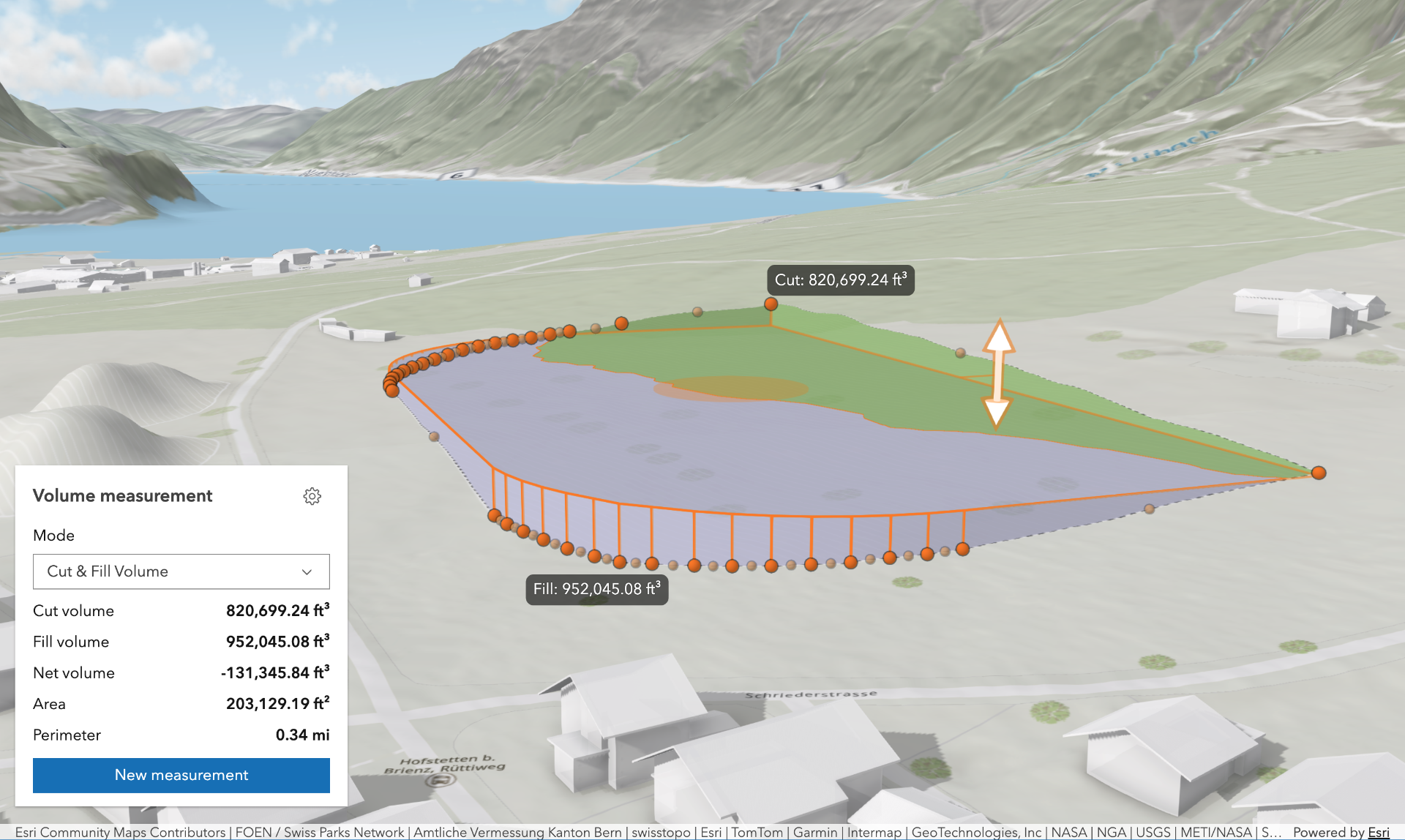
The Volume Measurement component offers multiple volume measurement modes:
-
Cut & Fill Volume: Computes cut and fill volumes relative to a flat, horizontal surface defined by the input polygon. Ideal for estimating the amount of material to remove or add to level terrain for construction.
-
Stockpile Volume: Calculates cut and fill volumes against a surface approximated from the polygon's coordinates. Useful for estimating the volume of temporary ground features such as piles of material, mounds or depressions.
The analysis depends on the scene's spatial reference, and the length of the measured perimeter:
-
In Projected Coordinate Systems (PCS), apart from Web Mercator used in local viewing mode, there is no limit to the measurement's perimeter, making it the recommended setup for analysis as accuracy is not compromised.
-
In Web Mercator PCS used in local viewing mode, if the measurement's perimeter exceeds 10 km, the analysis is considered invalid due to potential accuracy issues.
-
In Geographic Coordinate Systems (GCS) and Web Mercator in global viewing mode, if the measurement's perimeter exceeds 50 km, the analysis is considered invalid due to potential accuracy issues.
Known Limitations
- The Volume Measurement component can only be added to a arcgis-scene component.
- The results of the tool vary depending on the zoom level, as changes in zoom level affect the level of detail (LOD) of the scene geometry.
- If the view is too close or too far from the measurement polygon, the results will not be computed due to LOD-induced inaccuracies.
- The elevation of the target surface in the "Cut & Fill Volume" mode is restricted to the range of -11 km and +9 km.
- This tool operates only on the non-transparent Map.ground, IntegratedMeshLayer and an IntegratedMesh3DTilesLayer.
- This tool does not support WGS 1984 spatial reference in a local viewing mode.
Things to consider
- In "Cut & Fill Volume" mode, you can hover over the shift manipulator, press
Tabto enable tooltip input, and enter the target surface elevation. - Snapping is enabled by default. This can be temporarily disabled by holding the
CTRLkey. - Layer types currently supported for snapping are: FeatureLayer, GraphicsLayer (except Mesh geometries), GeoJSONLayer, WFSLayer, CSVLayer, 3D Object SceneLayer, and BuildingSceneLayer.
See also
Demo
Properties
| Property | Attribute | Type |
|---|---|---|
| ||
area-display-unit | ||
| ||
auto-destroy-disabled | ||
elevation-display-unit | ||
| ||
elevation-input-unit | ||
| ||
heading-level | ||
hide-area-display-unit-select | ||
hide-elevation-display-unit-select | ||
hide-elevation-input-unit-select | ||
hide-header | ||
hide-mode-select | ||
hide-perimeter-display-unit-select | ||
hide-settings-button | ||
hide-start-button | ||
hide-visualization | ||
hide-volume-display-unit-select | ||
icon reflected | icon | Icon["icon"] | undefined |
label | ||
mode | ||
perimeter-display-unit | ||
| ||
reference-element | ||
state readonly | | |
| ||
volume-display-unit | ||
|
analysis
The VolumeMeasurementAnalysis created or modified by the component.
When connecting the Volume Measurement component to the arcgis-scene component, it automatically creates an empty analysis and adds it to the Scene's arcgis-scene.analyses collection. You can then wait for the VolumeMeasurementAnalysisView3D to be created before accessing the analysis results.
// Get the Scene component and the Volume Measurement component, and wait until both are ready.const viewElement = document.querySelector("arcgis-scene");await viewElement.viewOnReady();const volumeMeasurementElement = document.querySelector("arcgis-volume-measurement");await volumeMeasurementElement.componentOnReady();
// Get the VolumeMeasurementAnalysis created by the Volume Measurement component.const analysis = volumeMeasurementElement.analysis;
// Get the VolumeMeasurementAnalysisView3D and watch for results.const analysisView = await viewElement.whenAnalysisView(analysis);const handle = reactiveUtils.watch(  () => analysisView?.result,  () => {    console.log("Analysis results:", analysisView.result);  },);
Whenever the component is destroyed, the analysis is automatically removed from the collection.
Alternatively, a programmatically created VolumeMeasurementAnalysis can be provided to the component. Then, the application itself needs to add it to and later remove it from the analyses collection of the Scene component.
// Create the VolumeMeasurementAnalysis.const volumeMeasurementAnalysis = new VolumeMeasurementAnalysis({   geometry: new Polygon({     spatialReference: { latestWkid: 3857, wkid: 102100 },     rings: [       [         [-13624861.22274897, 4550346.5519295, 63.378210234455764],         [-13624935.305160372, 4550273.144585712, 63.37829629518092],         [-13624995.61798748, 4550334.030096778, 63.37819860037416],         [-13624921.53589075, 4550407.42357004, 63.3783810287714],         [-13624861.22274897, 4550346.5519295, 63.378210234455764]       ]     ]   })});// Get the Scene component and the Volume Measurement component, and wait until both are ready.const viewElement = document.querySelector("arcgis-scene");await viewElement.viewOnReady();const volumeMeasurementElement = document.querySelector("arcgis-volume-measurement");await volumeMeasurementElement.componentOnReady();
// Add the analysis to the analyses collection of the Scene component.viewElement.analyses.add(volumeMeasurementAnalysis);
// Connect the analysis to the measurement component:volumeMeasurementElement.analysis = volumeMeasurementAnalysis;
areaDisplayUnit
- Type
- SystemOrAreaUnit
Unit system (imperial, metric) or specific unit used for displaying the area. Possible values are listed in areaDisplayUnitOptions.
- Attribute
- area-display-unit
areaDisplayUnitOptions
- Type
- Array<SystemOrAreaUnit>
List of available units and unit systems (imperial, metric) that are shown in the component's area display unit dropdown.
By default, the following units are included: metric, imperial, square-inches, square-feet, square-yards, square-miles, square-nautical-miles, square-us-feet, square-millimeters, square-centimeters, square-decimeters, square-meters, square-kilometers, acres, ares, hectares.
Possible areaDisplayUnit values can only be a subset of this list.
autoDestroyDisabled
- Type
- boolean
If true, the component will not be destroyed automatically when it is disconnected from the document. This is useful when you want to move the component to a different place on the page, or temporarily hide it. If this is set, make sure to call the destroy() method when you are done to prevent memory leaks.
- Attribute
- auto-destroy-disabled
- Default value
- false
elevationDisplayUnit
- Type
- SystemOrLengthUnit
Unit system (imperial, metric) or specific unit used for displaying the cut and fill target elevation. Possible values are listed in elevationDisplayUnitOptions.
- Attribute
- elevation-display-unit
elevationDisplayUnitOptions
- Type
- Array<SystemOrLengthUnit>
List of available units and unit systems (imperial, metric) that are shown in the component's dropdown.
By default, the following units are included: metric, imperial, meters, millimeters, centimeters, decimeters, kilometers, inches, feet, yards, miles, nautical-miles, us-feet.
Possible elevationDisplayUnit values can only be a subset of this list.
elevationInputUnit
- Type
- LengthUnit
Unit used for inputting the cut and fill target elevation. Possible values are listed in elevationInputUnitOptions.
This controls which unit is used when entering an elevation value via the tool's UI (for example, using the shift manipulator tooltip input in "Cut & Fill Volume" mode).
- Attribute
- elevation-input-unit
elevationInputUnitOptions
- Type
- Array<LengthUnit>
List of available units that are shown in the elevation input unit dropdown.
By default, the following units are included: inches, feet, yards, miles, nautical-miles, us-feet,
millimeters, centimeters, decimeters, meters, kilometers.
The current elevationInputUnit value can only be a subset of this list.
headingLevel
- Type
- HeadingLevel
Indicates the heading level to use for the headings in the component.
- Attribute
- heading-level
- Default value
- 2
hideAreaDisplayUnitSelect
- Type
- boolean
If true, the area display unit dropdown will be hidden.
- Attribute
- hide-area-display-unit-select
- Default value
- false
hideElevationDisplayUnitSelect
- Type
- boolean
If true, the elevation display unit dropdown will be hidden.
- Attribute
- hide-elevation-display-unit-select
- Default value
- false
hideElevationInputUnitSelect
- Type
- boolean
If true, the elevation input unit dropdown will be hidden.
- Attribute
- hide-elevation-input-unit-select
- Default value
- false
hideHeader
- Type
- boolean
If true, the header will be hidden.
- Attribute
- hide-header
- Default value
- false
hideModeSelect
- Type
- boolean
If true, the mode selection dropdown will be hidden.
- Attribute
- hide-mode-select
- Default value
- false
hidePerimeterDisplayUnitSelect
- Type
- boolean
If true, the perimeter display unit dropdown will be hidden.
- Attribute
- hide-perimeter-display-unit-select
- Default value
- false
hideSettingsButton
- Type
- boolean
If true, the settings button that opens the settings popover will be hidden.
- Attribute
- hide-settings-button
- Default value
- false
hideStartButton
- Type
- boolean
If true, the button that starts a new measurement will be hidden.
- Attribute
- hide-start-button
- Default value
- false
hideVisualization
- Type
- boolean
Indicates whether the component's visualization is hidden in the view.
- Attribute
- hide-visualization
- Default value
- false
hideVolumeDisplayUnitSelect
- Type
- boolean
If true, the volume display unit dropdown will be hidden.
- Attribute
- hide-volume-display-unit-select
- Default value
- false
icon
- Type
- Icon["icon"] | undefined
Icon which represents the component. Typically used when the component is controlled by another component (e.g. by the Expand component).
- See also
- Attribute
- icon
- Default value
- "measure-area"
mode
- Type
- VolumeMeasureType
Specifies the analysis' desired measurement type.
- Attribute
- mode
perimeterDisplayUnit
- Type
- SystemOrLengthUnit
Unit system (imperial, metric) or specific unit used for displaying the perimeter values. Possible values are listed in perimeterDisplayUnitOptions.
- Attribute
- perimeter-display-unit
perimeterDisplayUnitOptions
- Type
- Array<SystemOrLengthUnit>
List of available units and unit systems (imperial, metric) that are shown in the component's perimeter display unit dropdown.
By default, the following units are included: metric, imperial, meters, millimeters, centimeters, decimeters, kilometers, inches, feet, yards, miles, nautical-miles, us-feet.
Possible perimeterDisplayUnit values can only be a subset of this list.
referenceElement
- Type
- ArcgisReferenceElement | string | undefined
By assigning the id attribute of the Map or Scene component to this property, you can position a child component anywhere in the DOM while still maintaining a connection to the Map or Scene.
- Attribute
- reference-element
view
The view associated with the component.
Note: The recommended approach is to fully migrate applications to use map and scene components and avoid using MapView and SceneView directly. However, if you are migrating a large application from widgets to components, you might prefer a more gradual transition. To support this use case, the SDK includes this
viewproperty which connects a component to a MapView or SceneView. Ultimately, once migration is complete, the arcgis-volume-measurement component will be associated with a map or scene component rather than using theviewproperty.
volumeDisplayUnit
- Type
- SystemOrVolumeUnit
Unit system (imperial, metric) or specific unit used for displaying the volume values. Possible values are listed in volumeDisplayUnitOptions.
- Attribute
- volume-display-unit
volumeDisplayUnitOptions
- Type
- Array<SystemOrVolumeUnit>
List of available units and unit systems (imperial, metric) that are shown in the component's dropdown.
By default, the following units are included: imperial, metric, liters, megaliters, gigaliters, cubic-millimeters, cubic-centimeters, cubic-decimeters, cubic-meters, cubic-kilometers, cubic-inches, cubic-us-feet, cubic-feet, cubic-yards, cubic-miles.
Possible volumeDisplayUnit values can only be a subset of this list.
Methods
| Method | Signature |
|---|---|
clear(): Promise<void> | |
componentOnReady inherited | componentOnReady(): Promise<this> |
destroy(): Promise<void> | |
start(): Promise<void> |
componentOnReady
- Signature
-
componentOnReady (): Promise<this>
Creates a promise that resolves once the component is fully loaded.
- Returns
- Promise<this>
Example
const arcgisVolumeMeasurement = document.querySelector("arcgis-volume-measurement");document.body.append(arcgisVolumeMeasurement);await arcgisVolumeMeasurement.componentOnReady();console.log("arcgis-volume-measurement is ready to go!");Events
| Name | Type |
|---|---|
| CustomEvent<{ name: "analysis" | "state"; }> | |
arcgisPropertyChange
arcgisPropertyChange: CustomEvent<{ name: "analysis" | "state"; }> Emitted when the value of a property is changed. Use this to listen to changes to properties.
arcgisReady
arcgisReady: CustomEvent<void> Emitted when the component associated with a map or scene view is ready to be interacted with.