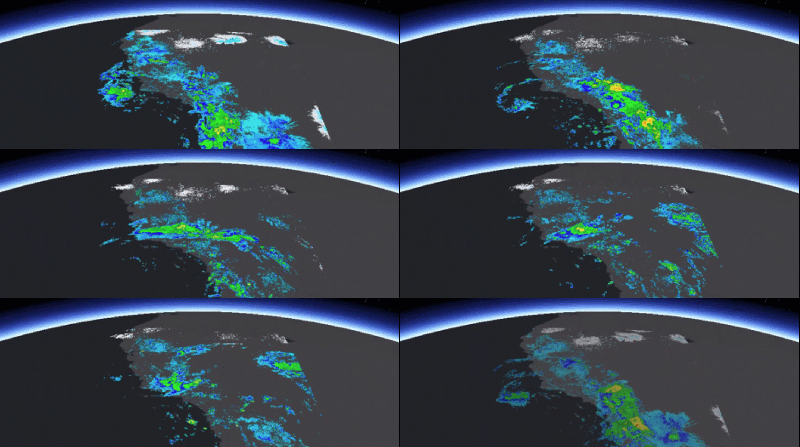
Image overlays can be used to quickly render frequently changing images in a map view or scene view. For example, you can render real-time sensor data, such as weather, where each static image displayed represents a single frame from the radar satellite image. A user perceives the display of the static images in succession as an animation if the images are displayed at small enough time intervals.
Image overlays and graphics overlays both render above all layers in the map or scene. Image overlays render below any graphics overlays you've added to the view. This order ensures that graphics you want to display won't be obscured by your image overlays. For example, you might want to show graphics representing aircraft on top of image overlays showing the sensor data they are collecting.
Since they are designed for quick display, image overlays do not support the rich processing and rendering capabilities of a raster layer, which still provides the best option for workflows that require static image rendering, analysis, and persistence. See Add raster data for more information about working with raster layers.
Add an image overlay
A map or scene view manages a collection of image overlays. Each ImageOverlay contains a single ImageFrame that defines an image to display. Georeferenced images (those with a world file) are added at the correct geographic location. Otherwise, you must define a geographic extent for the image frame. If a spatial reference is not defined for the extent, it is assumed to be the same as the map or scene. If the spatial reference of the extent is different from that of the map or scene, the image will fail to render.
-
If your image doesn't have georeference information, define an extent for the image using an
Envelopeor quadrilateralPolygon.The following example defines a geographic extent using an envelope defined with a center point, width, and height.
Use dark colors for code blocks Copy // Create a point for the center of the image frame. const Point pointForImageFrame(-120.0724273439448, 35.131016955536694, SpatialReference(4326)); // Create an envelope using the center point (including spatial reference), width, and height. // The envelope covers the Pacific sector of the southwest US. m_pacificSouthwestEnvelope = Envelope(pointForImageFrame, 15.0958, 14.3770);You can also define a geographic extent using a polygon that has exactly four points (to define each corner of the image). The polygon can be any quadrilateral; it need not be a rectangle.
Use dark colors for code blocks Copy // Create a list of points to make up the polygon for the image frame. const QList<Point> points = { Point(-123.000, 27.000), Point(-123.000, 40.000), Point(-120.000, 40.000), Point(-120.000, 27.000) }; // Create a polygon builder with a spatial reference. PolygonBuilder* polygon_builder = new PolygonBuilder(SpatialReference::wgs84(), this); // Now add the QList of points to the polygon builder. polygon_builder->addPoints(points); // Get the polygon from the polygon builder. const Polygon pacificSouthwestPolygon = polygon_builder->toPolygon();When you define the polygon, the order in which you specify the vertices has significance and can result in rotating or reflecting the image displayed within the polygon.
In the following descriptions, all starting positions refer to the original (untransformed) position.
When specifying vertices in the clockwise direction: Start in the lower-left corner to display the image in its original orientation. Starting at the next clockwise vertex rotates the image 90° clockwise, and so on.
When specifying vertices in the counterclockwise direction: Start in the lower-right corner to reflect the image around the y-axis. Starting at the next counterclockwise vertex rotates the reflected image 90° counterclockwise, and so on.
-
Create an image frame and pass in a
Qimage. Supported image formats are TIFF, GeoTIFF, ICO, BMP, GIF, JPEG, and PNG. Animated GIF is not supported. If you need to define the extent explicitly, also pass in the envelope or polygon.Image Use dark colors for code blocks Copy // Create a QImage with the given path on the local device. const QImage image(m_dataPath + "/" + m_images[m_index]); // Ex: "C:/temp/images/test1.png" // Create an image frame from the QImage and envelope of the pacific south west. // Use std::unqiue_ptr to handle the lifetime of the image frame. std::unique_ptr<ImageFrame> imageFrame = std::make_unique<ImageFrame>(image, m_pacificSouthwestEnvelope);Use dark colors for code blocks Copy // Define a QUrl to an image. const QUrl qurl("https://myservice.com/images/test1.png"); // Use std::unqiue_ptr to handle the lifetime of the image frame. std::unique_ptr<ImageFrame> imageFrame2 = std::make_unique<ImageFrame>(qurl, m_pacificSouthwestEnvelope); -
Attach the initial image frame to the image overlay. The image overlay has properties to control visibility and opacity of the image. Set the opacity less than 1.0 to make the image semi-transparent so data underneath can be seen.
Use dark colors for code blocks Copy // Set the image frame on the image overlay. m_imageOverlay->setImageFrame(imageFrame.get()); // Set the opacity of the image overlay to 50%. m_imageOverlay->setOpacity(0.5f); -
Add the image overlay to the map or scene view's image overlay collection. To zoom to the extent of the image, you can set the viewpoint using the image frame extent.
Use dark colors for code blocks Copy // Get the image overlay list model from the scene view. ImageOverlayListModel* imageOverlayListModel = m_sceneView->imageOverlays(); // Append the image overlay to the image overlay list model. imageOverlayListModel->append(m_imageOverlay); // Create a point with x, y, z, and spatial reference. const Point observationPoint(-116.621, 24.7773, 856977, SpatialReference::wgs84()); // Create a camera with the point, heading, pitch, and roll. const Camera camera(observationPoint, 353.994, 48.5495, 0); // Create a viewpoint with the point and camera. const Viewpoint pacificSouthwestViewpoint(observationPoint, camera); // Set the intial viewpoint on the scene. m_scene->setInitialViewpoint(pacificSouthwestViewpoint);

Animate an image overlay
You can animate the display of image overlays by changing the frame they contain at a specified interval. You might use a timer, for example, to read the next image in a sequence, use it to create a new ImageFrame, and replace the current frame in the ImageOverlay.
-
Create a new timer and set it to call a function to change the image at the desired interval.
Use dark colors for code blocks Copy // Create new QTimer and set the timeout interval to 68ms. QTimer* m_timer = new QTimer(this); m_timer->setInterval(68); // Connect to the QTimer timeout signal to load and display a new image frame each time. connect(m_timer, &QTimer::timeout, this, &StylesAndDataVisualization::animateImageFrames); -
For each timer interval, create a
Qfrom the current image file, use it to create an image frame for the image, and set the image frame on the image overlay. Then increment the image index.Image Use dark colors for code blocks Copy void StylesAndDataVisualization::animateImageFrames() { // Check if string list of images is empty before trying to load and animate them. if (m_imagesSize == 0) return; // Create a QImage with the given path on the local device. const QImage image(m_dataPath + "/" + m_images[m_index]); // Ex: "C:/temp/images/test1.png" // Create an image frame from the QImage and envelope of the pacific south west. // Use std::unqiue_ptr to handle the lifetime of the image frame. std::unique_ptr<ImageFrame> imageFrame = std::make_unique<ImageFrame>(image, m_pacificSouthwestEnvelope); // Set the image frame on the image overlay. m_imageOverlay->setImageFrame(imageFrame.get()); // Set the opacity of the image overlay to 50%. m_imageOverlay->setOpacity(0.5f); // Increment the index to keep track of which image to load next. m_index++; // Reset index once all files have been loaded. if (m_index == m_imagesSize) m_index = 0; }