You can navigate a scene view (a 3D map):
- Using built-in navigation (described on this page), such as panning, zooming, and changing pitch
- By programmatically changing camera position
Built-in navigation
The scene view has a number of built-in gestures that allow you to navigate a scene (3D) using touch screen, mouse, or keyboard.
Basic navigation
Basic navigation for scene views is the same as navigation for map views:
| Navigation | Mouse | Touch | Key Action (on iOS and Mac Catalyst) |
|---|---|---|---|
| Zoom in | • Scroll backward • Hold shift + drag up • Double tap | • Two finger pinch open 
• Single finger double-tap 
| • = |
| Zoom out | • Scroll forward • Hold shift + drag down | • Two finger pinch close 
• Two finger single-tap | • - |
| Continuous zoom in/out | • N/A | • Single finger double-tap, ending in a vertical up/down drag

| • N/A |
| Move/Pan | • Tap and drag | • Single finger drag
• Flick 
| • ↑ • ↓ • ← • → |
| Rotate the scene | • Hold down ⌥ and drag left/right | • Two finger rotate 
| • ⌥← for left • ⌥→ for right |
| Rotate to North | • N/A | • N/A | • ⌘0 • shift ⌘↑ |
| Camera look-around effect | • N/A | • Single finger double-tap and hold. The camera's heading changes when you drag left/right and the pitch changes at the current location when you drag up/down | • N/A |
| Tilt up/down | • Hold down ⌥ and drag up/down | • N/A | • ⌥↑ to tilt up • ⌥↓ to tilt down |
| Tilt to zero | • N/A | • N/A | • shift 0 |
Advanced navigation
Scene views have additional navigation not found in map views:
| Navigation | User Action | Key Action (on iOS and Mac Catalyst) |
|---|---|---|
| Tilt the scene | • Two-finger drag 
| • ⌥↑ for tilt up • ⌥↓ for tilt down • ⇧0 for tilt to 0 |
Programmatically change camera position
Your applications can programmatically navigate a 3D scene by creating a new camera and setting it to the scene view. A camera defines the location from which you are viewing the scene.

The camera is shown in this image for illustration purposes; when you set camera settings (location, pitch), think of the camera class a real-life camera you're adjusting the position of.
Set the camera
For example, to point the camera to toward the Snowdon mountainside, use these values:
- For 3D location, use 53.06 latitude, -4.04 longitude, 1289 meters above sea level
- For heading, use 295 degrees
- For pitch, use 71 degrees
- For roll, use 0 degrees
let point = Point(x: -4.04, y: 53.06, z: 1200.0, spatialReference: .wgs84)
let snowdonCamera = Camera(latitude: 53.06, longitude: -4.04, altitude: 1289, heading: 295, pitch: 71, roll: 0)
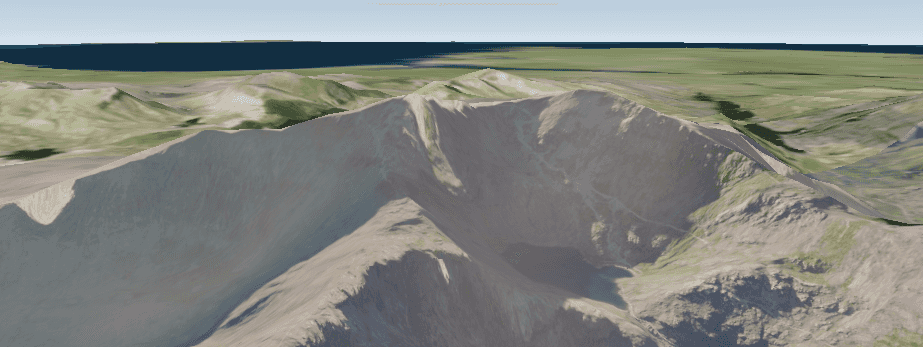
Now you have a new camera you can apply to your scene view. You can apply it immediately using set as shown in the code below, or the camera can be animated to the new position using one of the asynchronous methods.
scene.initialViewpoint = Viewpoint(boundingGeometry: point, camera: snowdonCamera)