To create the schema (field structure) for a new empty feature layer
Use this approach when you want to:
- Dynamically specify the field structure of an empty feature layer in a feature service for your applications
- Store points, polylines, and polygon in a feature layer
A feature layer (server-side) is a spatially-enabled table in a feature service. All features in a feature layer share the same geometry type and set of fields. - Store non-spatial data as a standalone table
- Store string and numeric data in fields
- Store attachments with features
- Store and access features in different formats (JSON, GeoJSON, or PBF)
Types of datasets
When you define a new feature layer, you need to determine the data type that best fits your data, workflow, and application needs. ArcGIS supports four different dataset types:
| Data type | Description | Use |
|---|---|---|
| Point layer | A feature layer containing pointx,y coordinates and a spatial reference. | Model discrete locations: GPS coordinates, Earthquake epicenters, Hydrants. |
| Line layer | A feature layer containing polyline | Model phenomena with a length: road centerlines, rivers, oil pipelines |
| Polygon layer | A feature layer containing polygon | Model phenomena with an area: Parcel boundaries, water bodies, building footprints |
| Table | A feature layer containing non-spatial features | Typically used to store data associated with a spatial feature: Inspection history, owner information, metadata |
How to define a new dataset
The general steps to define a new dataset are as follows:
-
Sign in to your portal
ArcGIS portal, also known as a portal, is a website with applications and tools that can be used to create, manage, access, and share geospatial content and data. It supports security and authentication, developer credentials, content and data service management, user and group management, and site administration. A portal can be hosted in Esri's infrastructure or your own infrastructure. :- ArcGIS Location Platform: Go to https://location.arcgis.com > My portal.
- ArcGIS Online: Go to https://www.arcgis.com/home/signin.html.
- ArcGIS Enterprise: Go to your portal URL. Learn more at ArcGIS Enterprise > Use > Get started > Access.
-
Use the tool to define the fields and schema for your feature layer. This creates the following:
- Hosted feature layer: A new item
An item, also known as a content item, is a resource stored in a portal such as a web map, hosted layer, style, script tool, file, or notebook. in your portalArcGIS portal, also known as a portal, is a website with applications and tools that can be used to create, manage, access, and share geospatial content and data. It supports security and authentication, developer credentials, content and data service management, user and group management, and site administration. A portal can be hosted in Esri's infrastructure or your own infrastructure. to manage the item properties and service settings. - Feature layer and feature service: A new feature layer
A feature layer (server-side) is a spatially-enabled table in a feature service. All features in a feature layer share the same geometry type and set of fields. in a feature serviceA feature service is a data service that provides access to spatial and non-spatial data in feature layers, feature layer views, and tables. for the data.
The most common next step is to add data to the new feature layer. You can use tools such as the Map Viewer
Map Viewer is a browser-based mapping tool that can view, create, and save web maps. It can also perform mapping, visualization, and spatial analysis operations. or ArcGIS ProArcGIS Pro is a professional desktop GIS application that can explore, visualize, analyze, and manage 2D and 3D data. to add, update, and delete features. - Hosted feature layer: A new item
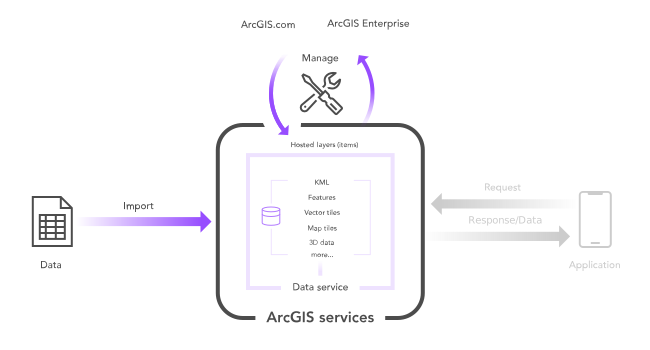
Tools, data, and services
Below is a description of the data management tools you can use to create new feature layers and tables in feature services.
| Data management tool | Input data source | Input data format | Output item | Output layer | Data service |
|---|---|---|---|---|---|
| ArcGIS portal ArcGIS Enterprise portal | Template Hosted feature layer Layer URL | Feature layer (hosted) | Feature layer (hosted) | Feature layer | Feature service |
| ArcGIS portal ArcGIS Enterprise portal | None. You define the geometry type and fields interactively. | None | Feature layer (hosted) | Feature layer | Feature service |
Tutorials

Import data to create a feature layer
Use data management tools to import files and create a feature layer in a feature service.
Define a new feature layer
Use data management tools to define and create a new empty feature layer in a feature service.

Manage a feature layer
Use a hosted feature layer item to set the properties and settings of a feature layer in a feature service.

Create a vector tile service
Use data management tools to create a new vector tile service from a feature service.

Create a map tile service
Use ArcGIS Online or scripting APIs to publish a map tile service.
Workflows
Create a feature service for an app
Learn how to import parcel data, create and style a feature layer, and then access the features in an app.

Create a feature layer view for an editor app
Learn how to import parcel data, create and style a feature layer view, and then access the features in an editing app.

Create a vector tile service for an app
Learn how to import parcel data, style a feature layer, and then create a vector tile service for an app.

Create a map tile service for an app
Learn how to import contour data, style a feature layer, and create a map tile service for an app.

Services
Feature service
Add, update, delete, and query feature data.
Vector tile service
Store and access vector tile data.
Map tile service
Store and access map tile data.
Image service
Store and access imagery and raster data.
API support
Use data management tools
- 1. Use portal class and direct REST API requests
- 2. Access via ArcGIS REST JS
- 3. Requires manually setting styles for renderers
- 4. Limited to Feature Services