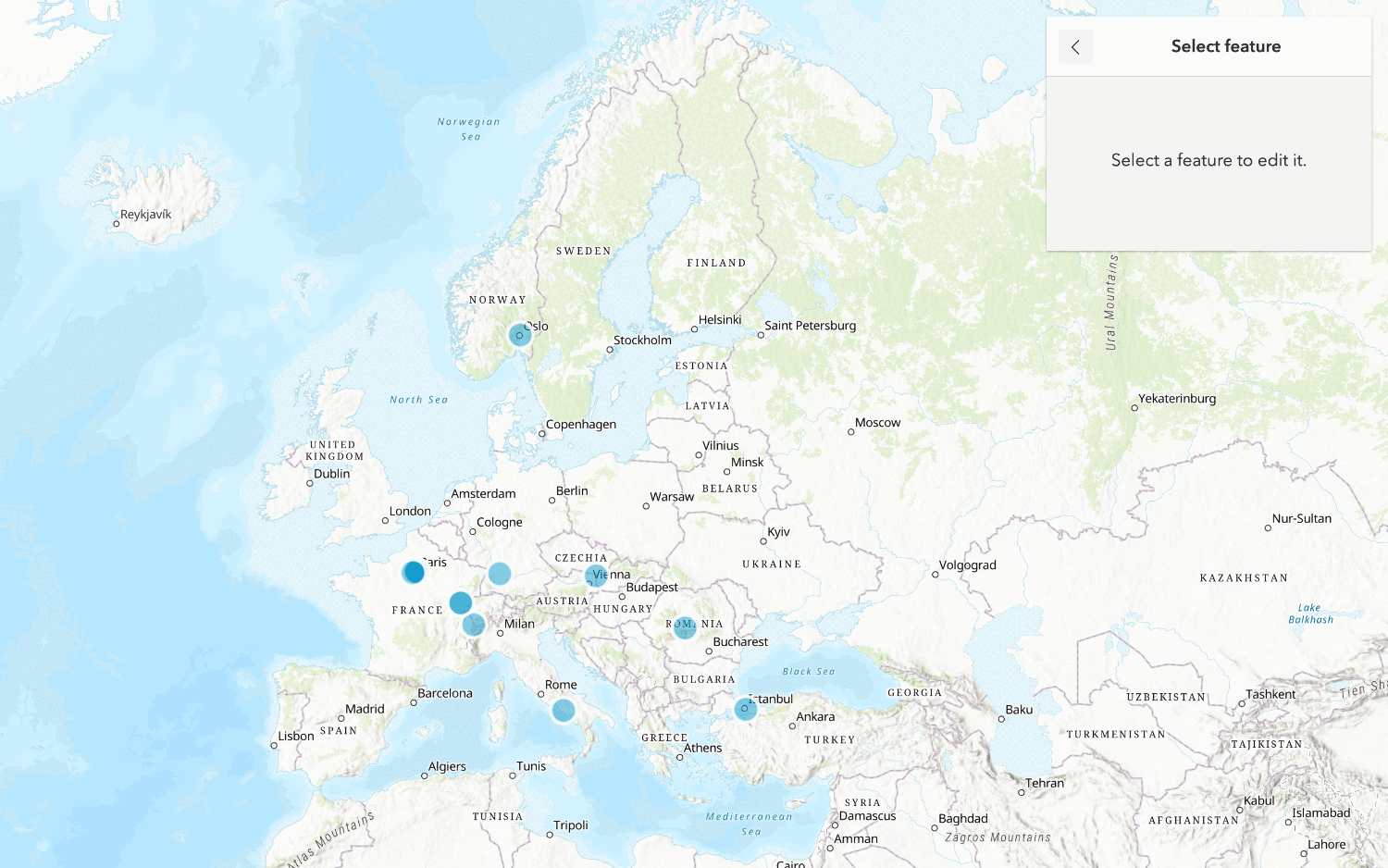
In this workflow, you will learn how to create, manage, and access a map tile service
Prerequisites
- You need an account
An ArcGIS account is an identity with a user type and set of privileges that can access specific ArcGIS products, tools, APIs, services, and resources. The main account types that can be used for development are an ArcGIS Location Platform account, ArcGIS Online account, and ArcGIS Enterprise account. ArcGIS Location Platform and ArcGIS Online accounts are also associated with a subscription. for ArcGIS Location PlatformArcGIS Location Platform, formerly known as ArcGIS Platform, is a Platform as a Service (PaaS) product that gives developers access to location services, APIs, and tools to build mapping and spatial analysis applications. It is subscription-based and requires an ArcGIS Location Platform account. , ArcGIS OnlineArcGIS Online is a GIS mapping, analytics, data hosting, and content management software as a service (SaaS) product. It includes applications, tools, APIs, and location services for users and developers. It is subscription-based and requires an ArcGIS Online account. , or ArcGIS EnterpriseArcGIS Enterprise is a GIS mapping, analytics, data hosting, and content management product that can be hosted on-premise or in a cloud infrastructure. It includes software, applications, tools, APIs, and services for users and developers. to create hosted data services. If you need an account, go to Get started.
- The Scripting APIs sections of this tutorial requires you to implement authentication. To learn more about the different types of authentication, go to Security and authentication.
Steps
Download the data
For this workflow, you will use the Santa Monica elevation contours dataset.
-
In your web browser, go to the Santa Monica elevation contours item.
-
Click the Download button to download the zip file locally. Do not unzip this file.
Create a feature layer
Before you create a map tile layer, you need to create a feature layer.
To create a feature layer
Data management tools
Import the shapefile using a data management tool
In your web browser, go to https://location.arcgis.com, and sign in with your ArcGIS Location Platform account
-
In the top navigation bar, click Content.
-
Click New item. To upload the Santa Monica elevation contours Shapefile, you can either:
- Drag and drop the file.
- Or, click Your device and navigate to the file path.
-
Select Santa_Monica_contours_clipped_export.zip and create a hosted feature layer to publish the file as a hosted feature layer
A hosted feature layer is a hosted layer (item) in a portal that is used to manage the properties and settings of a spatially-enabled feature layer in a feature service. . -
In Fields, leave all fields at their default settings and click Next.
-
In Location settings, leave the default settings and click Next.
-
Set the following information in the item details pane:
- Title:
Santa Monica elevation contours - Tags:
santa,monica,elevation,contours,map tile,service,tutorial - Summary:
City of Santa Monica elevation contours
- Title:
-
Click Next to create the new feature layer
A feature layer (client-side) is a data layer that can access and display features from a feature service that has the same type of geometry and attribute fields. and feature serviceA feature service is a data service that provides access to spatial and non-spatial data in feature layers, feature layer views, and tables. .
Scripting APIs
You can also import the shapefile with the ArcGIS API for Python or ArcGIS REST JS. The general steps are as follows:
- Import the required libraries.
- Implement authentication.
- Create and publish a portal item.
- Handle the results.
# local path to shapefile zip file
input_file_path = str(
Path(__file__).parent / "Santa_Monica_contours_clipped_export.zip"
)
new_item_props = ItemProperties(
title="Santa Monica elevation contours",
description="City of Santa Monica elevation contours",
tags=["santa", "monica", "elevation", "contours", "map tile", "service", "tutorial"],
item_type=ItemTypeEnum.SHAPEFILE
)
# add the zip file as an item to portal
shp_item_job = root_folder.add(item_properties=new_item_props, file=input_file_path, )
if not shp_item_job.done():
print("add item job processing...")
else:
shp_item = shp_item_job.result()
# publish the item to create a hosted feature service
shp_service = shp_item.publish(None)
print(f"New item id : {shp_service.id,}, url: {shp_service.layers[0].url}")Manage service settings
The layer has polyline features with large numbers of vertices per feature. To improve performance, enable drawing optimization and CDN caching. Caching will decrease network latency and increase responsiveness.
In the item page, use the Settings tab to configure service settings such as cache and drawing optimization.
Enable the following settings:
-
Optimize layer drawing
- In the item page, go to the Settings > Optimize Layer Drawing. Click Optimize layers and select the layer to optimize > Update.
-
Cache control
- In the item page, go to the Settings tab > Cache control. Set the time you want users to wait before seeing updates to the layer.
Set the feature styles
Use data management tools
In ArcGIS portal, use the Visualization tab to set the feature styles.
-
Go back to the item page
An item page is a web page in ArcGIS Online or the developer dashboard used to access and manage the properties for an item and the content it references such as a web map, hosted layer, or file. > Visualization. -
In the left panel, click the Layers and select the Santa Monica contours layer. In the right panel, click Styles.
-
Under Pick a style, click Location (single symbol).
-
For Symbol style, click on the pencil icon to open the Symbol style pane.
-
Set each of the following properties:
- Color:
#d0774b - Transparency: 0
- Width: 0.09
- Adjust width automatically: false
Your Symbol style pane should look like this:

- Color:
-
Click the X to exit out of Symbol style. Then click Done twice.
-
Click Save to save the style.
-
Click on Labels in the right toolbar.
-
Click Enable labels to toggle on.
-
Under Label field, select the
Contourfield.Ele -
Under Label Style set the following properties:
- Font:
Arial Regular - Size: 13
- Color:
#d0774b - Allow overrun: false
- Repeat label: true
- Label repeat interval: 0
- Halo: true
- Color:
#ffffff - Size: 1
- Color:
Your Label style pane should look like this:

- Font:
-
Click X to dismiss the Label style pane.
-
Under Visible range, set the visible range from
StreettoRoom.Your Label features pane should look like this:

-
Click X to dismiss the Label features pane.
-
Click Save to save the style.
Scripting APIs
You can also style the elevation contours features using the ArcGIS API for python or ArcGIS REST JS. The general steps are as follows:
- Import the required libraries.
- Implement authentication.
- Retrieve feature layer properties.
- Define a new renderer.
- Update feature layer properties.
- Handle the results.
# update the drawing info
feature_layer_props["drawingInfo"] = new_drawing_info
# reset last edit date
feature_layer_props["editingInfo"]["lastEditDate"] = None
# apply changes
results = feature_layer.manager.update_definition(feature_layer_props)
print(results)Publish the map tile service
Use data management tools
Data management tools
Use ArcGIS portal to publish the map tile service.
-
Go back to the item page
An item page is a web page in ArcGIS Online or the developer dashboard used to access and manage the properties for an item and the content it references such as a web map, hosted layer, or file. > Overview. -
Click Publish > Tile layer.
-
In the Create a tile layer modal, select Create tiles automatically
-
Enter a Title and Tags for the new map tile layer. Click OK. You will be directed to the item page
An item page is a web page in ArcGIS Online or the developer dashboard used to access and manage the properties for an item and the content it references such as a web map, hosted layer, or file. for the new tile service.
Scripting APIs
You can also publish the elevation data feature layer to create a map tile service using the ArcGIS API for Python or ArcGIS REST JS. The general steps are as follows:
- Import the required libraries.
- Reference the source feature layer.
- Define the publish parameters.
- Execute the publish operation.
- Handle the results.
tile_service = item.publish(
publish_parameters=tile_params,
output_type="tiles",
file_type="featureService",
build_initial_cache=False,
)
print(f"New item created:\n\tid:{tile_service.id}\n\turl: {tile_service.url}")Get an access token
By default, the sharing level of an item is set to Owner and requires an access token, such as an API key to access it in a client-side application. If you have an ArcGIS Location Platform or ArcGIS Online account, you can scope an API key to access private items. You cannot scope an API key to access private items if you have an ArcGIS Enterprise account. Instead, to access private items, you need to generate a token from an OAuth 2.0 workflow.
In your web browser, go to https://location.arcgis.com, and sign in with your ArcGIS Location Platform account
- Click Content > My Content.
- Click the New Item > Developer credentials.
- In the Create developer credentials window, select API key credentials. Click Next.
- Set an expiration date for your API key. API keys can be valid for up to one year. Then, click Next.
- In the Privileges menu, check the following privileges:
- Location services > Basemaps
- In the Grant item access menu, click Browse items.
- Select the tile layer item you just created. Then, click Next.
- Fill out the following properties:
- Title:
API key - Data services workflow - Tags:
authentication,data,hosting,workflow,portal - Summary: API key used to provide authentication for data hosting workflows.
- Title:
- Click Next.
- Review your selections and, when you are ready, click Next.
- Click Generate the API key and go to item details page. I am ready to copy and save the key.
- Click Next.
- Copy the API key and store it safely. You will not be able to view it again later. If you lose it, you will have to generate another key.
Find the service URL and item ID
To access a hosted layer from an application, you need to be able to identify its ID
If you are using ArcGIS Maps SDKs:
- In the item page, click View to access the service. Locate the Service ItemId, which will look something like this:
- Service ItemID: 5fd812155876416997c1a03e841e8821
If you are using open source libraries:
- In the item page, scroll down to the bottom of the page to find the URL. For example:
- URL:
https://services3.arcgis.com/ G Vgb Jbqm8h XASV Yi/arcgis/rest/services/ Santa _Monica _contours _(map _tiles)/ Map Server
- URL:
Display tiles
To display map tiles from the Santa Monica elevation contours map tile service, you need to use a client-side mapping API such as an ArcGIS Maps SDK
-
Select an ArcGIS Maps SDK or open source library.
-
In the layer item page, find the service URL and layer index or the item ID.
-
In the code, set the service URL to the client-side URL parameter or the item ID to the portal item parameter.
-
Add the layer to the map.
const portal = new Portal({
url: "https://www.arcgis.com/",
authMode: "immediate",
});
// OR
esriConfig.apiKey = "YOUR_ACCESS_TOKEN";
const imageLayer = new TileLayer({
portalItem: {
id: "5fd812155876416997c1a03e841e8821",
},
});
const map = new Map({
basemap: "arcgis/light-gray",
layers: [imageLayer],
});
Your app will look something like this:
What's next?
Learn how to use additional tools, APIs, and location services in these tutorials:

Import data to create a feature layer
Use data management tools to import files and create a feature layer in a feature service.
Define a new feature layer
Use data management tools to define and create a new empty feature layer in a feature service.

Manage a feature layer
Use a hosted feature layer item to set the properties and settings of a feature layer in a feature service.

Create a vector tile service
Use data management tools to create a new vector tile service from a feature service.

Create a map tile service
Use ArcGIS Online or scripting APIs to publish a map tile service.