Client-side and server-side queries used to display and perform calculations on parcels in Santa Monica
What are feature queries?
To access featuresquery operation. To do so, you can use ArcGIS Maps SDKs
You use feature queries to:
- Access a subset of features in a feature layer
- Request features with a SQL WhereClause query
- Request features with a spatial query using a geometry and relationship type
- Return features in different data formats e.g. JSON, GeoJSON, and PBF
- Return feature geometries in different projections
- Return all or a subset of attribute fields for features
- Return features with or without geometries
How to query features
The steps to access and query features are:
- Find the service URL for the feature layer to query.
- Define the
querySQL parameters and/or spatial parameters. - Define the output parameters (data format and spatial reference).
- Execute the
query.
Types of queries
In general, the two types of feature queries you can implement are repeatable queries and unique queries.
Repeatable query
A repeatable query is a query you send to a feature servicecache to ask the service to cache the results.
Below is an example of a repeatable query with a repeatable where clause:
https://services3.arcgis.com/GVgbJbqm8hXASVYi/arcgis/rest/services/LA_County_Parcels/FeatureServer/0/query?f=pbf&cacheHint=true&resultRecordCount=100&where=UseType = 'Irrigated Farm'&outFields=APN,UseType,TaxRateCity,TaxRateArea,Roll_LandValue&returnGeometry=false&token=<ACCESS_TOKEN>Unique query
A unique query is a query you send to a feature servicecache to ask the service to cache results from unique queries.
Below is an example of a unique query with a user-defined geometry:
https://services3.arcgis.com/GVgbJbqm8hXASVYi/arcgis/rest/services/LA_County_Parcels/FeatureServer/0/query?f=pbf&geometry={"rings":[[[-13228576.521843342,4033084.7250306536],[-13222485.595442941,4033084.7250306536],[-13222485.595442941,4030103.75557307],[-13228576.521843342,4030103.75557307],[-13228576.521843342,4033084.7250306536]]]}&outFields=APN,UseType,TaxRateCity,Roll_LandValue&spatialRel=esriSpatialRelIntersects&geometryType=esriGeometryPolygon&token=<ACCESS_TOKEN>Client-side queries
The ArcGIS Maps SDKs provide an additional way to query features on the client.
A client-side query is a type of query you can perform against features stored locally on the client. To implement this query, an application needs to make an initial query to a feature service
Feature queries and caches
When you query and/or display featuresquery request that is stored and managed so it can be reused by clients. Response caches are only beneficial to applications that make repeatable queries. Making use of response caches improves both performance and scalability allowing your application to perform well even when experiencing high load.
There are multiple levels of caches available to applications. This includes the following:
- Client-side cache: A response cache stored and managed by a web browser, native application, or operating system.
- CDN cache: A response cache stored and managed by CDN servers worldwide (ArcGIS Location Platform and ArcGIS Online only). This cache is configurable.
- Feature tile cache: A response cache stored and managed internally by the feature service.
All three levels of caches can exist at the same time. How the caches are used by an application, however, depends on the type of API you are using, the CDN cache max age settings you apply, and the parameters you include with the request.
In general, when a query request is sent to a feature service, the response caches are accessed in the following order:
- Client-side cache (if available)
- CDN cache (if available)
- Feature tile cache (if available)
If a cache is available, the response cache is sent back to the client immediately. If a cache isn't available, the request will look for the next level of cache that is available. If no caches are found, the query is processed by the feature service
Client-side cache
A client-side cache is the response data from queries to the feature service stored in a web browser, native application, or operating system. If the cache is available, the applications use this cache first before making requests to the feature service. When using the cache, the ArcGIS Maps SDKs
CDN cache
A CDN cache is the response data from queries stored on CDN servers around the world. The CDN caches the data returned from the service for requests for a length of time (cache) that you specify in the hosted feature layer
CDN caches are only available when using ArcGIS Location Platform
Feature tile cache
A feature tile is a data structure that contains the results of a query request stored in the server. A feature tile is created when a query request contains result or cache. The tiles can be sent directly back to the client to satisfy a query request or stored in a feature tile cache, CDN cache, or client-cache for future use.
A feature tile cache is the response data from queries stored at the service level as one or more feature tiles. A feature service cache is used when a client application sends consistent and repeatable queries to a feature service and the service stores the results as feature tiles for future use. The ArcGIS Maps SDK
Feature tile caches are available when using ArcGIS Location Platform
URL request
https://{host}/{organizationID}/ArcGIS/rest/services/{serviceName}/FeatureServer/{id}/query?{queryParameters}Required parameters
| Name | Description | Examples |
|---|---|---|
f | The format of the data returned. | f=json f=pjson f=geojson f=pbf f=html |
token | An API key or OAuth 2.0 access token | token= |
SQL parameters
Use this parameter to define a WhereClause for a SQL query.
| Name | Description | Examples |
|---|---|---|
where | A SQL clause that defines which data to return based upon attributegeometry and spatial parameters. Learn more about the SQL-92 format here. |
Spatial parameters
Use these parameters to define the type of spatial query.
| Name | Description | Examples |
|---|---|---|
geometry | The geometry parameter is key to all spatial queries. The query result will include features that relate to the geometry parameter value according to a spatial relationship specified by the spatial parameter.The value can be specified in one of 3 formats: - Simple point syntax: geometry=- Simple envelope syntax: geometry=- Full JSON syntax: geometry={...} To use the geometry parameter, you must also provide a geometry parameter. If you use the simple syntax for the geometry, you should also specify the in parameter. | |
geometry | When a geometry parameter is provided, you must also specify the geometry parameter. Valid values are:- esri- esri- esri- esri- esri | |
spatial | Defines how the query geometry relates to features that should be returned in the query response. Valid values are:- esri (default)- esri- esri- esri- esri- esri- esri- esriFor example, to query for all trees in a park, pass the park outline as the geometry and use spatial.The most common spatial relationships typically used in a query are esri, esri, and esri.Learn more about spatial relationships here. | |
in | This specifies the spatial referencegeometry parameter. You can specify a WKID, or full spatial reference JSON.Common WKIDs are 4326 for GPS data (in), and 3857 for Web Mercator data. To learn more, see Spatial references. | |
distance | Buffer the geometry parameter by an amount. The units of the amount are specified in the units parameter. distance and units parameters are useful to search near a point. Set the geometry to a point, and specify the distance and units. | |
units | The units for the value provided in the distance parameter. Valid values are:- esri- esri- esri- esri- esri- esri |
Output parameters
Use these parameters to define and optimize the query response.
| Name | Description | Examples |
|---|---|---|
out | The spatial referenceout typically matches the spatial reference of the map view or scene view. This avoids having to project features on the fly. Client APIs make use of out to improve performance of mapping applications. A common WKID is 3857 (out), which is the spatial reference used by most basemap layers. To learn more, see Spatial references. | |
out | A list of field names that specifies the attributesout). The more fields you request, the larger the attributes portion of the response JSON payload and the longer it could take to download. Only request the fields you need for display or analysis. To return all fields, which can be useful during development and testing, use out. | |
return | Whether to return geometries with feature results. Geometries are returned by default when querying a feature layer. If features will not be displayed in a map or scene, you can pass return to exclude geometries from the query response. For other methods that reduce the payload size of geometries returned in a query response, see max, geometry, and quantization parameters in the REST API documentation. | |
order | Order the records that are included in the response by specifying which fields to sort by and a sort order for each field: - ASC - ascending order (default)- DESC - descendingFor example, order. |
Cache parameters
| Name | Description | Examples |
|---|---|---|
cache | Ask the service to store the query response for later use. This should only be used when client applications send consistent and repeatable queries. Using cache can significantly improve performance. See the Query a feature layer (SQL) example. | cache cache |
Code examples
Query a feature layer (SQL)
To retrieve a subset of data for a feature layer, you can query features using a SQL where clause. This example uses repeatable SQL where clauses to access a subset of parcels from a feature layer that contains 2.4 million features. Since this is a repeatable query, it also uses cache so the service can store the query response and optimize the query for other clients.
Steps
- Create a map or scene.
- Get the feature layer URL.
- Create and execute a SQL query with parameters that are consistent.
- Show the features.
APIs
// Get query layer and set up query
const parcelLayer = new FeatureLayer({
url: "https://services3.arcgis.com/GVgbJbqm8hXASVYi/arcgis/rest/services/LA_County_Parcels/FeatureServer/0",
});
const queryFeatureLayer = (whereClause) => {
const parcelQuery = {
where: whereClause, // Set by select element
outFields: Object.keys(outFields), // Attributes to return
returnGeometry: false, // don't return geometry
cacheHint: true, // use feature tile cache
num: 100, // limit return number
};
parcelLayer
.queryFeatures(parcelQuery)
.then((results) => {
addToTable(results);
})
.catch((error) => {
console.log(error.error);
});
};
REST API
curl https://services3.arcgis.com/GVgbJbqm8hXASVYi/arcgis/rest/services/LA_County_Parcels/FeatureServer/0/query? \
-d "f=json" \
-d "where=UseType = 'Residential'" \
-d "resultRecordCount=1" \
-d "outFields=APN,UseType,TaxRateCity,Roll_LandValue" \
-d "cacheHint=true \Query a feature layer (Spatial)
To retrieve a subset of data for a feature layer, you can query features using a spatial relation and a geometry. This example uses a spatial query to access a subset of parcels from a feature layer that contains 2.4 million features.
Steps
- Create a map or scene.
- Get the feature layer URL.
- Create and execute a spatial query with unique query parameters.
- Show the features.
APIs
const parcelLayer = new FeatureLayer({
url: "https://services3.arcgis.com/GVgbJbqm8hXASVYi/arcgis/rest/services/LA_County_Parcels/FeatureServer/0",
});
function queryFeaturelayer(geometry) {
const parcelQuery = {
spatialRelationship: "intersects", // Relationship operation
geometry: geometry, // input geometry
outFields: ["APN", "UseType", "TaxRateCity", "Roll_LandValue"], // Attributes to return
returnGeometry: true,
};
parcelLayer
.queryFeatures(parcelQuery)
.then((results) => {
console.log("Feature count: " + results.features.length);
displayResults(results);
})
.catch((error) => {
console.log(error);
});
}
REST API
curl https://services3.arcgis.com/GVgbJbqm8hXASVYi/arcgis/rest/services/LA_County_Parcels/FeatureServer/0/query? \
-d "where=1=1" \
-d "outFields=*" \
-d "f=json" \
-d "geometry = {"x":-118.807,"y":34.002,"spatialReference":{"wkid":4326}}" \
-d "geometryType=esriGeometryPoint" \
-d "spatialRel = esriSpatialRelIntersects"Query features with paging
The maximum number of features returned by a single query to a hosted feature layer is constrained by the services max property. You can use pagination to return features that exceed the max. This example uses paged queries to return all of the features in a hosted feature layer in sets of 100 records.
To learn more, visit the REST services documentation.
Steps
- Get the hosted table item ID
An item ID is a unique identifier representing a single item stored, managed, and accessed in a portal, such as a web map, hosted layer, or file. or URL and layer ID. - Set the
result, andRecord Count resultparameters of the query and execute.Offset - Display the paginated records.
APIs
// create initial query params
const queryParams = {
where: "1=1",
outFields: Object.keys(appParams.outFields),
orderByFields: ["FID asc"], // order by object id
returnGeometry: true,
num: appParams.returnCount, // resultRecordCount
start: appParams.currentPage, // resultOffset
};
/**
* Set current page and send query request to the server
*/
const queryFeatures = async () => {
queryParams.start = appParams.currentPage; // set the current offset to get the next batch of records
const queryResponse = await parcelsLayer.queryFeatures(queryParams);
await displayResults(queryResponse);
};
REST API
curl "https://services3.arcgis.com/GVgbJbqm8hXASVYi/arcgis/rest/services/Santa_Monica_public_parcels/FeatureServer/0/query?" \
-d "f=json" \
-d "&token={ACCESS_TOKEN}" \
-d "&where=1=1" \
-d "&outFields=FID, ain, situsfulla, usetype" \
-d "&orderByFields=FID ASC" \
-d "&resultRecordCount=100" \
-d "&resultOffset=0"Query a feature layer (client-side)
You can use ArcGIS Maps SDKs to perform both client-side and server-side queries. In the example below, an initial server-side query request is used to get the features for the map. After loading the features into the client, features are filtered on the client-side to select a subset of parcels. Subsequent client-side queries are made when the mouse is moved. The land value of the current feature under the cursor is displayed and the average value of all parcels within 500 meters is also calculated and displayed.
Steps
- Get the feature layer URL.
- Create and apply a filter.
- Display the filtered features.
- Perform a client-side query operation on mouse move.
APIs
const averageLandValueQuery = parcelLayerView.createQuery();
averageLandValueQuery.geometry = hitCenter;
averageLandValueQuery.distance = 500;
averageLandValueQuery.unit = "meters";
averageLandValueQuery.returnQueryGeometry = true;
averageLandValueQuery.outStatistics = [
{
statisticType: "avg",
onStatisticField: "roll_landv",
outStatisticFieldName: "roll_landv_avg",
},
];
const objectIdsQuery = parcelLayerView.createQuery();
objectIdsQuery.geometry = hitCenter;
objectIdsQuery.distance = 500;
objectIdsQuery.unit = "meters";
const [
{
queryGeometry,
features: [
{
attributes: { roll_landv_avg },
},
],
},
objectIds,
] = await Promise.all([
parcelLayerView.queryFeatures(averageLandValueQuery),
parcelLayerView.queryObjectIds(objectIdsQuery),
]);
drawBuffer(queryGeometry, hitCenter);
Tutorials
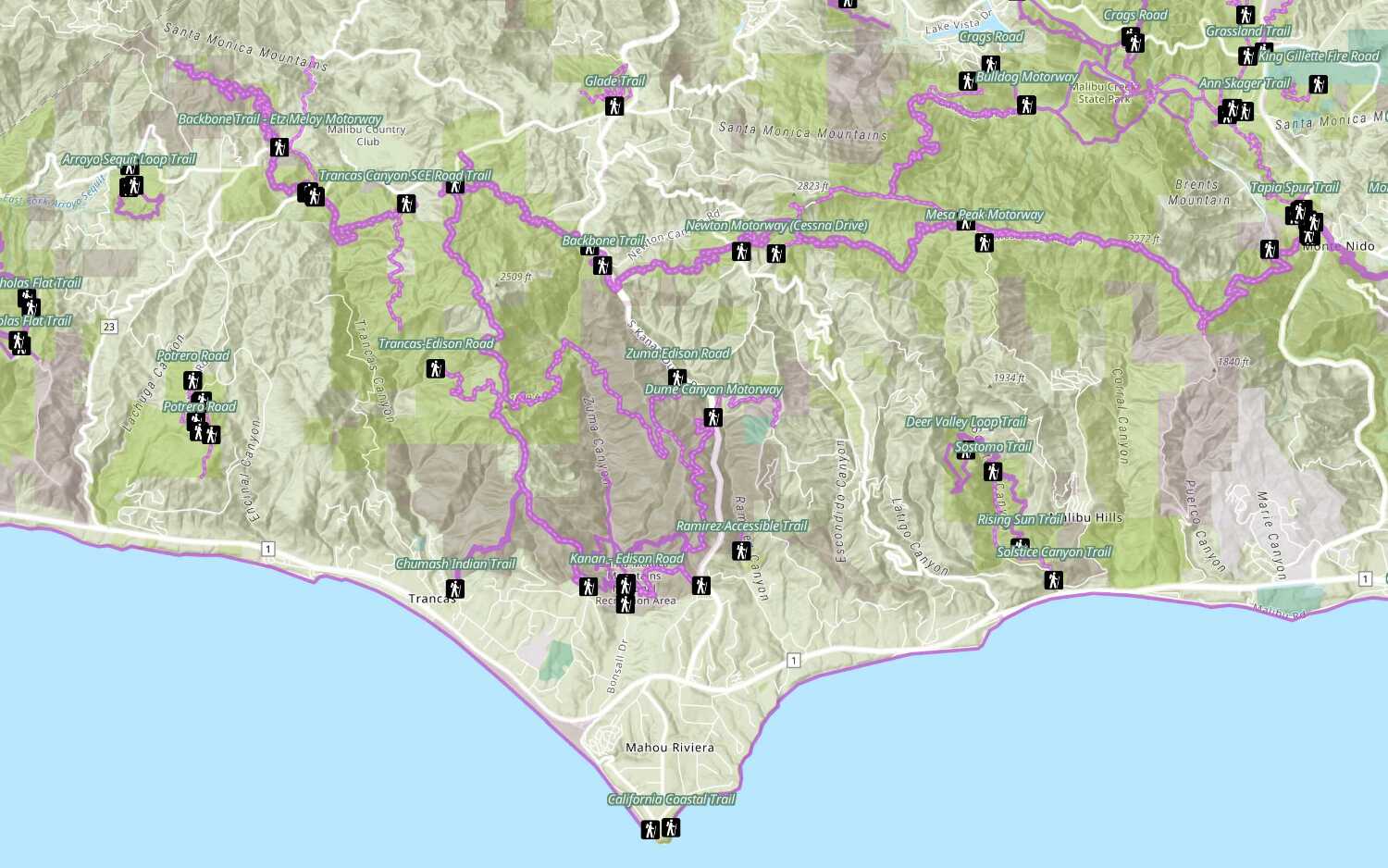
Add a feature layer
Access and display point, line, and polygon features from a feature service.
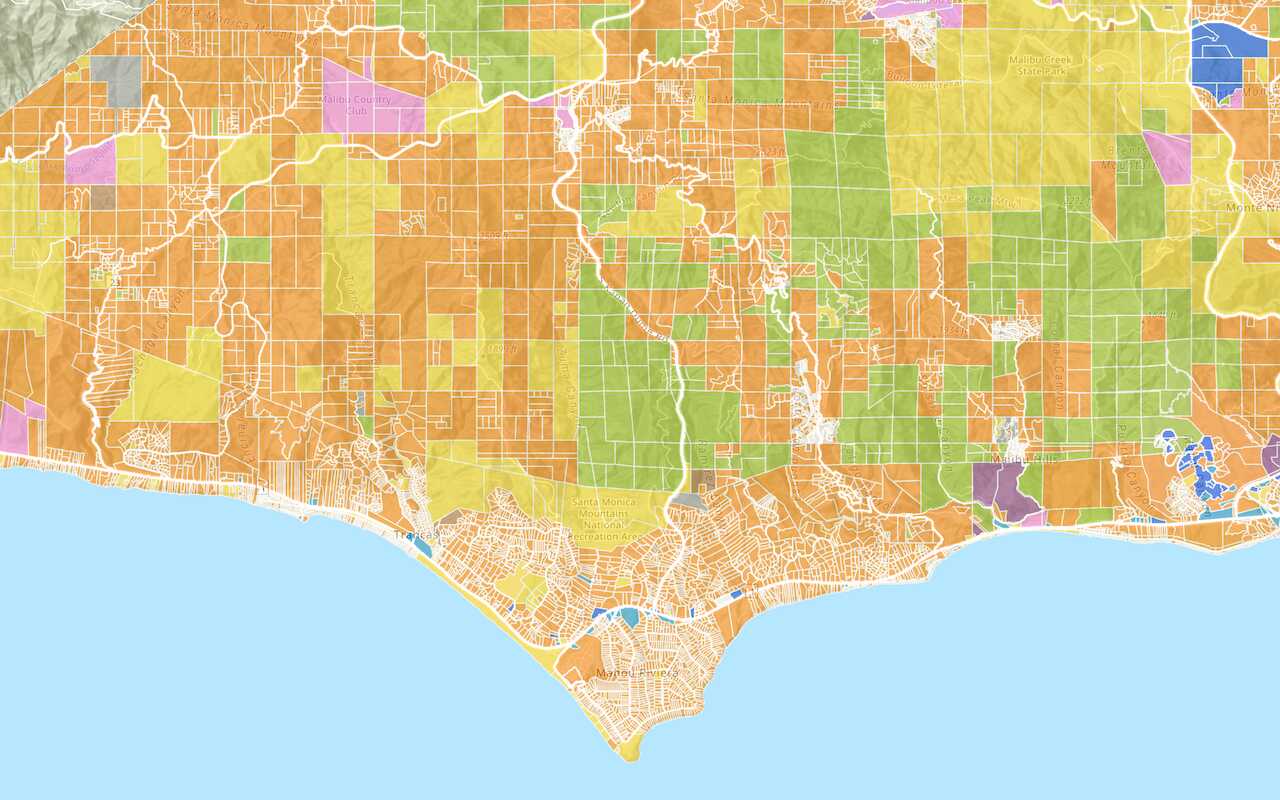
Add a vector tile layer

Add a map tile layer
Style a feature layer
Use symbols and renderers to style feature layers.
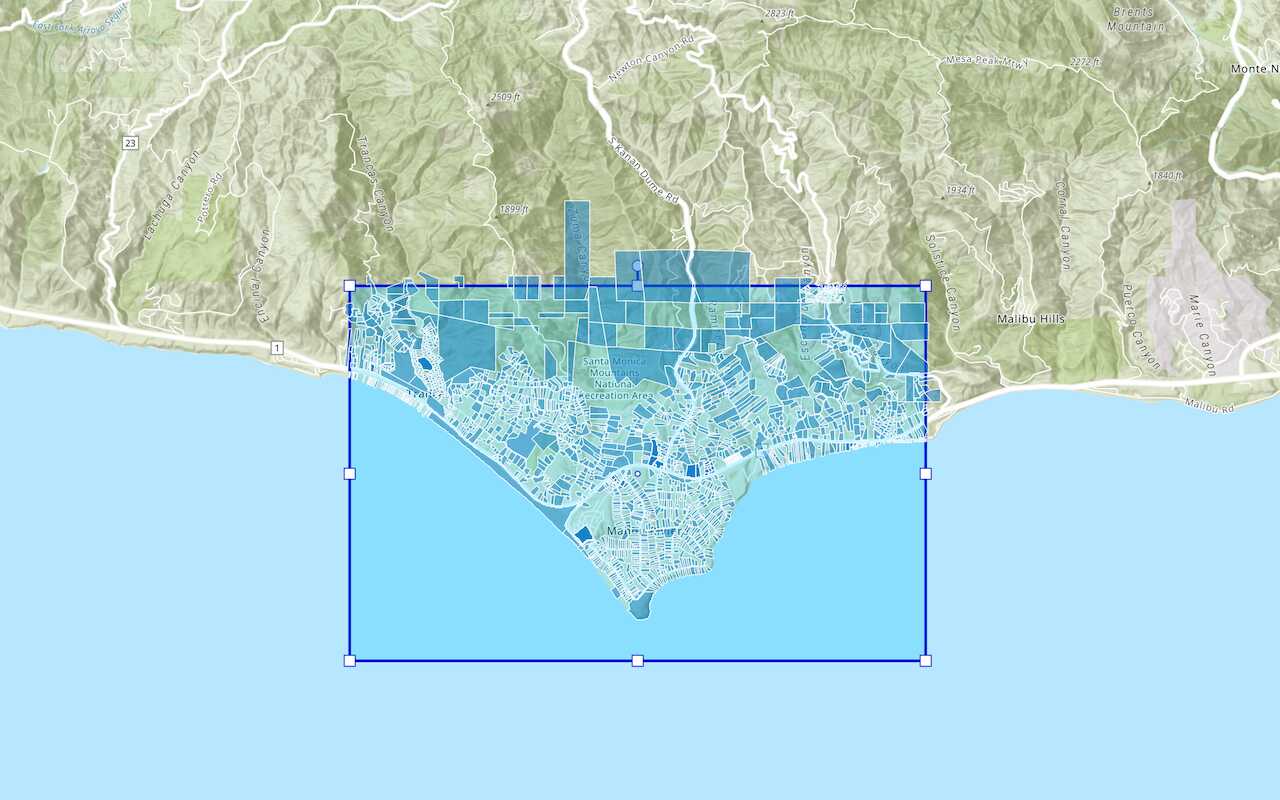
Query a feature layer (spatial)
Execute a spatial query to get features from a feature layer.
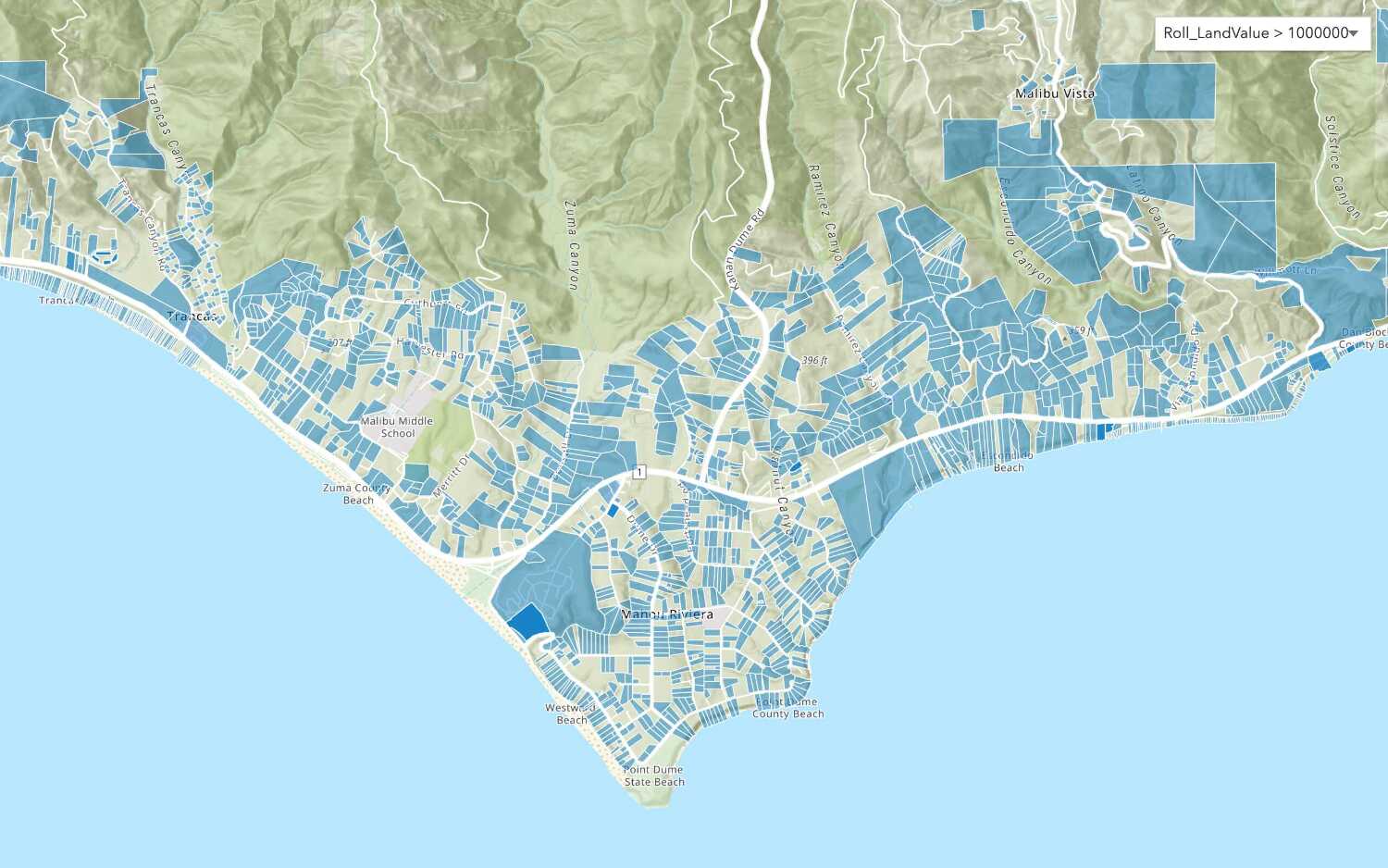
Query a feature layer (SQL)
Execute a SQL query to access polygon features from a feature layer.
Edit feature data

Display a popup
Format a popup to show attributes in a feature layer.
Workflows
Create a feature service for an app
Learn how to import parcel data, create and style a feature layer, and then access the features in an app.

Create a feature layer view for an editor app
Learn how to import parcel data, create and style a feature layer view, and then access the features in an editing app.

Create a vector tile service for an app
Learn how to import parcel data, style a feature layer, and then create a vector tile service for an app.

Create a map tile service for an app
Learn how to import contour data, style a feature layer, and create a map tile service for an app.

Services
Feature service
Add, update, delete, and query feature data.
Vector tile service
Store and access vector tile data.
Map tile service
Store and access map tile data.
Image service
Store and access imagery and raster data.
API support
Use data management tools
- 1. Use portal class and direct REST API requests
- 2. Access via ArcGIS REST JS
- 3. Requires manually setting styles for renderers
- 4. Limited to Feature Services