The composable FeatureForm in the ArcGIS Maps SDK for Kotlin Toolkit provides a ready-to-use form for editing attributes and attachments of one feature at a time. The toolkit component provides the following functionality:
- Displays the feature form UI in your app.
- Handles interactions between the user and the feature form.
- Displays validation errors below field form elements that are visible in the form.
- Evaluates Arcade expressions defined in the
expressionarray in the feature form definition. The expressions provide values for properties in theInfos formarray.Elements
Since the toolkit is open source, the component can be extended to meet any special UI requirements your app might have.
A typical composable feature form from the toolkit looks something like the following.
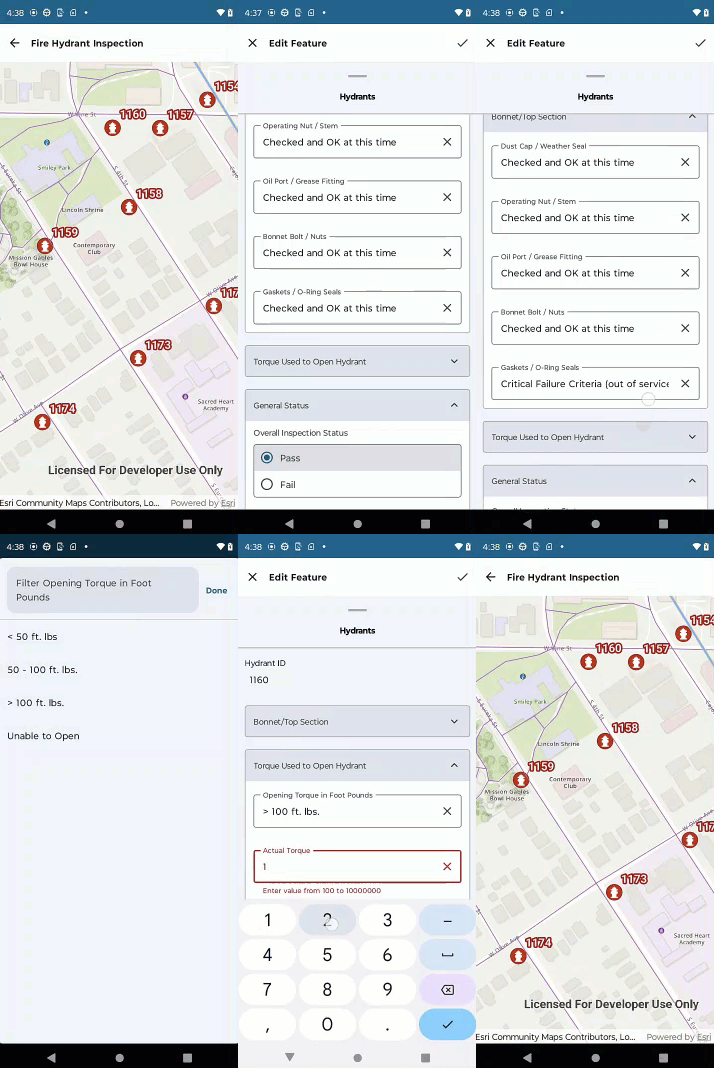
Using the toolkit component allows you to focus on intuitive editing workflows for your user, rather than the low-level details of creating an editing UI, handling user interaction, and validating input. Implementing an editing workflow using feature forms may follow a pattern like this:
- Create an instance of the
FeatureFormfrom the ArcGIS Maps SDK for Kotlin API. - Call the
FeatureFormcomposable from the ArcGIS Maps SDK for Kotlin toolkit. - Process errors before submitting edits.
- Save or discard edits.
- Persist edits.
Create a FeatureForm instance
Before using the toolkit component, you must create an instance of the FeatureForm class with the feature to be edited. The Feature class is defined in the ArcGIS Maps SDK for Kotlin API.
You can now create an instance of FeatureForm by passing in the feature.
// Create a FeatureForm instance using a feature.
val featureForm = FeatureForm(feature)
For ways to obtain a feature, see the Create a feature form instance section on the Overview page.
Call FeatureForm composable in toolkit
You display a feature form in your app by calling the FeatureForm composable, passing in an instance of FeatureFormState. The FeatureFormState constructor takes the FeatureForm instance you created above. The toolkit's feature form can be displayed in an Android Bottom or other view appropriate to your app design.
FeatureForm(
featureFormState = FeatureFormState(
featureForm = featureForm,
coroutineScope = scope
),
modifier = Modifier
.fillMaxSize()
.padding(top = 20.dp)
.navigationBarsPadding(),
validationErrorVisibility = ValidationErrorVisibility.Automatic,
onBarcodeButtonClick = { fieldFormElement -> /*Code that handles a barcode that has been acquired through a barcode scanner */ },
)
The validation parameter determines how errors are displayed in your feature form. The parameter must be passed when you call the composable. See Visibility of validation errors on the form.
The on parameter is a lambda that is invoked when a barcode or QR scanner attached to the user's device scans a barcode or QR code and returns the corresponding series of numbers and/or letters.
Visibility of validation errors on the form
The toolkit's feature form has built-in functionality to display input errors directly on the form. Each error displays adjacent to the element and describes which constraint has been violated. For example, if the user inputs a string that exceeds the maximum length as defined by the form definition author, a validation error such as the following is displayed:

The validation errors on the form can be displayed in one of two ways:
-
Interactively - Upon initial display of the feature form, no errors are visible. An error for a field form element can display only when the user brings focus to the element. If the element was saved with an error (for example, a required field was left empty), then tapping on the element will immediately display the error. Otherwise, an error displays after the user enters a value that violates constraints.
-
All at once - Upon initial display of the feature form, all errors are visible.
You control the visibility of errors on the form by the constant you pass when calling the composable FeatureForm from the toolkit. The available constants are Automatic and Visible in the toolkit's Toolkit_ValidationErrorVisibility sealed class. The Automatic constant displays validation errors interactively; this is the default. The Visible constant displays all validation errors at once.
Save and discard buttons
When you add the toolkit's FeatureForm, you will generally want to create at least two buttons: Discard and Save. For example, you can create text buttons or icon buttons directly above the feature form.
Process form errors before submitting edits
When users are ready to submit their feature form edits, your app logic can check for validation errors. If there are no such errors, the edits can be saved to the local geodatabase. If there are errors, your app can display the errors (for example, in a dialog) and require the user to fix them all. Alternatively, you can determine which errors must be fixed before saving and which can be temporarily ignored. This approach enables more flexible workflows, such as those that consist of two or more stages. For example, new features with default values could be edited in the first stage, automatically providing values for most fields but leaving other fields empty because the values are not yet available. The logic of processing validation errors is up to the needs of your users and the design goals of your app.
You retrieve errors for a feature form by calling FeatureForm.validationErrors. An error results from one or more violations of the constraints of a field form element as expressed by element's input type and the FieldFormElement.isRequired property. Validation errors are returned as a dictionary mapping from the field form element's field name (the key) to an array of errors (the value). An empty dictionary implies that that all form element values are valid. Note that errors are returned for all field form elements that are both visible and editable. The form author defines a form field element as visible using the visibility property and editable using the editable property in the feature form definition.
The list of errors for a field form element contains one or more of the exceptions declared in FeatureFormValidationErrorTypes:
- NullNotAllowedException - Non-nullable field set to null.
- MaxDateTimeConstraintException - Field value exceeds the allowed DateTime maximum.
- LessThanMinimumDateTimeException - Field value is less than allowed DateTime minimum.
- OutOfDomainException - Field value is not in the field's coded value domain.
- RequiredException - Field is required, but the value is null or empty.
- MinCharConstraintException - Field value is less than the allowed string length minimum.
- MaxCharConstraintException - Field value is less than the allowed string length maximum.
- MinNumericConstraintException - Field value is less than the allowed numeric minimum.
- MaxNumericConstraintException - Field value exceeds the allowed numeric maximum.
- IncorrectValueTypeException - Type of the value does not match type of the field.
- UnknownFeatureFormException - Unknown type of validation error.
Process all validation errors
The FeatureForm.validationErrors property returns errors for field form elements that are editable and currently visible on the form. In some cases, however, you may want to retrieve all errors, even those for elements that are currently hidden. To do so, you can access the validation errors for individual feature form elements:
Start by accessing FeatureForm.elements to get a collection of all the form elements in the feature form. Then iterate over the collection, filtering for FieldFormElement. For each field form element, call FieldFormElement.validationErrors, which will evaluate the element's Arcade expressions and any other relevant expressions and validate the field's value.
Save or discard edits
When a user is finished making edits in the form, you can allow them to either save their edits to the local geodatabase or discard them.
If the user chooses to save edits:
-
Retrieve the error validations for the feature form, or for each field form element.
-
If there are no errors or the current validation errors are acceptable, call
FeatureForm.finishEditing(). This will save the edits to the local geodatabase. -
Optionally, (perhaps when all feature editing is complete), persist the local edits to the feature service.
If the user decides that the edits in the form should not be saved to the local geodatabase, you can discard them:
- Call
FeatureForm.discardEdits(). - Notify the user that edits have been discarded.
Persist edits
When feature form edits are saved to the local geodatabase, they are preserved on the user's device. These edits are not stored with the associated feature service until they are explicitly persisted.
To persist all edits from your service geodatabase to its associated service feature.
- Get the
ServiceFeatureTablefrom theFeaturethat was edited. - Get the
ServiceGeodatabasefrom the table. - Get the service info with
ServiceGeodatabase.serviceInfoand then useArcGISFeatureServiceInfo.canUseServiceGeodatabaseApplyEditsto check that you can commit edits back to the feature service. - Call
ServiceGeodatabase.applyEdits()to commit the edits.
For more information, see the Persist edits topic in the Basic editing workflow section of this guide.
As part of your app design, you can decide when and how users save edits in the local database and ultimately persist them with the feature service. For example, your app could persist edits to the service each time an edit is made and saved locally, or you could wait until the user has completed all local edits (or a set of them) before persisting them to the service. Likewise, you can either let the user decide when edits are persisted (with a UI control, for example) or you can persist edits for them automatically.