You can use graphics
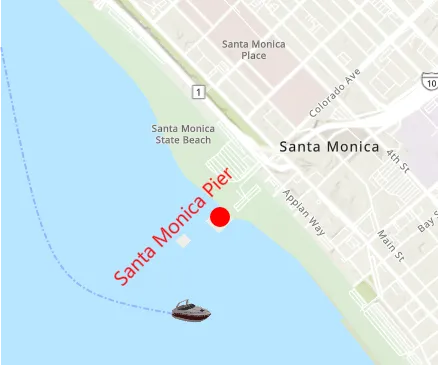
Graphics and graphics overlays allow you to do things like:
- Show updated locations for objects in the map view, such as moving vehicles.
- Display results from an analysis
Analysis is a systematic examination of a problem that provides new information. , geocodingGeocoding is the process of converting text for an address or place to a complete address with a location. , or routingA route is a polyline that defines the best path between two or more points in a street network. operation. - Allow the user to draw temporary sketches on top of the map.
- Store user input, such as a set of route stops
A stop is a single point along a route: it can be the origin, an intermediate stop, or destination. to visit. - Show ad hoc text labels to describe things on the map.
How graphics work
A map view has a graphics overlay collection that may contain zero or more graphics overlays
Graphics in map views and scene views
The pattern for working with graphics is the same whether in a map view
For more information about working with graphics in 3D, see Add graphics to a scene view.
Graphics overlays
A GraphicsOverlay is a container for temporary graphics
You can give each graphics overlay
The following code shows how to create a new graphics overlay, assign an ID, then add it to your map view.
// Add the graphic overlay to the geo view's graphics overlay collection.MainView.GraphicsOverlays.Add(graphicsOverlay);Later, you can access it from the map view’s graphics overlay collection using its ID.
// Get the points-of-interest graphics overlay using its ID.var poiGraphicsOverlay = MainView.GraphicsOverlays["PointsOfInterestGraphics"];Unlike a feature layer
For more information and a description of when to use each, see the Features and graphics topic.
Graphics
Graphics are created at run time and only persist for as long as the app is running. You can create them to show geocode
A Graphic uses the following to represent an object on the map view:
- Geometry: a point, line, or polygon that represents the object’s location and shape.
- Attributes: a collection of one or more pairs of fields and values that describe the object.
- Symbol: an object that controls the visual representation of the graphic’s geometry on the display.
Draw order (z-index)
A graphic’s z-index defines the draw order of that graphic within its graphics overlay. It is primarily intended for use when working with graphics in a 2D map view.
If the z-index is not set, the graphics will render in the order in which they were added to the graphics overlay
Work with graphics
Because they are both geoelements
Add a graphics overlay and a graphic
The following example shows how to create a graphics overlay
-
Create a new
GraphicsOverlay. -
Create a
Geometryto define the graphic’s shape and geographic location. -
Create a symbol
A symbol defines the properties used to display a geometry or text. to display the graphic.- You can also do this by defining a
Rendererfor the graphics overlayA graphics overlay is a client-side, temporary container of graphics to display on a map view or scene view. . See Styles and data visualization for more information about symbolizing geoelementsA geoelement refers to any geographic element in a map or map view that can be identified by its location to return attribute information. .
- You can also do this by defining a
-
Create a new
Graphicusing the geometry and symbol.- Optionally, you can define a set of attributes
Attributes are fields and values for a single feature or non-spatial record. They are typically stored in a database or service such as a feature service. for the graphicA graphic is a visual element composed of a geometry, symbol, and attributes that is displayed on a map or scene. .
- Optionally, you can define a set of attributes
-
Add the graphic to the graphics overlay.
-
Add the graphics overlay to the map view.
// Create a new graphics overlay.var graphicsOverlay = new GraphicsOverlay{    Id = "PointsOfInterestGraphics"};
// Create a new map point to define the graphic location.var pierPoint = new MapPoint(-118.4978, 34.0086, SpatialReferences.Wgs84);
// Create a new symbol for the graphic.var redCircleSymbol = new SimpleMarkerSymbol(SimpleMarkerSymbolStyle.Circle, System.Drawing.Color.Red, 20);
// Create a new graphic.var santaMonicaPierGraphic = new Graphic(pierPoint, redCircleSymbol);
// Add attribute values (if needed).santaMonicaPierGraphic.Attributes.Add("Name", "Santa Monica Pier");santaMonicaPierGraphic.Attributes.Add("type", "pier");
// Add the graphic to the graphics overlay's graphics collection.graphicsOverlay.Graphics.Add(santaMonicaPierGraphic);
// Add the graphic overlay to the geo view's graphics overlay collection.MainView.GraphicsOverlays.Add(graphicsOverlay);
Symbolize
A comprehensive API for creating and modifying symbols
There are two ways to symbolize a graphic
- Apply a symbol directly to the graphic. Graphics expose a symbol property that you can use to define the symbol.
- Apply a renderer to the graphics overlay. A renderer
A renderer is a collection of rules and symbols used to display the data in a layer. is a collection of one or more symbols that are applied to all graphics in the graphics overlay. A renderer allows you to do things like control symbology based on attributeAttributes are fields and values for a single feature or non-spatial record. They are typically stored in a database or service such as a feature service. values.
If you define a renderer for a graphics overlay, you do not need to assign symbols to the individual graphics it contains. Assigning a symbol directly to a graphic overrides the symbology defined by the renderer of the graphics overlay.
Display text
To display text on the map view as a graphic, create a graphic with a point, line, or polygon to define the location for your text. You can then provide a TextSymbol that defines the font, color, size, and text to display.
// Create a point to define text location (anchor point).var labelPoint = new MapPoint(-118.4978, 34.0086, 500, SpatialReferences.Wgs84);
// Create a text symbol to define the text, color, size, angle, alignment, and offsets.var textSymbol = new TextSymbol{    Text = "Santa Monica Pier",    Angle = -45,    Color = System.Drawing.Color.Red,    HaloColor = System.Drawing.Color.White,    Size = 20,    VerticalAlignment = Esri.ArcGISRuntime.Symbology.VerticalAlignment.Bottom,    OffsetX = -40,    OffsetY = 15};
// Create a graphic with the geometry and symbol.var labelGraphic = new Graphic(labelPoint, textSymbol);
Identify
A graphic can contain descriptive information in the form of attributes
The following example shows how you can identify a graphics overlay in response to a tap on the map view. An attribute (name) is shown in a callout next to the identified graphic.
MainView.GeoViewTapped += async (s, e) =>{    // Get the points of interest graphics overlay.    var pointsOfInterestOverlay = MainView.GraphicsOverlays["PointsOfInterestGraphics"];    if (pointsOfInterestOverlay == null) { return; }
    // Identify graphics in the points-of-interest overlay using the screen tap.    var screenPoint = e.Position;    var resultGraphics = await MainView.IdentifyGraphicsOverlayAsync(pointsOfInterestOverlay, screenPoint, 10, false);
    // Show name attribute value in a callout for the first graphic identified (if any).    if (resultGraphics != null && resultGraphics.Graphics.Count > 0)    {        var poiGraphic = resultGraphics.Graphics.FirstOrDefault();        var callout = new CalloutDefinition(poiGraphic)        {            Text = "Point of Interest",            DetailText = poiGraphic.Attributes["name"].ToString()        };        // Assuming that all POI graphics are points.        MapPoint calloutAnchor = poiGraphic.Geometry as MapPoint;        MainView.ShowCalloutAt(calloutAnchor, callout);    }};
Select
Select graphics to highlight them on the display. You can select zero, one, or several graphics in a graphics overlay. Each graphic’s selection state is represented with an IsSelected property that is either true or false.
The following example finds all graphics in the points of interest graphics overlay that have a “type” attribute of “pier” and selects them on the display.
// Get all graphics with a "type" attribute of "pier".var pierGraphics = poiGraphicsOverlay.Graphics.Where(g => g.Attributes["type"].ToString() == "pier");
// Select them all.foreach (var g in pierGraphics){    g.IsSelected = true;}
Move
To move a graphic, you only need to update its geometry. This is much more efficient than creating a new graphic and replacing the existing one. Updating a graphic’s geometry will cause it to immediately display at the new location. Use this technique to animate the display of moving geoelements
// Get the current location (point) of the graphic.var currentPosition = boatGraphic.Geometry as MapPoint;
// Define new x and y coordinates by applying an offset.var newX = currentPosition.X + deltaX;var newY = currentPosition.Y + deltaY;
// Update the point with the new coordinates (graphic will update to show new location).var updatedPosition = new MapPoint(newX, newY);boatGraphic.Geometry = updatedPosition;