Set the map view to a new viewpoint.
Use case
Programatically navigate to a specified location in the map or scene. Use this to focus on a particular point or area of interest.
How to use the sample
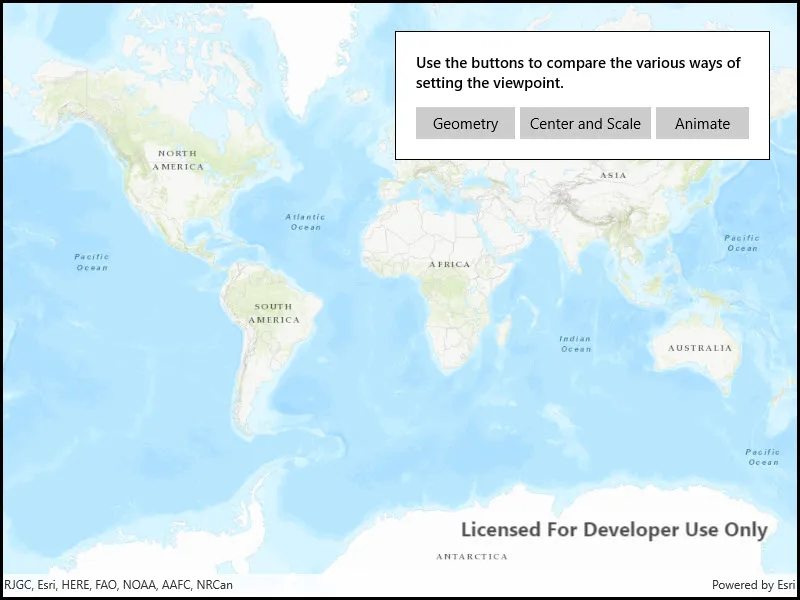
The map view has several methods for setting its current viewpoint. Select a viewpoint from the UI to see the viewpoint changed using that method.
How it works
- Create a new
Mapobject and set it to theMapViewobject. - Change the map’s
Viewpointusing one of the available methods:
- Use
MapView.SetViewpointAsync()to pan to a viewpoint. - Use
MapView.SetViewpointCenterAsync()to center the viewpoint on aPoint. - Use
MyMapView.SetViewpointScaleAsync()to set a distance from the ground using a scale. - Use
MapView.SetViewpointGeometryAsync()to set the viewpoint to a givenGeometry.
Relevant API
- Geometry
- Map
- MapView
- Point
- Viewpoint
Additional information
Below are some other ways to set a viewpoint:
- SetViewpoint
- SetViewpointAsync
- SetViewpointCenterAsync
- SetViewpointGeometryAsync
- SetViewpointRotationAsync
- SetViewpointScaleAsync
Tags
animate, extent, pan, rotate, scale, view, zoom
Sample code
// Copyright 2016 Esri.//// Licensed under the Apache License, Version 2.0 (the "License"); you may not use this file except in compliance with the License.// You may obtain a copy of the License at: http://www.apache.org/licenses/LICENSE-2.0//// Unless required by applicable law or agreed to in writing, software distributed under the License is distributed on an// "AS IS" BASIS, WITHOUT WARRANTIES OR CONDITIONS OF ANY KIND, either express or implied. See the License for the specific// language governing permissions and limitations under the License.
using Esri.ArcGISRuntime.Geometry;using Esri.ArcGISRuntime.Mapping;using Microsoft.UI.Xaml;using Microsoft.UI.Xaml.Controls;using System;using System.Collections.Generic;using System.Linq;
namespace ArcGIS.WinUI.Samples.ChangeViewpoint{    [ArcGIS.Samples.Shared.Attributes.Sample(        name: "Change viewpoint",        category: "MapView",        description: "Set the map view to a new viewpoint.",        instructions: "The map view has several methods for setting its current viewpoint. Select a viewpoint from the UI to see the viewpoint changed using that method.",        tags: new[] { "animate", "extent", "pan", "rotate", "scale", "view", "zoom" })]    public partial class ChangeViewpoint    {        // Coordinates for London        private MapPoint _londonCoords = new MapPoint(            -13881.7678417696, 6710726.57374296, SpatialReferences.WebMercator);        private double _londonScale = 8762.7156655228955;
        // Coordinates for Redlands        private Polygon _redlandsEnvelope = new Polygon(            new List<MapPoint>                {                    new MapPoint(-13049785.1566222, 4032064.6003424),                    new MapPoint(-13049785.1566222, 4040202.42595729),                    new MapPoint(-13037033.5780234, 4032064.6003424),                    new MapPoint(-13037033.5780234, 4040202.42595729)                },            SpatialReferences.WebMercator);
        // Coordinates for Edinburgh        private Polygon _edinburghEnvelope = new Polygon(            new List<MapPoint>            {                new MapPoint(-354262.156621384, 7548092.94093301),                new MapPoint(-354262.156621384, 7548901.50684376),                new MapPoint(-353039.164455303, 7548092.94093301),                new MapPoint(-353039.164455303, 7548901.50684376)},            SpatialReferences.WebMercator);
        public ChangeViewpoint()        {            InitializeComponent();
            // Create the UI, setup the control references and execute initialization            Initialize();        }
        private void Initialize()        {            // Create new Map with basemap            Map myMap = new Map(BasemapStyle.ArcGISTopographic);
            // Assign the map to the MapView            MyMapView.Map = myMap;        }
        private async void OnButtonClick(object sender, RoutedEventArgs e)        {            try            {                // Get .Content from the selected item                Button myButton = (Button)sender;                string selectedMapTitle = myButton.Content.ToString();
                switch (selectedMapTitle)                {                    case "Geometry":
                        // Set Viewpoint using Redlands envelope defined above and a padding of 20                        await MyMapView.SetViewpointGeometryAsync(_redlandsEnvelope, 20);                        break;
                    case "Center and Scale":
                        // Set Viewpoint so that it is centered on the London coordinates defined above                        await MyMapView.SetViewpointCenterAsync(_londonCoords);
                        // Set the Viewpoint scale to match the specified scale                        await MyMapView.SetViewpointScaleAsync(_londonScale);                        break;
                    case "Animate":
                        // Navigate to full extent of the first baselayer before animating to specified geometry                        await MyMapView.SetViewpointAsync(                            new Viewpoint(MyMapView.Map.Basemap.BaseLayers.First().FullExtent));
                        // Create a new Viewpoint using the specified geometry                        Viewpoint viewpoint = new Viewpoint(_edinburghEnvelope);
                        // Set Viewpoint of MapView to the Viewpoint created above and animate to it using a timespan of 5 seconds                        await MyMapView.SetViewpointAsync(viewpoint, TimeSpan.FromSeconds(5));                        break;
default: break; } } catch (Exception ex) { await new MessageDialog2(ex.ToString(), "Error").ShowAsync(); } } }}<UserControl x:Class="ArcGIS.WinUI.Samples.ChangeViewpoint.ChangeViewpoint" xmlns="http://schemas.microsoft.com/winfx/2006/xaml/presentation" xmlns:x="http://schemas.microsoft.com/winfx/2006/xaml" xmlns:esriUI="using:Esri.ArcGISRuntime.UI.Controls"> <Grid> <esriUI:MapView x:Name="MyMapView" /> <Border Width="375" Margin="30" Padding="20" HorizontalAlignment="Right" VerticalAlignment="Top" Background="White" BorderBrush="Black" BorderThickness="1"> <Grid> <Grid.RowDefinitions> <RowDefinition Height="Auto" /> <RowDefinition Height="Auto" /> </Grid.RowDefinitions> <Grid.ColumnDefinitions> <ColumnDefinition Width="*" /> <ColumnDefinition Width="Auto" /> <ColumnDefinition Width="*" /> </Grid.ColumnDefinitions> <TextBlock Grid.Row="0" Grid.Column="0" Grid.ColumnSpan="3" Margin="0,0,0,5" FontWeight="SemiBold" Text="Use the buttons to compare the various ways of setting the viewpoint." TextWrapping="Wrap" /> <Button Grid.Row="1" Grid.Column="0" Margin="0,10,0,0" HorizontalAlignment="Stretch" Click="OnButtonClick" Content="Geometry" /> <Button Grid.Row="1" Grid.Column="1" Margin="5,10,0,0" HorizontalAlignment="Stretch" Click="OnButtonClick" Content="Center and Scale" RelativePanel.RightOf="GeomButton" /> <Button Grid.Row="1" Grid.Column="2" Margin="5,10,0,0" HorizontalAlignment="Stretch" Click="OnButtonClick" Content="Animate" RelativePanel.RightOf="ScaleButton" /> </Grid> </Border> </Grid></UserControl>