Create graphics from an XML file with key-value pairs for each graphic, and display the military symbols using a MIL-STD-2525D web style in 2D.
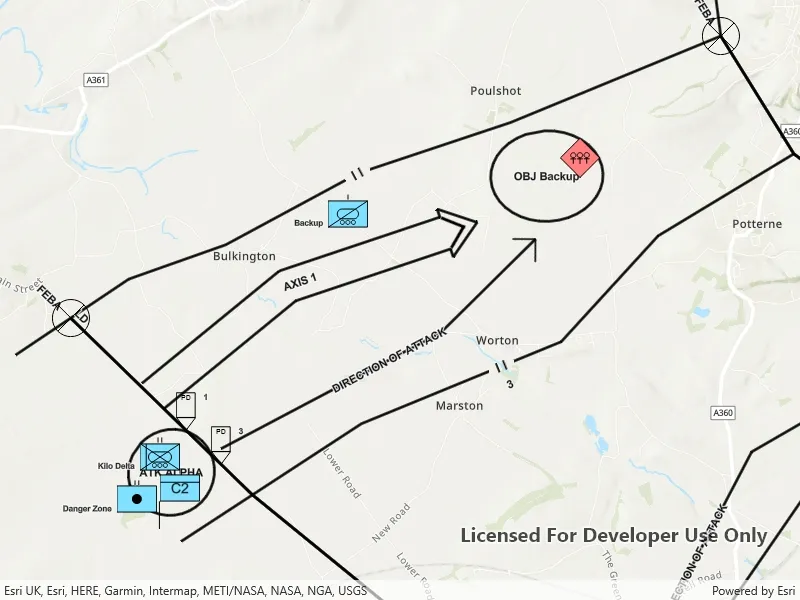
Use case
Use a dictionary renderer on a graphics overlay to display more transient data, such as military messages coming through a local tactical network.
How to use the sample
Pan and zoom to explore military symbols on the map.
How it works
- Create a new
DictionarySymbolStyleusing a MIL-STD-2525D dictionary web style. - Create a new
DictionaryRendererfrom the dictionary symbol style. - Create a new
GraphicsOverlay. - Set the dictionary renderer to the graphics overlay.
- Parse through the XML and create a graphic for each element.
- Use the
_wkidkey to get the geometry’s spatial reference. - Use the
_control_pointskey to get the geometry’s shape. - Create a geometry using the shape and spatial reference from above.
- Create a
Graphicfor each attribute, utilizing it’s defined geometry. - Add the graphic to the graphics overlay.
Relevant API
- DictionaryRenderer
- DictionarySymbolStyle
- GraphicsOverlay
Offline data
This sample uses the MIL-STD-2525D XML Message File hosted on ArcGIS Online.
About the data
The dictionary symbol style in this sample is constructed from a portal item containing a MIL-STD-2525D symbol dictionary web style. This ArcGIS Web Style is used to build custom applications that incorporate the MIL-STD-2525D symbol dictionary. This style supports a configuration for modeling locations as ordered anchor points or full geometries.
Tags
defense, military, situational awareness, tactical, visualization
Sample code
// Copyright 2019 Esri.//// Licensed under the Apache License, Version 2.0 (the "License"); you may not use this file except in compliance with the License.// You may obtain a copy of the License at: http://www.apache.org/licenses/LICENSE-2.0//// Unless required by applicable law or agreed to in writing, software distributed under the License is distributed on an// "AS IS" BASIS, WITHOUT WARRANTIES OR CONDITIONS OF ANY KIND, either express or implied. See the License for the specific// language governing permissions and limitations under the License.
using ArcGIS.Samples.Managers;using Esri.ArcGISRuntime.Geometry;using Esri.ArcGISRuntime.Mapping;using Esri.ArcGISRuntime.Symbology;using Esri.ArcGISRuntime.UI;using System;using System.Collections.Generic;using System.Linq;using System.Threading.Tasks;using System.Xml.Linq;
namespace ArcGIS.WinUI.Samples.DictionaryRendererGraphicsOverlay{    [ArcGIS.Samples.Shared.Attributes.Sample(        name: "Dictionary renderer with graphics overlay",        category: "GraphicsOverlay",        description: "Create graphics from an XML file with key-value pairs for each graphic, and display the military symbols using a MIL-STD-2525D web style in 2D.",        instructions: "Pan and zoom to explore military symbols on the map.",        tags: new[] { "defense", "military", "situational awareness", "tactical", "visualization" })]    [ArcGIS.Samples.Shared.Attributes.OfflineData("8776cfc26eed4485a03de6316826384c")]    public partial class DictionaryRendererGraphicsOverlay    {        // Hold a reference to the graphics overlay for easy access.        private GraphicsOverlay _tacticalMessageOverlay;
        public DictionaryRendererGraphicsOverlay()        {            InitializeComponent();            _ = Initialize();        }
        private async Task Initialize()        {            try            {                MyMapView.Map = new Map(BasemapStyle.ArcGISTopographic);
                // Create an overlay for visualizing tactical messages and add it to the map.                _tacticalMessageOverlay = new GraphicsOverlay();                MyMapView.GraphicsOverlays.Add(_tacticalMessageOverlay);
                // Prevent graphics from showing up when zoomed too far out.                _tacticalMessageOverlay.MinScale = 1000000;
                // Create the dictionary symbol style from the Joint Military Symbology MIL-STD-2525D portal item.                var symbolStyleUri = new Uri("https://www.arcgis.com/home/item.html?id=d815f3bdf6e6452bb8fd153b654c94ca");                DictionarySymbolStyle dictionarySymbolStyle = await DictionarySymbolStyle.OpenAsync(symbolStyleUri);
                // Find the first configuration setting which has the property name "model", and set its value to "ORDERED ANCHOR POINTS".                if (dictionarySymbolStyle?.Configurations?.FirstOrDefault(config => config.Name == "model") is DictionarySymbolStyleConfiguration configuration)                {                    configuration.Value = "ORDERED ANCHOR POINTS";                }
                // Create a new dictionary renderer from the dictionary symbol style to render graphics with symbol dictionary attributes and set it to the graphics overlay renderer.                _tacticalMessageOverlay.Renderer = new DictionaryRenderer(dictionarySymbolStyle);
                // Parse graphic attributes from an XML file following the mil2525d specification.                LoadMilitaryMessages();
                // Get the extent of the graphics.                Envelope graphicExtent = GeometryEngine.CombineExtents(_tacticalMessageOverlay.Graphics.Select(graphic => graphic.Geometry));
                // Zoom to the extent of the graphics.                await MyMapView.SetViewpointGeometryAsync(graphicExtent, 10);            }            catch (Exception ex)            {                await new MessageDialog2(ex.Message, ex.GetType().Name).ShowAsync();            }        }
        private void LoadMilitaryMessages()        {            // Get the path to the messages file.            string militaryMessagePath = DataManager.GetDataFolder("8776cfc26eed4485a03de6316826384c", "Mil2525DMessages.xml");
            // Load the XML document.            XElement xmlRoot = XElement.Load(militaryMessagePath);
            // Get all of the messages.            IEnumerable<XElement> messages = xmlRoot.Descendants("message");
            // Add a graphic for each message.            foreach (var message in messages)            {                Graphic messageGraphic = GraphicFromAttributes(message.Descendants().ToList());                _tacticalMessageOverlay.Graphics.Add(messageGraphic);            }        }
        private Graphic GraphicFromAttributes(List<XElement> graphicAttributes)        {            // Get the geometry and the spatial reference from the message elements.            XElement geometryAttribute = graphicAttributes.First(attr => attr.Name == "_control_points");            XElement spatialReferenceAttr = graphicAttributes.First(attr => attr.Name == "_wkid");
            // Split the geometry field into a list of points.            Array pointStrings = geometryAttribute.Value.Split(';');
            // Create a point collection in the correct spatial reference.            int wkid = Convert.ToInt32(spatialReferenceAttr.Value);            SpatialReference pointSR = SpatialReference.Create(wkid);            PointCollection graphicPoints = new PointCollection(pointSR);
            // Add a point for each point in the list.            foreach (string pointString in pointStrings)            {                var coords = pointString.Split(',');                graphicPoints.Add(Convert.ToDouble(coords[0]), Convert.ToDouble(coords[1]));            }
            // Create a multipoint from the point collection.            Multipoint graphicMultipoint = new Multipoint(graphicPoints);
            // Create the graphic from the multipoint.            Graphic messageGraphic = new Graphic(graphicMultipoint);
            // Add all of the message's attributes to the graphic (some of these are used for rendering).            foreach (XElement attr in graphicAttributes)            {                messageGraphic.Attributes[attr.Name.ToString()] = attr.Value;            }
return messageGraphic; } }}<UserControl x:Class="ArcGIS.WinUI.Samples.DictionaryRendererGraphicsOverlay.DictionaryRendererGraphicsOverlay" xmlns="http://schemas.microsoft.com/winfx/2006/xaml/presentation" xmlns:x="http://schemas.microsoft.com/winfx/2006/xaml" xmlns:esriUI="using:Esri.ArcGISRuntime.UI.Controls"> <Grid> <esriUI:MapView x:Name="MyMapView" /> </Grid></UserControl>